Prerequisites
- You must be logged in to Arkan with a valid user account (see Getting Started)
- A project must be selected before accessing the Meetings module
- Your user role must have Meeting permissions assigned by the system administrator
- To manage attendance, minutes, and decisions you must be assigned as an Organizer, Chairperson, or Minute Taker on the meeting
Overview
The Meetings module provides a complete lifecycle for managing project meetings -- from scheduling and agenda preparation through live facilitation, attendance tracking, decision recording, and official minutes publication. Key capabilities include:
- Meeting Scheduling with recurring patterns (daily, weekly, bi-weekly, monthly)
- Meeting Templates for standardizing recurring meeting types
- Carry Forward of unresolved agenda items and open action items from previous meetings
- Live Meeting Room with a real-time timer, agenda-driven discussion flow, and inline decision/action recording
- Attendance Tracking with bulk marking, QR code check-in, and per-attendee notes
- Agenda Management with a proposal pool, accept/reject workflow, reordering, and carry-forward
- Decisions Register linking decisions to impact types and other project modules
- Action Items Tracker across all project meetings with status, priority, and overdue filtering
- Three-tier Minutes System: Official Minutes (versioned, lockable, PDF export), Company Minutes (per-company with include-in-official workflow), and Internal Notes (private per-user)
- ICS Calendar Download and full-calendar view with month/week/day modes
- PDF Export for official minutes and company minutes reports
Navigation
Access the Meetings module by clicking Sidebar > Meetings. This opens the Meeting Dashboard, which serves as the main hub with five tabs:
| Tab | Description |
|---|---|
| Dashboard | KPI cards, charts (meetings by status, action items by company), and upcoming meetings table |
| Meetings | Paginated grid of all meetings with filters, search, and CRUD actions |
| Calendar | Full-calendar view (month, week, day) with color-coded meeting events |
| Action Items | Cross-meeting action items tracker with status and overdue filters |
| Templates | Meeting template library with create, edit, delete, and set-default actions |
Meeting Dashboard
Navigate to Sidebar > Meetings. The Dashboard tab is selected by default.
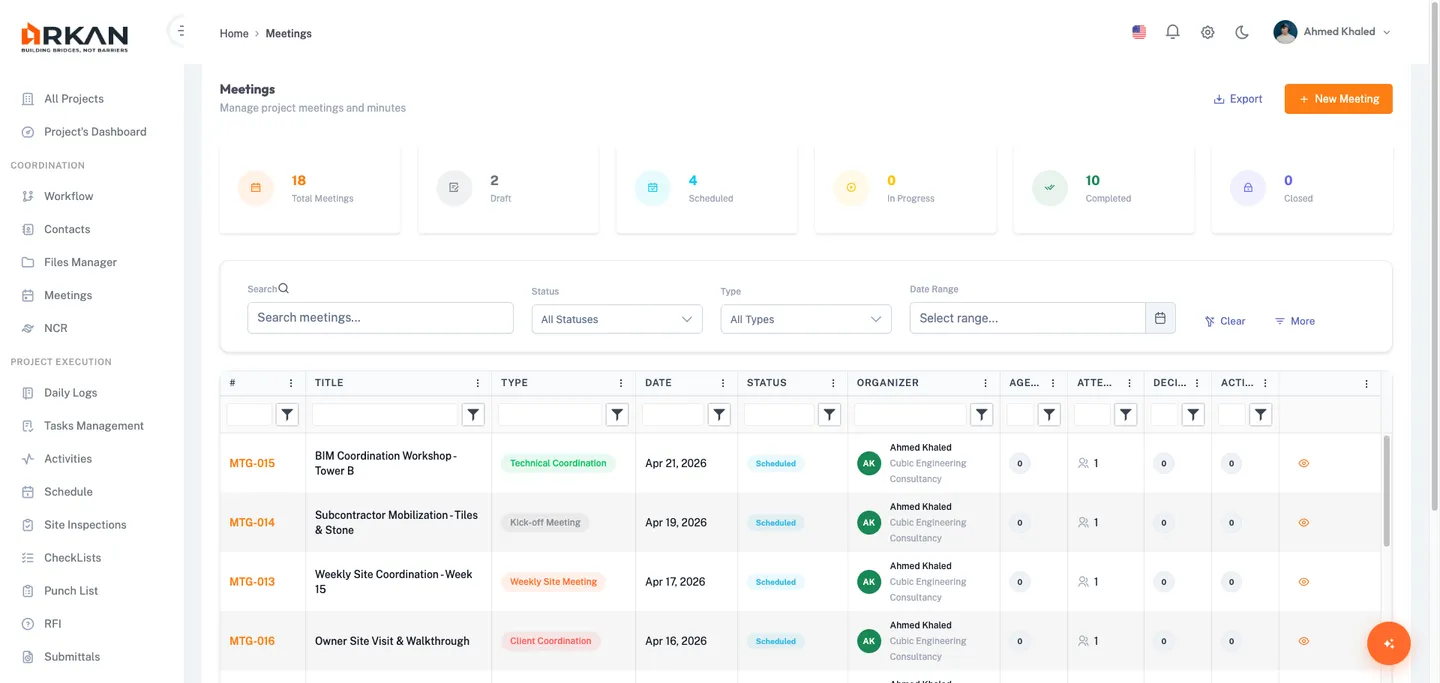
KPI Cards
| Card | Description |
|---|---|
| Total Meetings | Count of all meetings in the project |
| Scheduled | Meetings with status Scheduled |
| Open Action Items | Action items that are Open or In Progress across all meetings |
| Overdue Action Items | Action items that are past their due date |
| Completed | Meetings that have been completed |
| Cancelled | Meetings that were cancelled |
| Total Action Items | Total count of all action items across the project |
Charts
- Meetings by Status -- A donut chart breaking down Scheduled, Completed, and Cancelled meetings.
- Action Items by Company -- A grouped bar chart showing Open, Completed, and Overdue action items per company.
Upcoming Meetings Table
A table lists the next 10 upcoming meetings (sorted by date ascending) with columns: Meeting number, Title, Type, Date, Organizer, and Status. Click any row to navigate to that meeting's workspace.
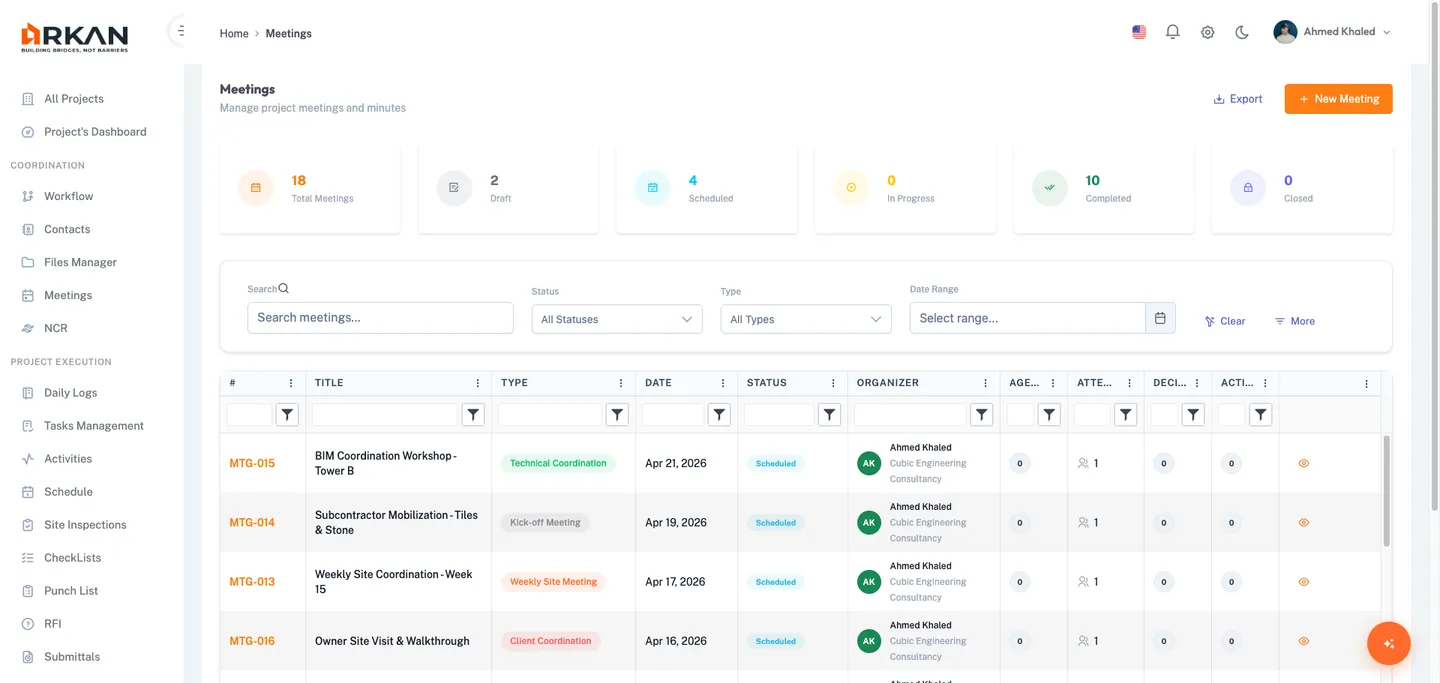
Meeting List
Click the Meetings tab on the dashboard.
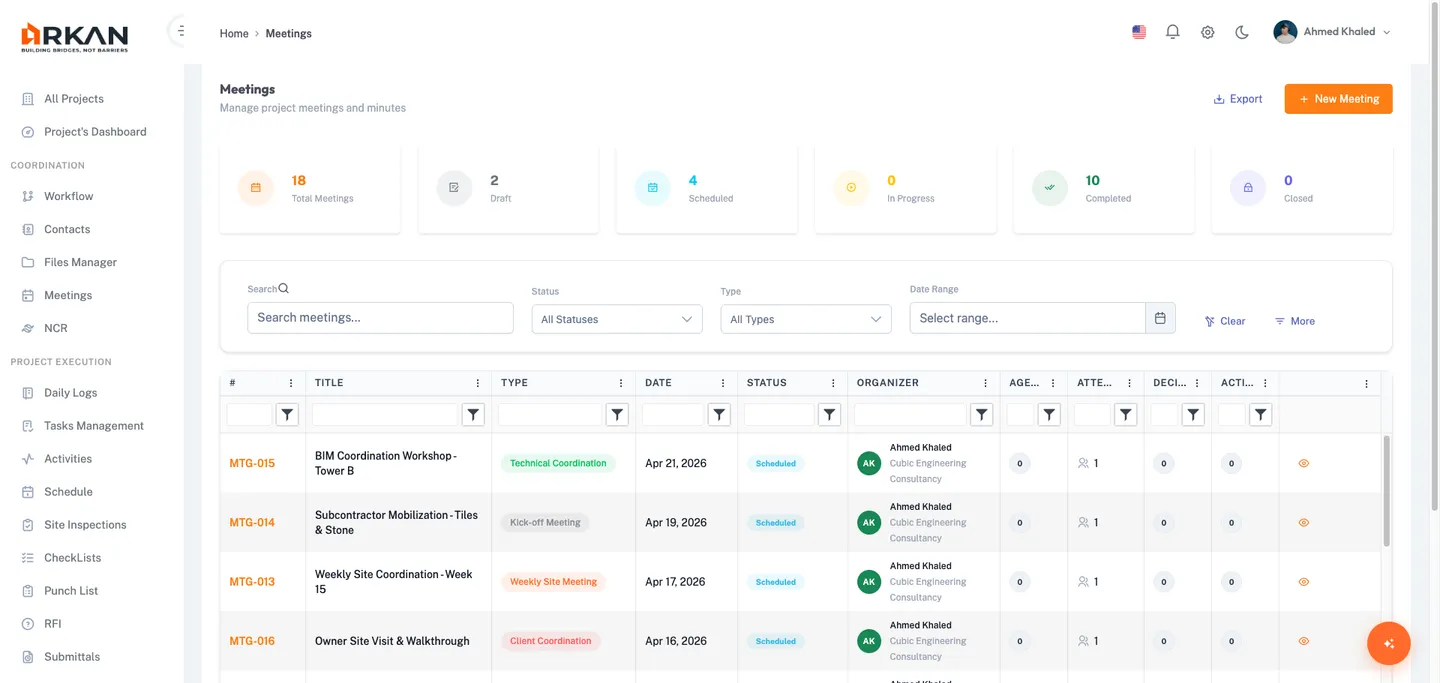
Stat cards at the top show: Total Meetings, Draft, Scheduled, In Progress, Completed, and Closed counts.
Filtering
| Filter | Description |
|---|---|
| Search | Free-text search across meeting titles and numbers |
| Status | Draft, Scheduled, In Progress, Completed, Cancelled, Closed |
| Type | Weekly Site Meeting, Safety Meeting, Technical Coordination, Progress Review, Client Coordination, Design Review, Kick-off Meeting, Close-out Meeting, Emergency Meeting, Other |
| Date Range | Filter meetings by scheduled date |
Grid Columns
| Column | Description |
|---|---|
| # | Meeting number formatted as MTG-001 |
| Title | Meeting title (click to open workspace) |
| Type | Color-coded meeting type pill badge |
| Date | Scheduled date |
| Status | Color-coded status badge |
| Organizer | Organizer name with avatar |
| Agenda / Attendees / Decisions / Actions | Counts for each |
| Actions | View, Edit (Draft only), Delete (Draft only) |
Tip: Only meetings in Draft status can be edited or deleted. Once scheduled or in progress, use the workspace to manage it.
Creating a Meeting
Click the New Meeting button from the Meeting List or Calendar view.
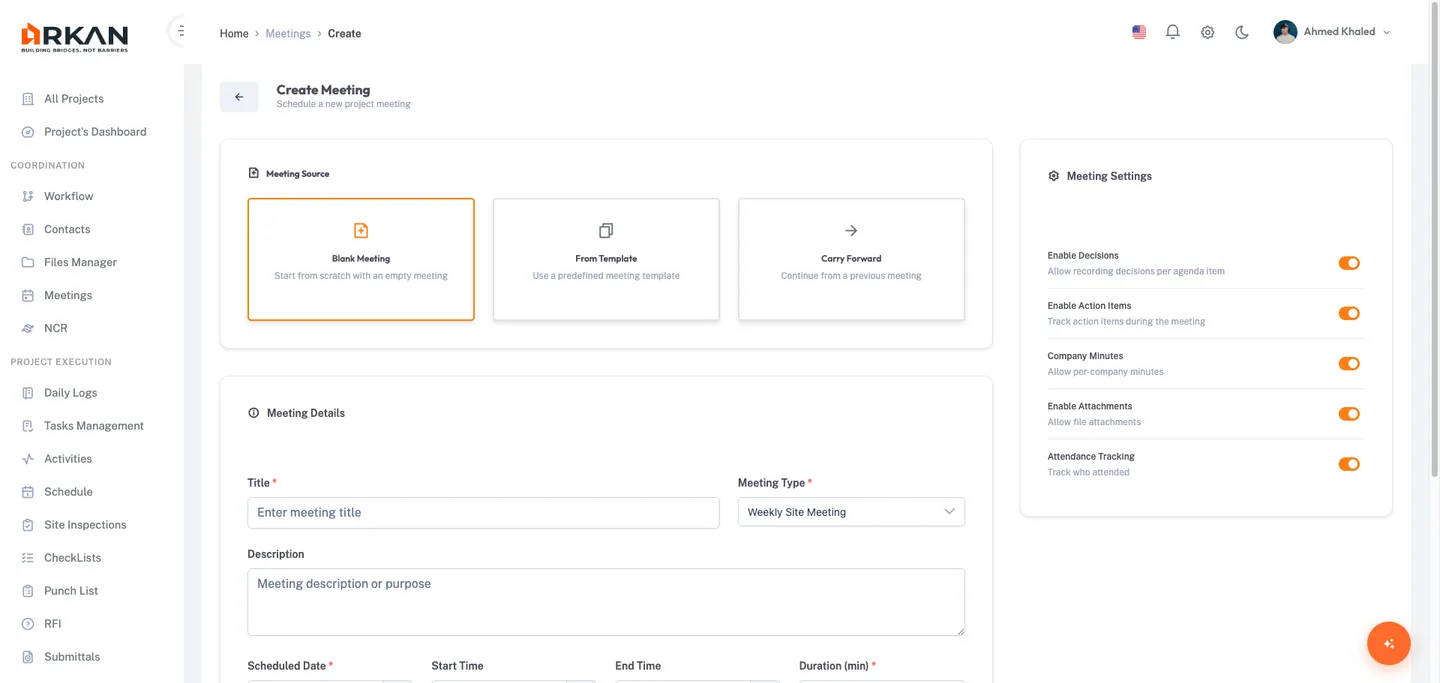
Step 1: Choose a Meeting Source
| Source | Description |
|---|---|
| Blank Meeting | Start from scratch |
| From Template | Use a predefined template. A preview panel shows the template's agenda items and settings. |
| Carry Forward | Continue from a completed/closed meeting. Unresolved agenda items and open action items carry forward automatically. |
Step 2: Fill in Meeting Details
| Field | Required | Description |
|---|---|---|
| Title | Yes | Meeting title, up to 200 characters |
| Meeting Type | Yes | Dropdown with 10 types |
| Description | No | Purpose of the meeting |
| Scheduled Date | Yes | Date picker |
| Start / End Time | No | Duration auto-calculates when both are set |
| Duration (min) | Yes | 15-480 minutes, increments of 15. Default: 60 |
| Recurrence | No | None, Daily, Weekly, Bi-Weekly, Monthly |
| Location | No | Meeting room or venue |
| Online Link | No | Teams, Zoom, or other meeting link |
Meeting Settings (Right Panel)
Toggle switches: Enable Decisions (on), Enable Action Items (on), Company Minutes (on), Enable Attachments (on), Attendance Tracking (on).
Click Create Meeting to save and go to the workspace. Click Cancel to discard and return to the meeting list.
Tip: When using the From Template source, a template preview panel appears on the right showing the template name, description, duration, location, and all pre-defined agenda items.
Editing a Meeting
Only meetings in Draft status can be edited. Click the Edit (pencil) icon on the meeting list grid, or click Edit from the meeting workspace header.
The edit form is identical to the create form except:
- The meeting source section is hidden
- The page title shows "Edit Meeting"
- The save button reads "Update Meeting"
Warning: A route guard prevents editing meetings that are not in Draft status. If you navigate directly to the edit URL for a non-draft meeting, you will be redirected to the meeting workspace.
Meeting Workspace
The workspace is the central hub for a single meeting. Navigate by clicking a meeting number or title from any list view.
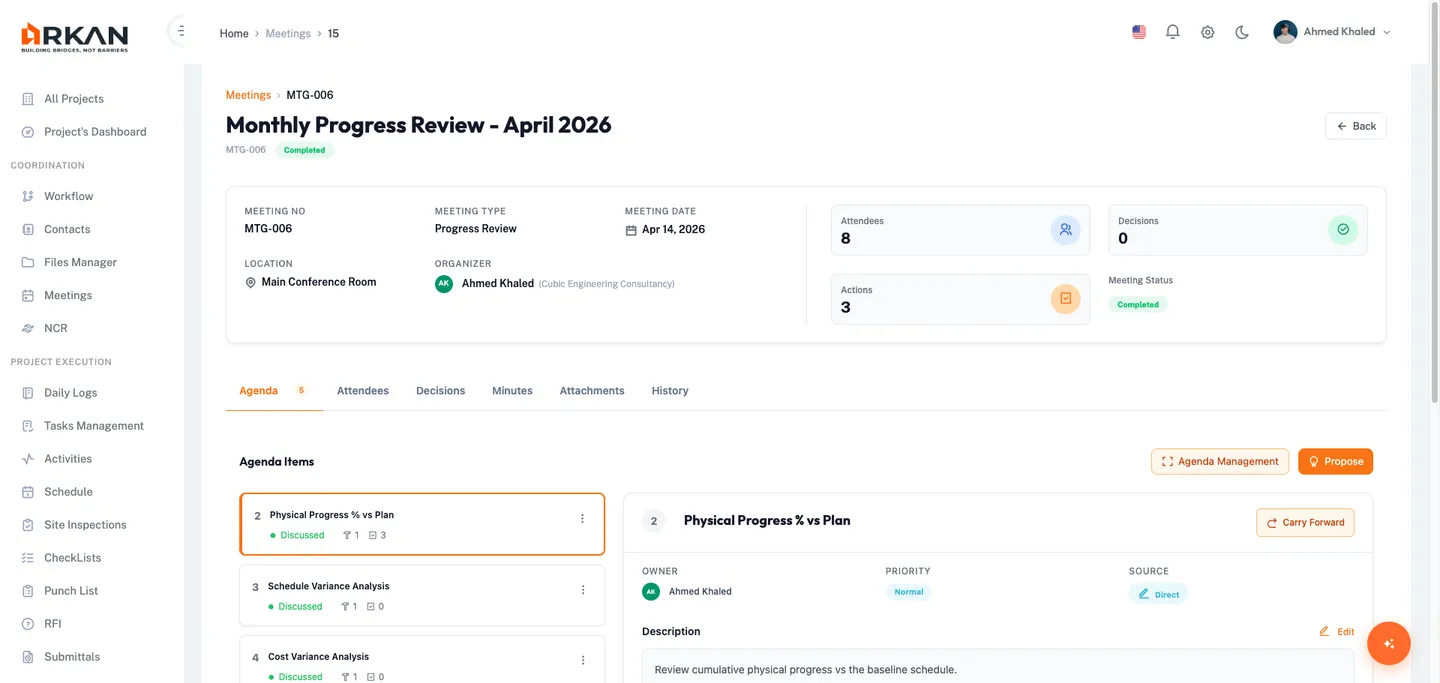
Header Actions
| Button | Shown When | Role Required |
|---|---|---|
| Edit | Draft | Organizer |
| Schedule | Draft | Organizer |
| Start Meeting | Scheduled | Organizer or Chairperson |
| Meeting Room | In Progress | Any attendee |
| Complete | In Progress | Organizer or Chairperson |
| Cancel | Draft or Scheduled | Organizer |
RSVP Banner
If you are an attendee (not the organizer) and your response is still Pending, a banner appears allowing you to Accept, Decline, or mark as Tentative.
Workspace Tabs
- Agenda -- Official agenda items with status badges, source badges (Direct, Pool, Carried Forward, Template), discussion notes, decisions, and carry-forward actions.
- Attendees -- Attendee grid with roles and RSVP status, plus attendance tracking (Present, Absent, Late, Left Early) with bulk save and QR code check-in.
- Decisions -- All decisions across agenda items with type badges (Approved, Rejected, Deferred, For Information, Action Required) and impact types.
- Minutes -- Links to Official Minutes, Company Minutes, and Internal Notes with status indicators.
- Attachments -- Uploaded files with multi-file upload support.
- History -- Chronological timeline of meeting events.
Meeting Room
The Meeting Room is an immersive, real-time interface for meetings that are In Progress. Access via Meeting Room button or the URL /meetings/:meetingId/room.
Header Bar
- Live timer showing elapsed duration (HH:MM:SS) with pause/resume
- End Meeting and Export buttons
Three-Panel Layout
Left Panel: Agenda Sidebar -- Scrollable list of agenda items with status badges. Click to select; active item highlighted with orange accent.
Center Panel: Discussion Area -- For the selected item: rich text editor for discussion notes, decision controls (type, impact type, decision text), and lists of decisions and action items for that item.
Right Panel: Summary Sidebar -- Progress bar, all decisions list, and all action items list with quick-add capability.
Key Actions
- Add/save discussion notes and decisions per agenda item
- Add, edit, delete decisions and action items
- Link decisions/actions to other modules (Task, RFI, Submittal, Punch Item, Inspection, Drawing)
- Upload attachments
- Pause/Resume timer (persisted in local storage)
- End Meeting (with confirmation)
Meeting Calendar
Click the Calendar tab on the dashboard.
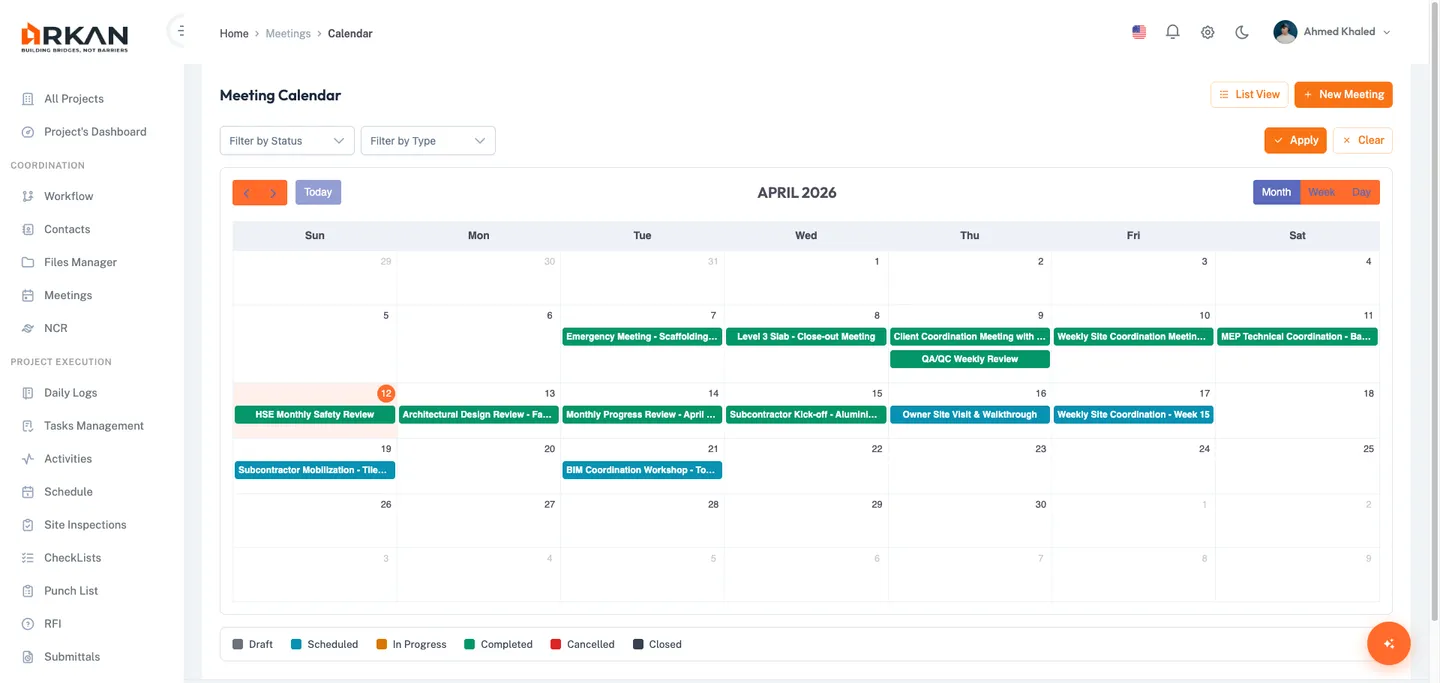
Three views: Month (default), Week, and Day. Events are color-coded by status: Draft (Gray), Scheduled (Blue), In Progress (Amber), Completed (Green), Cancelled (Red), Closed (Dark).
Filter by status and type with multi-select dropdowns. Click an event to open a detail side panel with meeting info and a View Full Details link.
Attendance Management
Navigate via the Attendees tab or the dedicated attendance page.
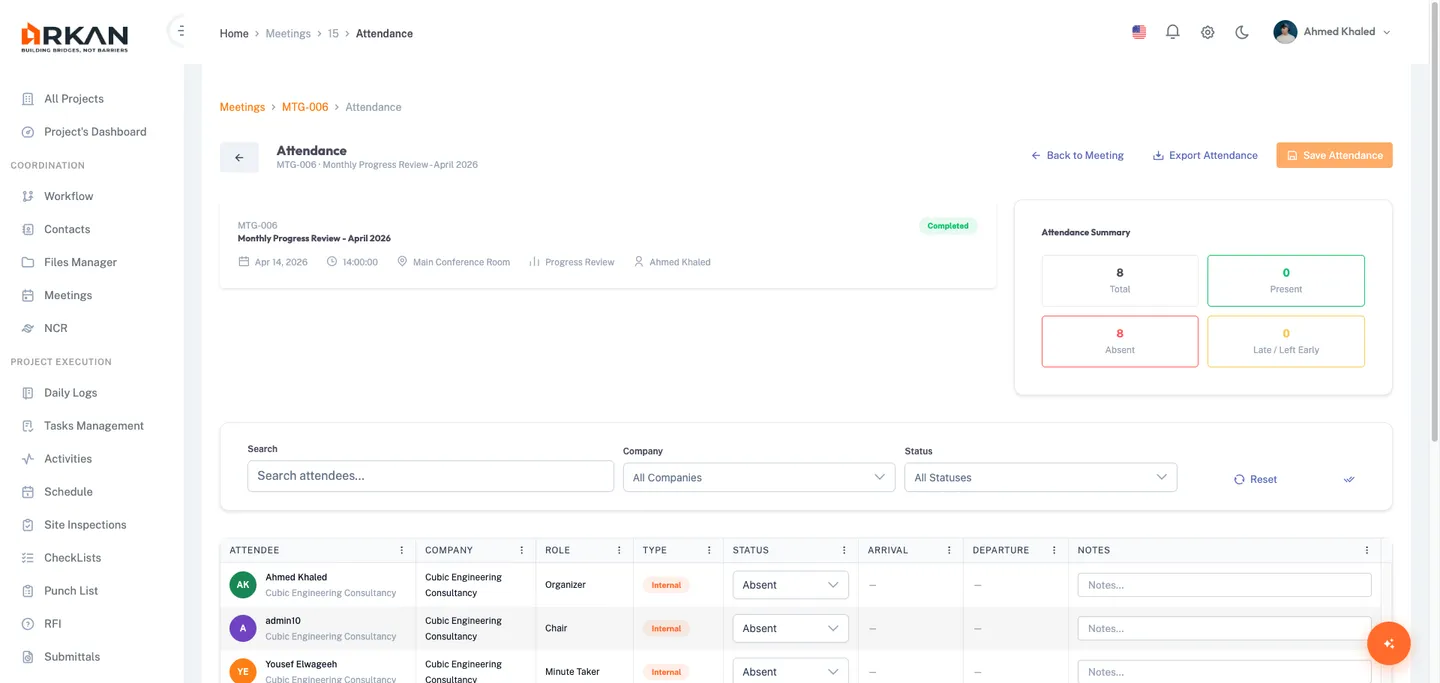
Summary cards show Present, Absent, Late, and Left Early counts. The grid allows setting status, arrival/departure times, and notes per attendee. Bulk Mark All Present and Save Attendance actions are available. Filters include search, company, and status.
QR Code Check-In
When a meeting is In Progress, the organizer can generate a QR code. Attendees scan it from the Arkan mobile app to automatically check in. Click Deactivate to end the session.
Agenda Management
Navigate via /meetings/:meetingId/agenda or the Agenda tab in the workspace.
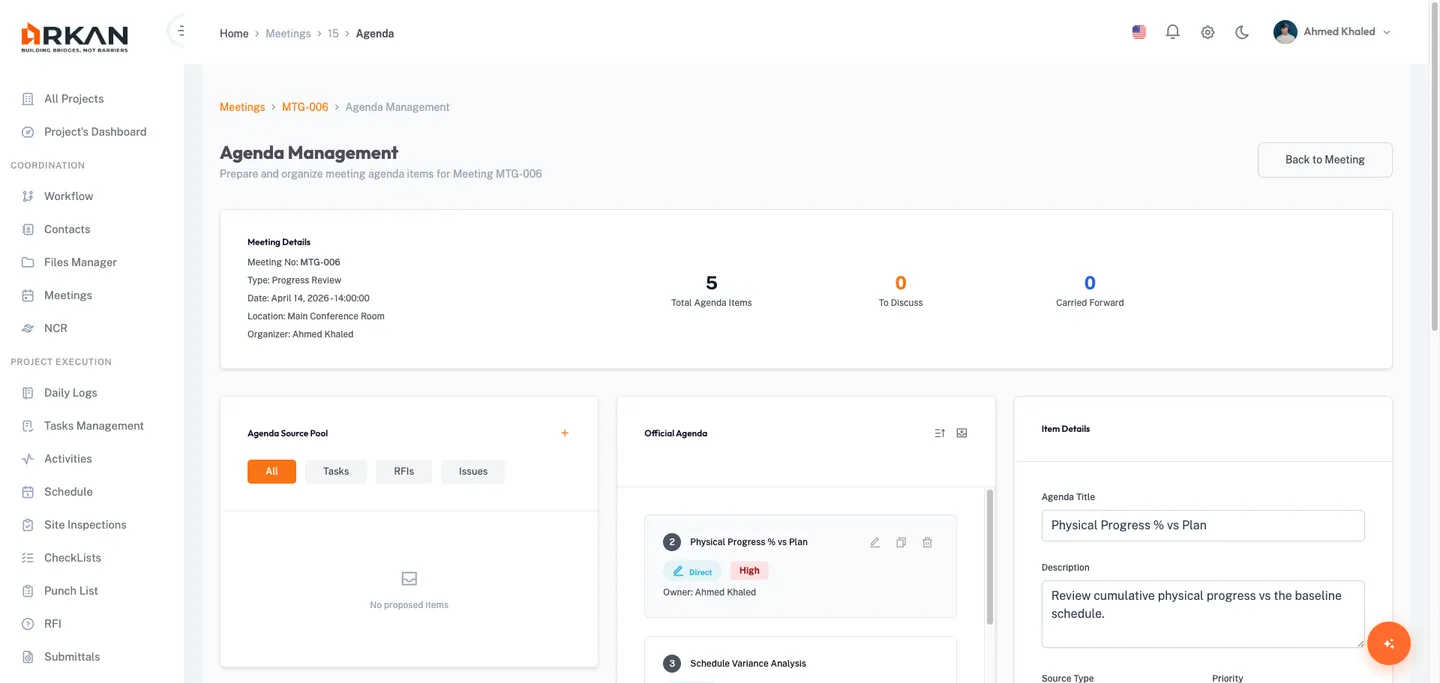
Two-column layout: official agenda list (left) and detail editor (right). Items can come from four sources: Direct, Pool (proposed by attendees), Carried Forward, or Template.
Agenda Item Workflow
Proposed --> Accepted --> Discussed
    |                       |
    v                       v
  Rejected              Deferred --> Carried Forward
Actions include: Propose, Accept/Reject pool items, Add Direct items, Edit, Delete, Auto Sort, and Save.
Decisions Register
Navigate via /meetings/:meetingId/decisions or the Decisions tab.
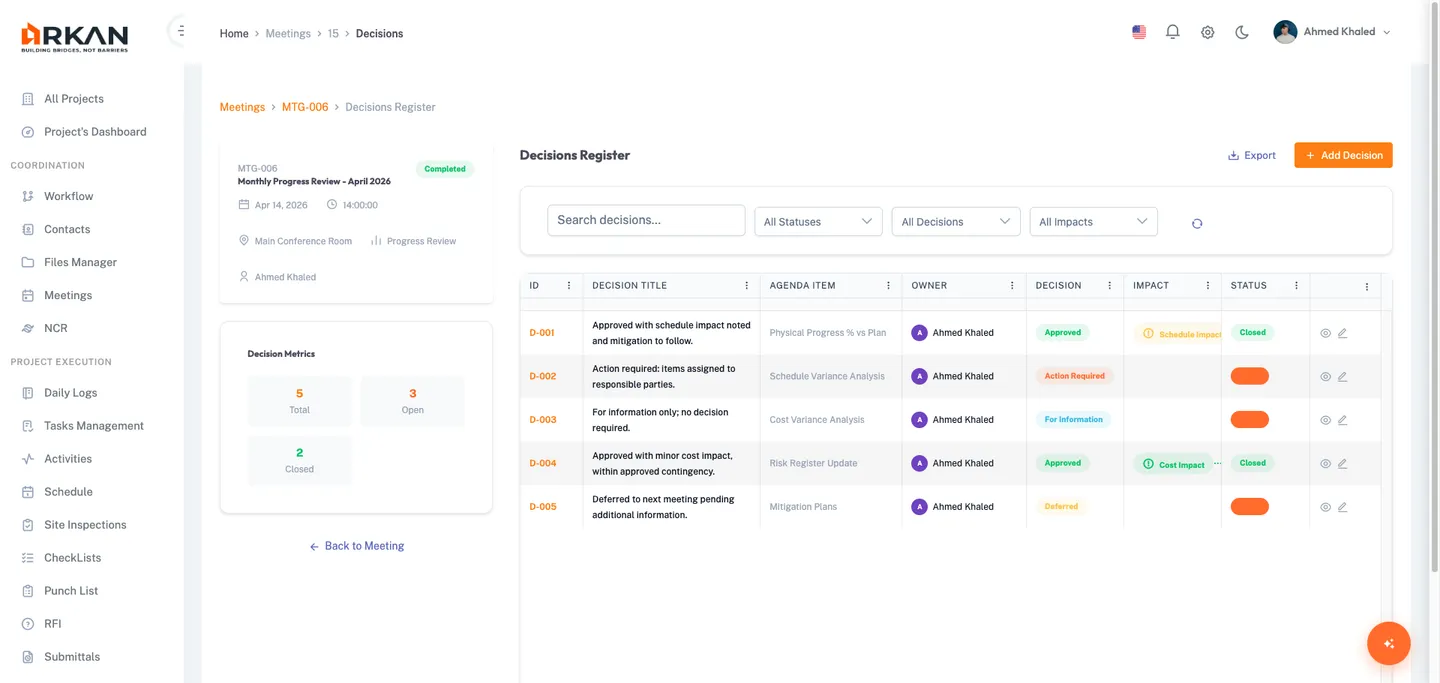
Decision Types
| Decision | Color |
|---|---|
| Pending | Gray |
| Approved | Green |
| Rejected | Red |
| Deferred | Yellow |
| For Information | Blue |
| Action Required | Orange |
Impact Types
None, Cost Impact, Schedule Impact, Quality Impact, Safety Impact, Scope Change, Multiple Impacts.
Filter by search, decision type, impact type, and status. Click a decision to view its history and details in a slide-in panel.
Action Items Tracker
Click the Action Items tab on the dashboard for cross-meeting action items.
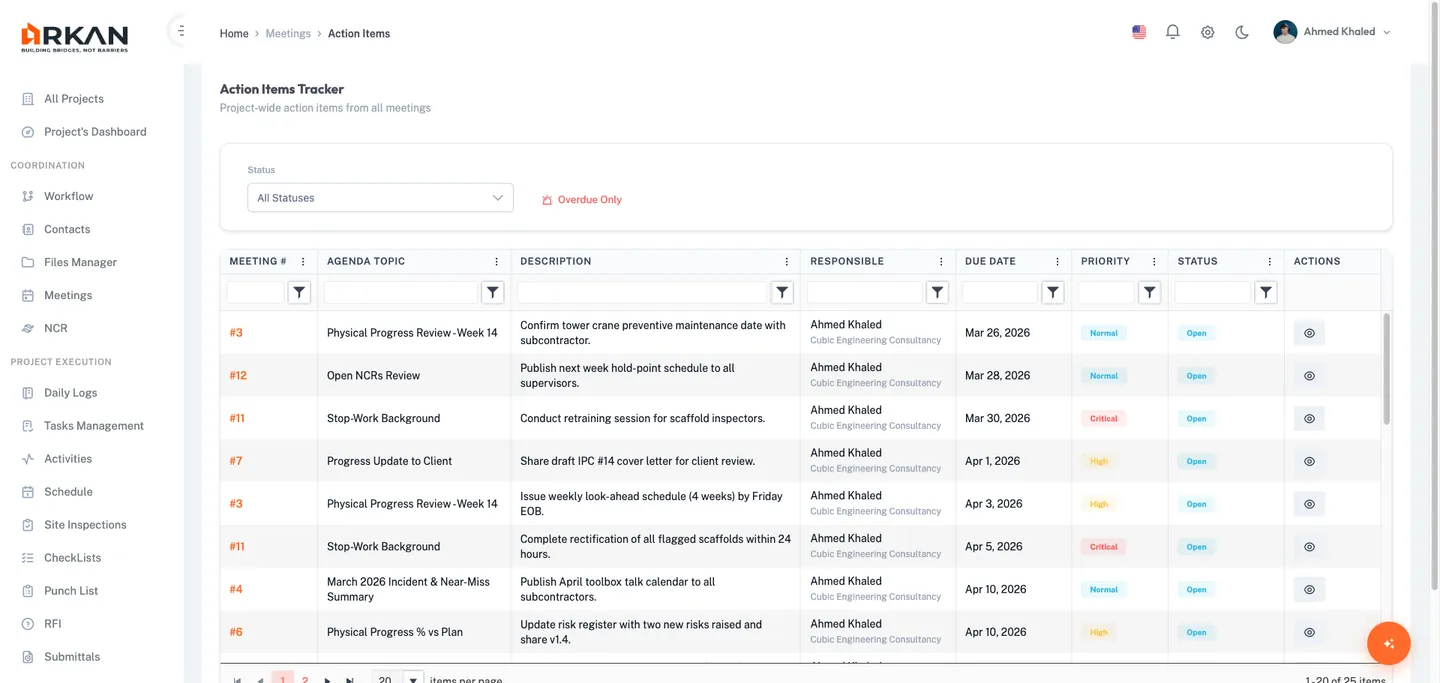
Filter by status (Open, In Progress, Completed, Overdue, Cancelled, Carried Forward) and toggle Overdue Only. Grid shows description, source meeting, agenda topic, responsible person, due date, priority, and status.
Action Item Lifecycle
Open --> In Progress --> Completed
  |                        |
  v                        v
Overdue              Cancelled
  |
  v
Carried Forward (to next meeting)
Official Minutes
Navigate to /meetings/:meetingId/official-minutes.
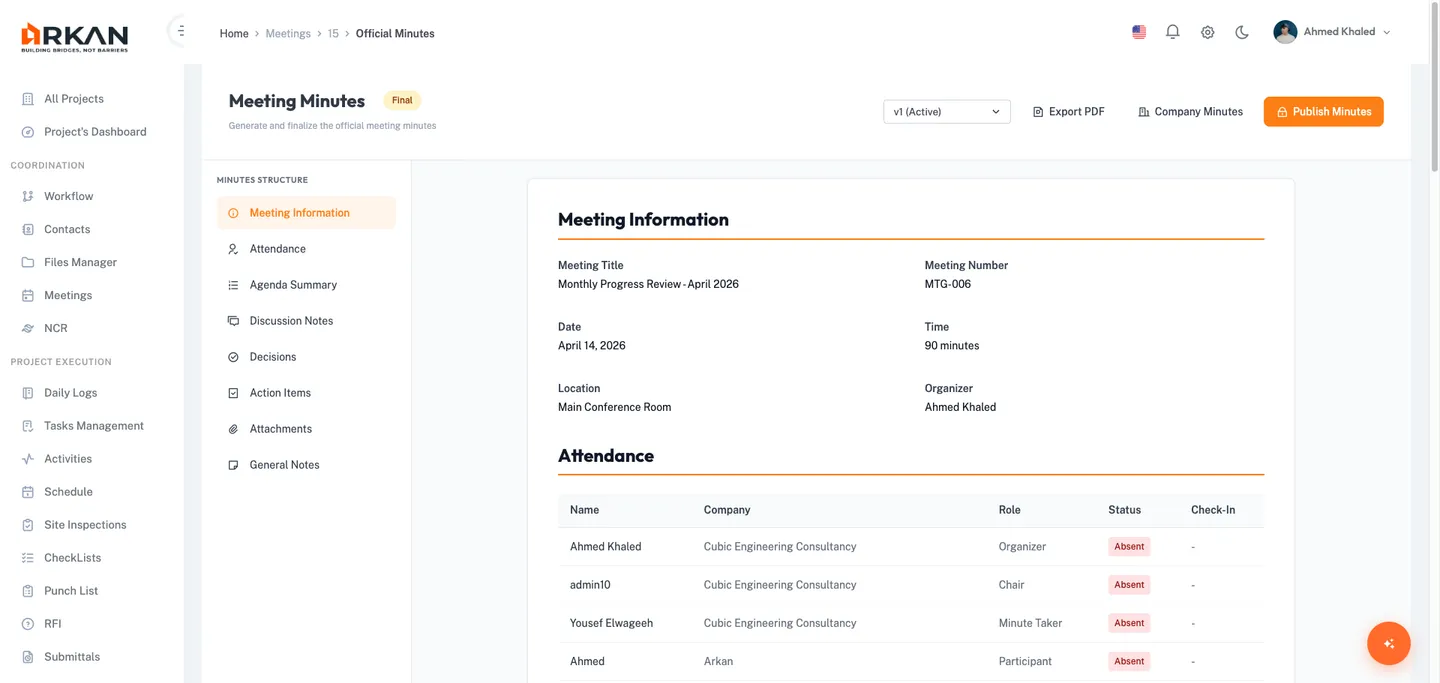
Sticky side navigation with sections: Meeting Information, Attendance, Agenda Summary, Discussion Notes, Decisions, Action Items, Attachments, and General Notes.
Minutes Lifecycle
(No Minutes) --> Create Draft --> Draft --> Finalize --> Final --> Lock/Publish --> Locked
                                                                      |
                                                              Create New Version --> Draft (v2)
Locked minutes generate a PDF and notify attendees. Version history lets you switch between versions and create new drafts from locked versions.
Company Minutes
Navigate to /meetings/:meetingId/company-minutes.
Each company maintains private meeting notes. The organizer can view all; non-organizers see only their own. Content includes company attendees, relevant agenda items, action items, and free-form notes. Status workflow: Draft > Submitted (reversible). The organizer can include/exclude company minutes in official minutes and export all as PDF.
Internal Notes
Navigate to /meetings/:meetingId/internal-notes.
Private, per-user notes not visible to other attendees. Supports rich text editing. Notes are read-only once the meeting is Closed or Cancelled.
Meeting Templates
Click the Templates tab on the dashboard.
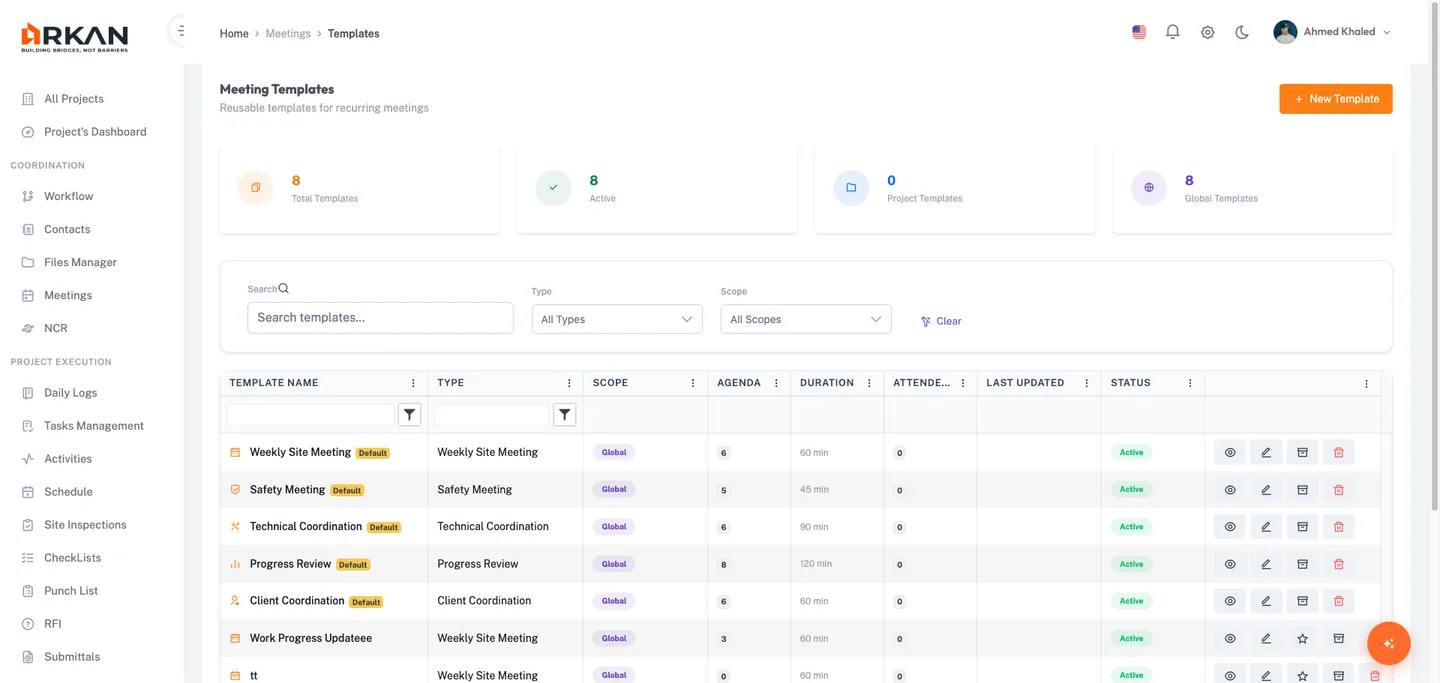
Template library with stats for Total, Project, Global, and Default templates. Filter by search, type, and scope. Click a template to preview its agenda items, attendees, and settings. Actions: Create, Edit, Delete, Set Default, Archive.
Template Builder
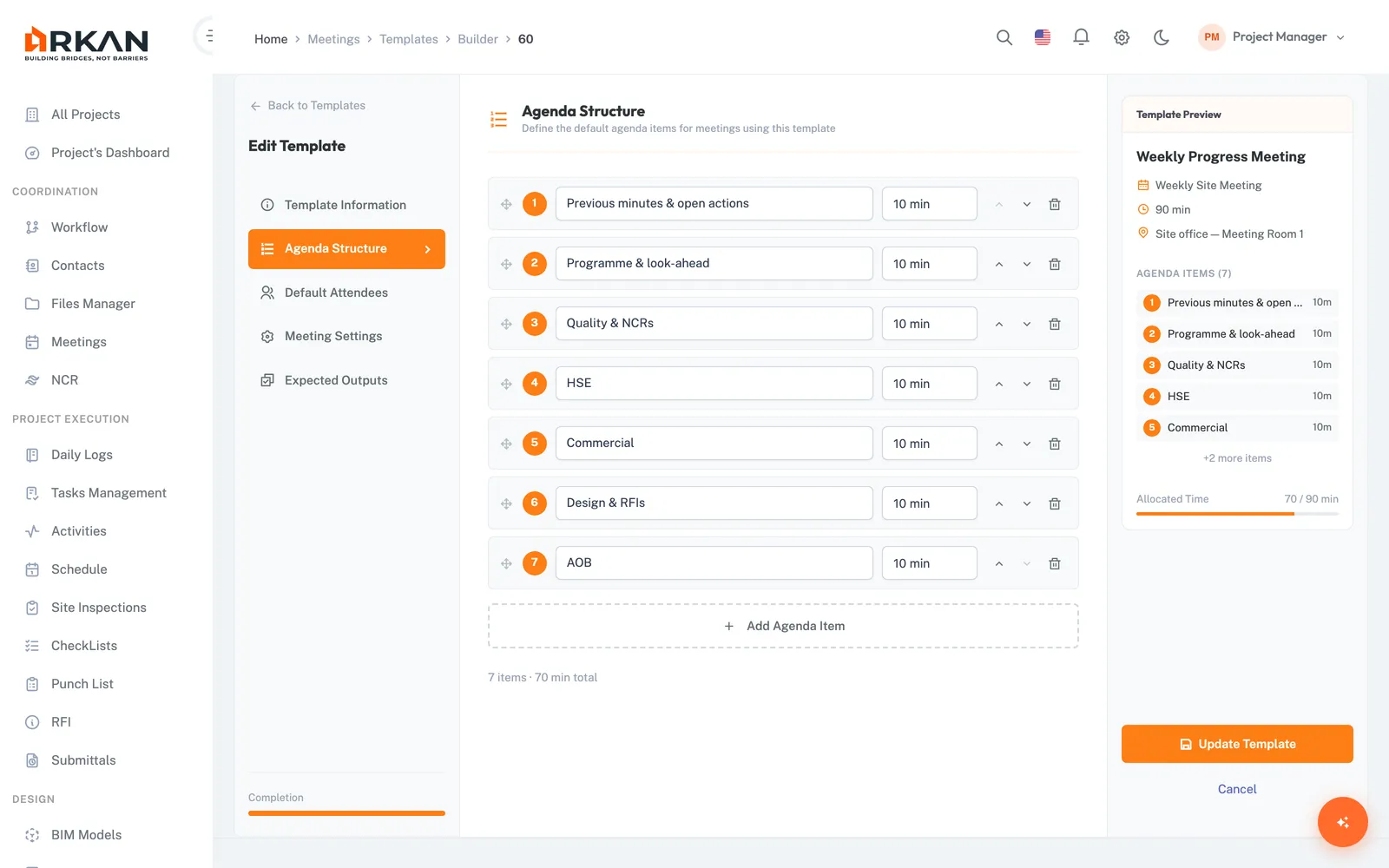
Navigate to /meetings/templates/builder to create a new template, or /meetings/templates/builder/:id to edit an existing one. A left-side section navigator provides:
| Section | Description |
|---|---|
| Template Information | Name, description, meeting type, duration, location, scope (Project/Global) |
| Agenda Structure | Ordered list of agenda items with title, description, allocated minutes |
| Default Attendees | Pre-assigned attendees from project members with company and role selection |
| Meeting Settings | Toggle switches for decisions, action items, company minutes, attachments, attendance tracking |
| Expected Outputs | Checkboxes for expected deliverables: decisions, action items, follow-up |
Template Information fields: Template Name (required), Description, Meeting Type (required, one of the 10 types), Default Duration (minutes), Default Location, and Scope (required) -- Project Template (this project only) or Global Template (all projects).
Agenda Structure: add items with a Title (required for valid items), optional Description, and Allocated Minutes. Use Add Item, Remove Item (minimum one required), and Move Up / Move Down to build and reorder the agenda. A summary shows the count of valid agenda items and total allocated minutes.
Default Attendees: members added here are automatically added when a meeting is created from the template.
- Select a Company from the project companies dropdown
- Select a User from the filtered users list (already-added users are excluded)
- Choose a Role: Organizer, Chair, Participant, or Observer
- Click Add
Added attendees are listed with options to change their role or remove them.
Saving: Click Save Template to create or update. If the template name is empty, validation fails and the builder scrolls to the Template Information section. Click Cancel to discard; if there are unsaved changes, a confirmation dialog appears.
Meeting Lifecycle
Draft --> Schedule --> Scheduled --> Start --> In Progress --> Complete --> Completed --> Close --> Closed
  |                                                              |
  v                                                              v
Cancel --> Cancelled                                      Cancel --> Cancelled
Status Definitions
| Status | Description |
|---|---|
| Draft | Created but not scheduled. Can be edited and deleted. |
| Scheduled | Date and time set. Attendees notified. |
| In Progress | Being conducted. Meeting Room available. |
| Completed | Concluded. Minutes can be finalized. |
| Cancelled | Cancelled. Read-only. |
| Closed | Fully closed with all minutes locked. Read-only. |
Role-Based Permissions
| Role | Schedule | Start | Record | Edit Minutes | Manage Attendance | Propose Agenda |
|---|---|---|---|---|---|---|
| Organizer | Yes | Yes | Yes | Yes | Yes | Yes |
| Chairperson | No | Yes | Yes | No | No | Yes |
| Minute Taker | No | No | Yes | Yes | No | No |
| Participant | No | No | No | No | No | Yes |
| Optional | No | No | No | No | No | Yes |
| Observer | No | No | No | No | No | No |
ICS Calendar Export
From the meeting workspace, you can download an ICS calendar file for any meeting:
- Open the meeting workspace
- Click the Download ICS button (calendar icon)
- An
.icsfile is downloaded that can be imported into Outlook, Google Calendar, or any calendar application
Troubleshooting
I cannot edit a meeting
Only meetings in Draft status can be edited. The edit route is protected by a guard that checks the meeting status.
I cannot see the Meeting Room button
The Meeting Room button only appears when the meeting status is In Progress. Ask the organizer or chairperson to start the meeting first.
My attendance is not saving
Ensure you click Save Attendance after making changes. You must be the meeting organizer to save attendance records.
The QR code check-in is not working
Verify the meeting is In Progress, the QR session is active, the attendee is using the Arkan mobile app, and the session has not been deactivated.
I cannot see other companies' minutes
Company minutes are scoped by company. Non-organizer users can only see their own company's minutes.
Minutes are locked and I need to make changes
Click Create New Version to create a new draft based on the locked version. The new draft can be edited, finalized, and published independently.
Action items from a previous meeting are not showing
Ensure the previous meeting is in Completed or Closed status. Only completed/closed meetings are available for Carry Forward selection.
The meeting timer shows incorrect time
The timer is calculated from the meeting's start date. If paused, the duration is tracked in local storage. Clear the browser's local storage for the meeting pause key if it appears incorrect.
Back to: Help Center