Prerequisites
- You have logged in and selected a project (see Getting Started)
- Your user role has the Specifications permission with at least Retrieve access
- Trades have been configured for the project (contact your administrator if no trades are available)
- For workflow-based approvals, ensure the Workflows module is configured (see Workflows)
Overview
The Specifications module provides comprehensive management of project technical specifications organized by trade discipline. Specification books contain hierarchical structures of sections (nodes) that can be individually authored, versioned, reviewed, and approved. Each section supports rich-text content, acceptance criteria, internal notes, PDF page references, and links to other project entities such as submittals, RFIs, and inspections.
The module follows a structured workflow:
- Create a specification book for a trade discipline
- Build the hierarchical structure (divisions, sections, subsections)
- Author specification content with a rich-text editor
- Review and approve each version through direct approval or workflow-based review
- Link specification sections to submittals, RFIs, and inspections for traceability
Specification Books
Specification Books are top-level containers organized by trade discipline. Each book belongs to a single trade and contains a hierarchical tree of sections.
Navigating to Specification Books
Navigate to Sidebar > Specifications. The page displays summary statistics and all specification books in grid or list view.
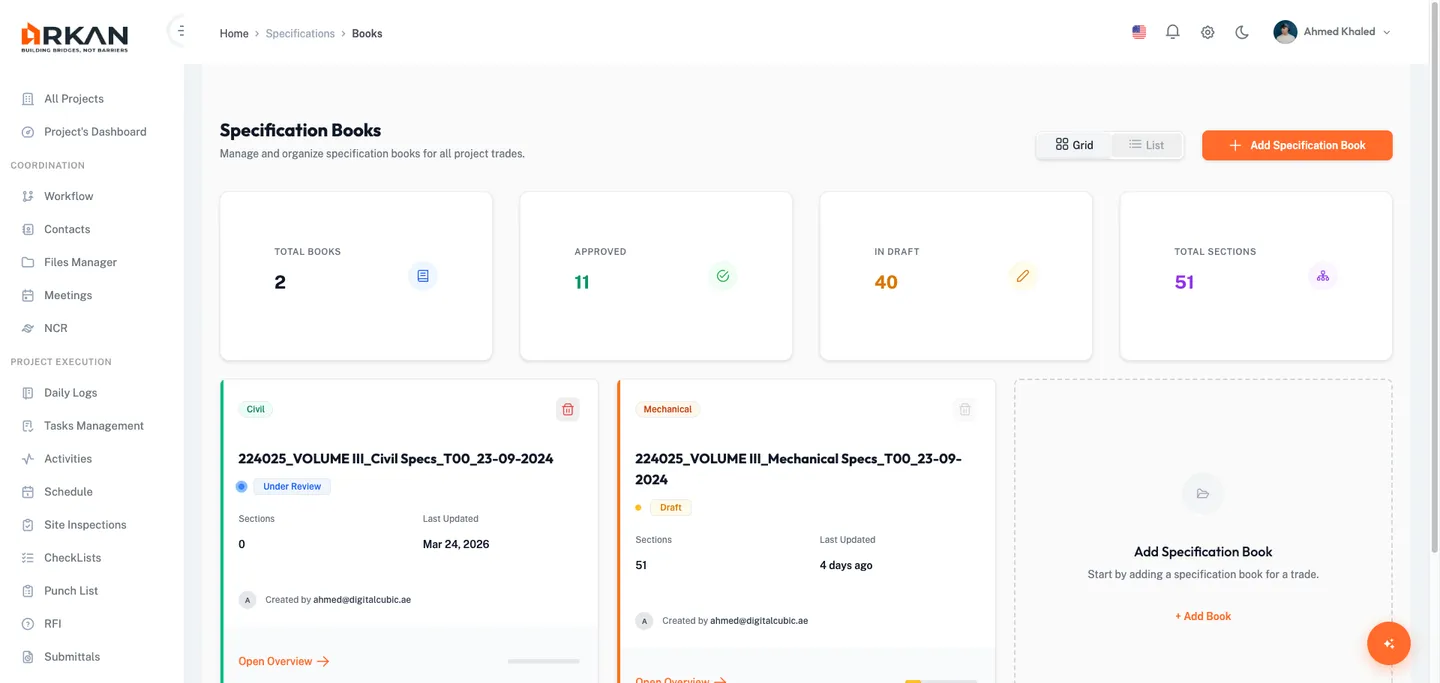
Summary Statistics
| KPI Card | Description |
|---|---|
| Total Books | Total specification books in the project |
| Approved | Count of approved sections across all books |
| In Draft | Count of draft sections |
| Total Sections | Sum of all sections across all books |
Views and Status
Switch between Grid View (cards) and List View (table). Each book displays a status based on section progress: Completed, Under Review, Draft, Empty, or In Progress, with a progress bar showing approved percentage.
Creating a Specification Book
- Click Add Specification Book
- Fill in: Trade (required, searchable dropdown), Book Title (required), Description (optional), Reference PDF (optional, up to 10 MB)
- Click Create Book
Note: Only one active draft book is allowed per trade.
Deleting a Book
Books with approved sections cannot be deleted. Click the trash icon and confirm deletion.
Specification Overview
A split-panel view combining the specification tree (left) with a detailed section viewer (right).
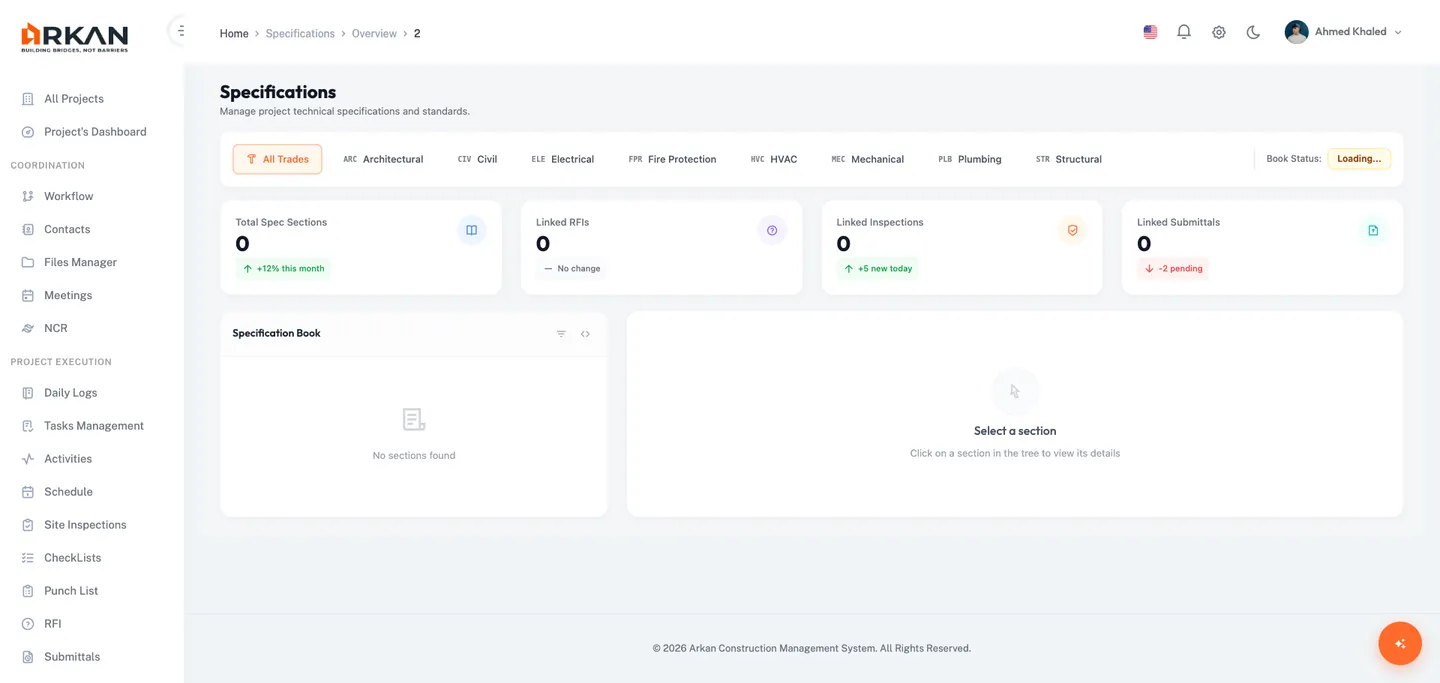
Header Actions
Manage Structure and Add Specification Section buttons navigate to the Structure editor.
Statistics
Total Spec Sections, Linked RFIs, Linked Inspections, Linked Submittals.
Tree Panel
Expand/collapse hierarchical nodes. Each node shows Section Code, Title, Status Badge, and Version Number. Click to load details in the right panel.
Detail Panel
- Header: Section code, status, version, PDF reference link, and action buttons (History, Edit, Add Subsection, New Version)
- Content: Rich-text specification content with PDF button
- Version History: Timeline of all versions with status, change reason, author, and expandable content
- Used In: Counts of linked RFIs, Inspections, and Submittals
- Related Documents: Table of linked documents
Specification Structure (Tree Builder)
The primary editor for building and managing the hierarchical tree.
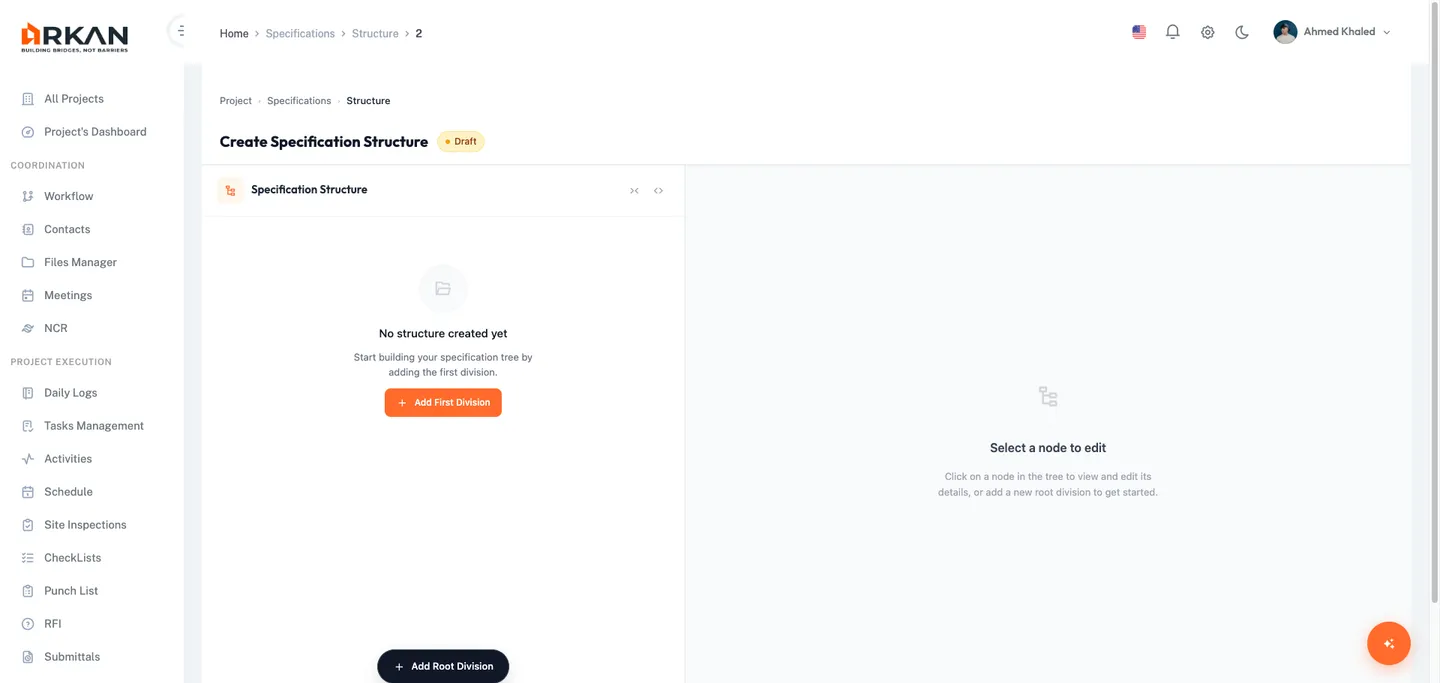
Left Panel: Tree Builder
- Expand/Collapse All controls
- Nodes with section code, title, status, and version sub-items
- Hover actions: Add Child (+), More Options (Delete)
- Add Root Division button for creating top-level divisions
Right Panel: Node Editor
| Field | Required | Description |
|---|---|---|
| Code | Yes | Section code (e.g., 03.10.00) |
| Title | Yes | Descriptive section title |
| PDF Page Reference | No | Page number in the reference PDF |
| Specification Content | No | Rich-text editor with Insert Template button |
| Acceptance Criteria | No | QA acceptance criteria (visible to QA team) |
| Internal Notes | No | Team-internal notes (not in final spec) |
| Change Reason | No | Dropdown for tracking change reasons |
Version Lifecycle Actions
| Status | Available Actions |
|---|---|
| Draft | Cancel, Save Node, Approve (V1 only), Submit for Review (V2+) |
| Under Review | Read-only. Workflow actions available in review mode. |
| Approved | Read-only. Create Revision button available. |
| Rejected | Read-only. Create Revision button available. |
In workflow review mode (Under Review), two additional actions appear in the editor footer:
- Unlock Request -- Returns the node to an editable state.
- Send -- Sends the workflow action with the selected decision.
When a node is pending workflow approval outside of review mode, a notice directs you to the Workflow Inbox.
Warning: Deleting a parent node also deletes all its child sections. Nodes with an approved version cannot be deleted.
Specification Detail
A full-page, read-focused view of an individual specification section.
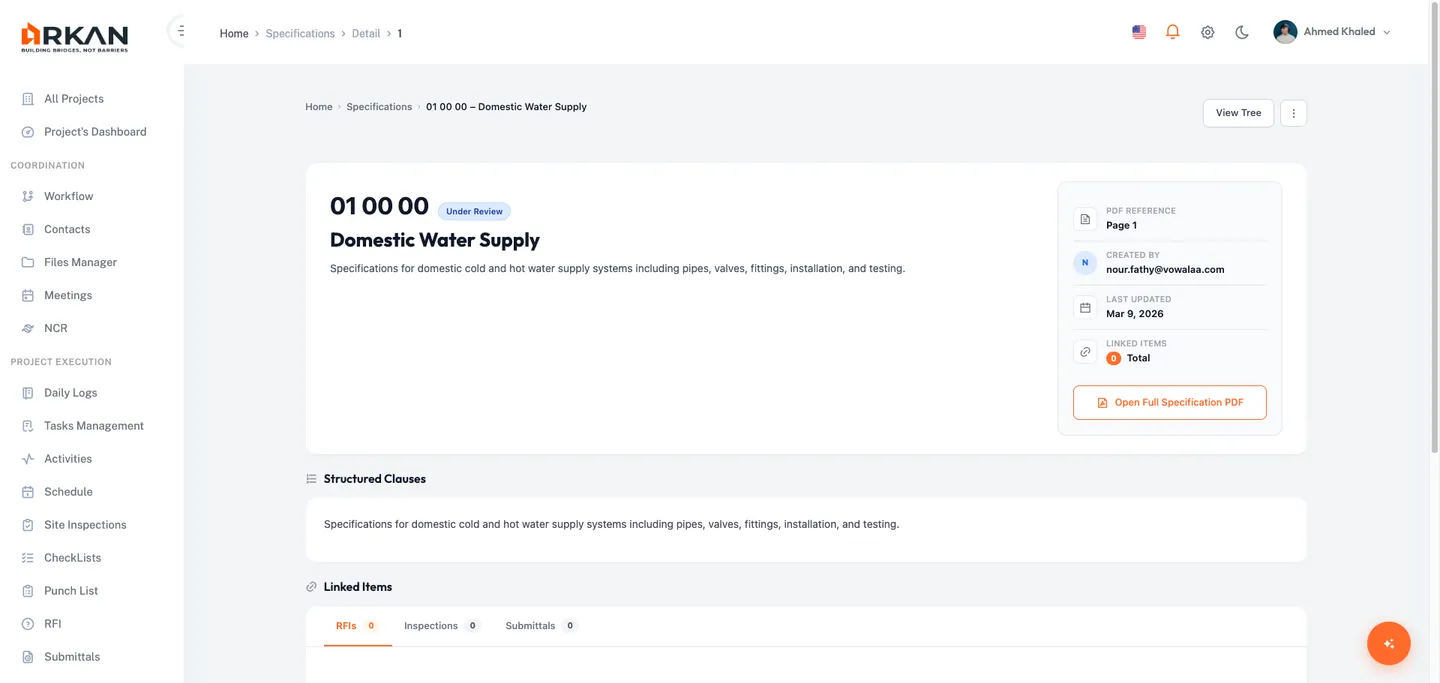
Hero Card
Section code, status badge, title, content preview, and metadata (PDF Reference, Created By, Last Updated, Linked Items). Open Full Specification PDF button.
Structured Clauses
Numbered, collapsible clauses parsed from specification content. Falls back to full rich-text display if parsing fails.
Linked Items
Tabbed view (All, Submittals, RFIs, Inspections) with count badges. Table columns: Ref No, Title, Status, Date, Action (View).
Subsections Grid
Child sections as cards with code, title, and content preview. Create Subsection placeholder card for adding new children.
Spec Links Panel
A reusable component appearing within Submittals, RFIs, and Inspections modules.
Adding a Specification Link
- Click Add Link
- Select a Specification Book from the searchable dropdown
- Browse the tree (only nodes with approved versions are selectable)
- Check one or more nodes and optionally add notes
- Click Link Node(s)
Removing a Link
Hover and click the trash icon on any linked specification. The specification section itself is not affected.
Workflow Review
Access via /specifications/workflow-review or a workflow task.
- Click the assigned node in the tree
- Review content, acceptance criteria, and internal notes (read-only)
- Use the Workflow Action card to Approve, Reject, or Return with notes
- Click Send
| Action | Result |
|---|---|
| Approve | Version becomes Approved and immutable |
| Reject | Version becomes Rejected; author can create a new revision |
| Return | Returned to author without changing status |
Tip: Use the Unlock Request button if you need to return the node to an editable state before taking action.
Version Tracking
Version Statuses
| Status | Color | Description |
|---|---|---|
| Draft | Amber | Editable |
| Under Review | Blue | Submitted, read-only |
| Approved | Green | Immutable, becomes current active version |
| Rejected | Red | Author can create a new revision |
Version Numbering
First version is V1; each revision increments. Only one version can be Current Approved at a time.
Link Types
Specification sections can be linked to three types of project entities:
| Link Type | Code | Description |
|---|---|---|
| Submittal | 1 | Links a specification section to a project submittal for material/document compliance tracking |
| RFI | 2 | Links a specification section to a Request for Information for technical clarification |
| Inspection | 3 | Links a specification section to a project inspection for quality verification |
Impact Summary
Each specification section has an impact summary showing the count of linked entities: Submittal Count, RFI Count, Inspection Count, and Total Link Count (sum of all linked entities). It is displayed in the Used In section of the Overview detail panel and in the Linked Items metadata of the Detail page hero card.
Permissions
| Permission | Description |
|---|---|
| Retrieve | View books, sections, and content |
| Insert | Create books, sections, and versions |
| Update | Edit content, codes, and metadata |
| Delete | Delete books and sections (with restrictions on approved content) |
| Approve | Directly approve V1 without workflow |
Troubleshooting
| Problem | Solution |
|---|---|
| "Access Denied" message | Contact administrator to grant Specifications page permission. |
| Cannot create a specification book | Verify Insert permission. Check that no draft book exists for the selected trade. |
| Cannot delete a book or section | Books/sections with approved content are protected from deletion. |
| Rich-text editor not loading | Refresh the page. If persistent, clear browser cache. |
| PDF button disabled | The book does not have an uploaded reference PDF. |
| Cannot submit for review | Ensure version is Draft and form is valid. For V1, use Approve instead. |
| Workflow actions not appearing | Access the page through a workflow task. Verify the Workflows module is configured. |
| Tree not loading | Check network connection. Click Expand All or refresh to force reload. |
| Linked specs not appearing in Spec Links Panel | Only nodes with an Approved version can be linked. |
| Changes not saving | Verify Update permission and Draft status. Check for validation errors on required fields. |
Back to: Help Center