Prerequisites
- A valid Arkan user account (email and password provided by your administrator)
- A modern web browser (Chrome, Firefox, Edge, or Safari)
- Network access to your organization's Arkan server
Logging In
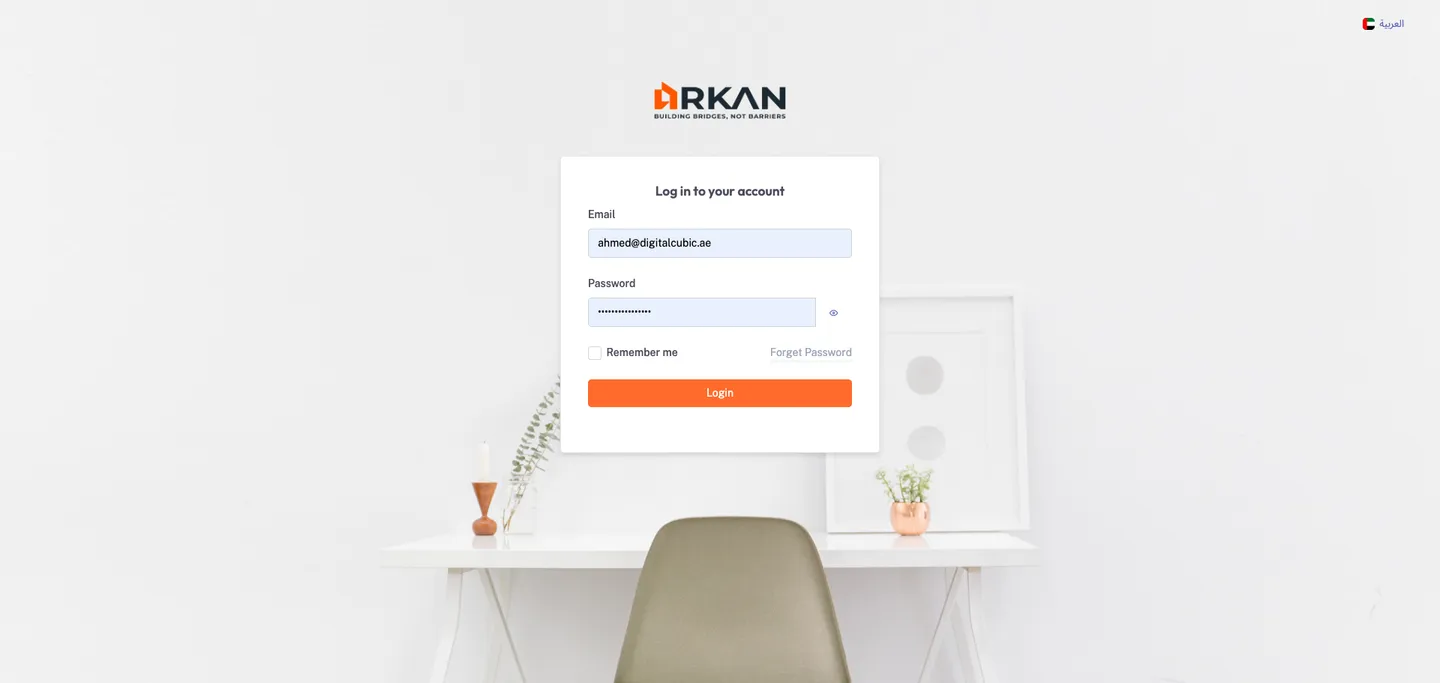
- Open your browser and navigate to the Arkan application URL provided by your administrator.
- On the login page, enter your Email in the email field.
- Enter your Password in the password field.
- (Optional) Check the Remember Me checkbox to stay logged in across browser sessions.
- Click Submit.
You should now see the Projects page or the Project Dashboard if you have a previously selected project.
Tip: If your organization uses two-factor authentication, you will be redirected to a verification page. Enter the 6-digit code from your Google Authenticator app and click Continue.
Recovering Your Password
If you forget your password:
- On the login page, click the Forgot Password link below the password field.
- Enter your registered Email address.
- Click Submit.
A password reset link will be sent to your email.
- Open the email and click the reset link.
- On the Create Password page, enter your New Password.
- The password must meet the strength requirements shown on the page.
- Re-enter the password in the Confirm Password field.
- Click Submit.
You will be redirected to the login page. Log in with your new password.
Warning: Password reset links expire after a limited time. If you see a "Link Expired" message, return to the login page and request a new reset link.
Selecting a Project
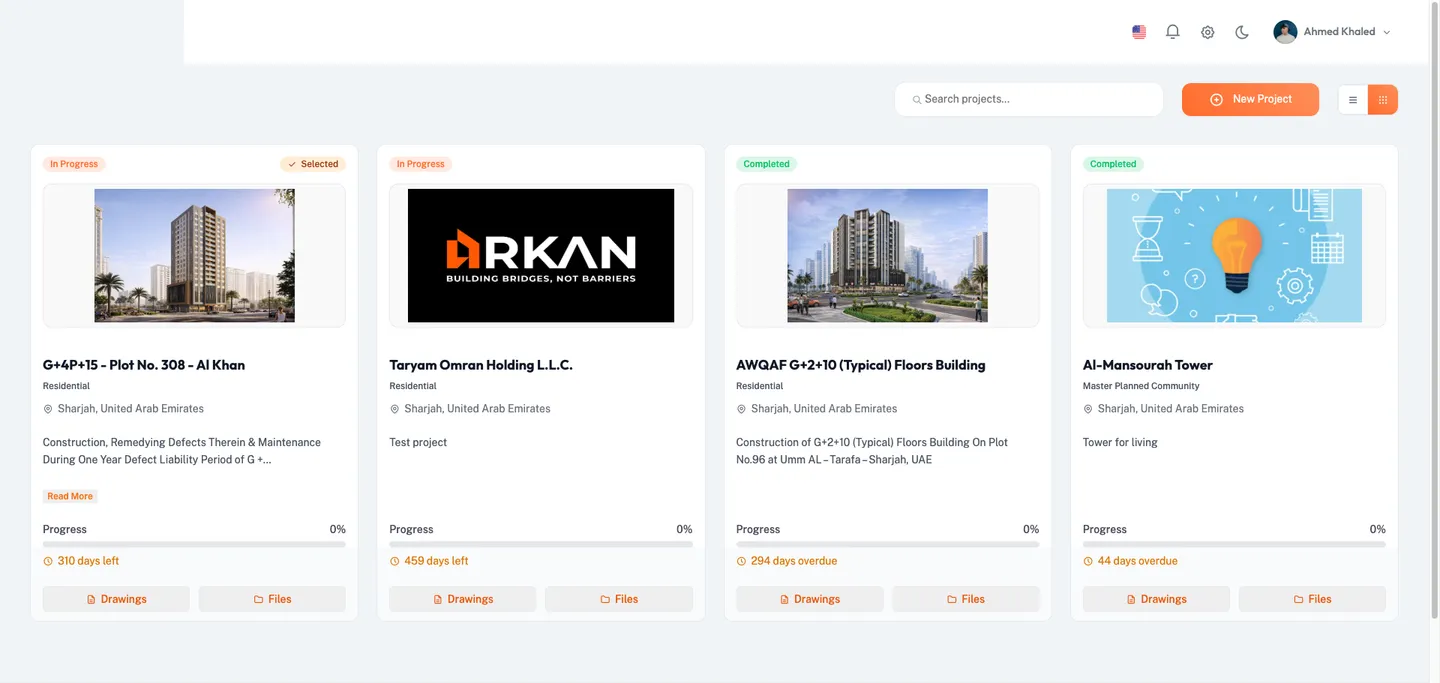
After logging in, you land on the Projects page where all your assigned projects are listed.
- Browse the project list. You can switch between grid and list view using the view toggle.
- Use the search bar to filter projects by name.
- Click on a project card to select it.
You will be taken to the Project Dashboard for that project.
Tip: Your last selected project is remembered. The next time you log in, you may go directly to that project's dashboard.
Switching Projects
To switch to a different project at any time:
- Click All Projects in the sidebar menu (first item, with the building icon).
- Select a different project from the list.
Navigating the Interface
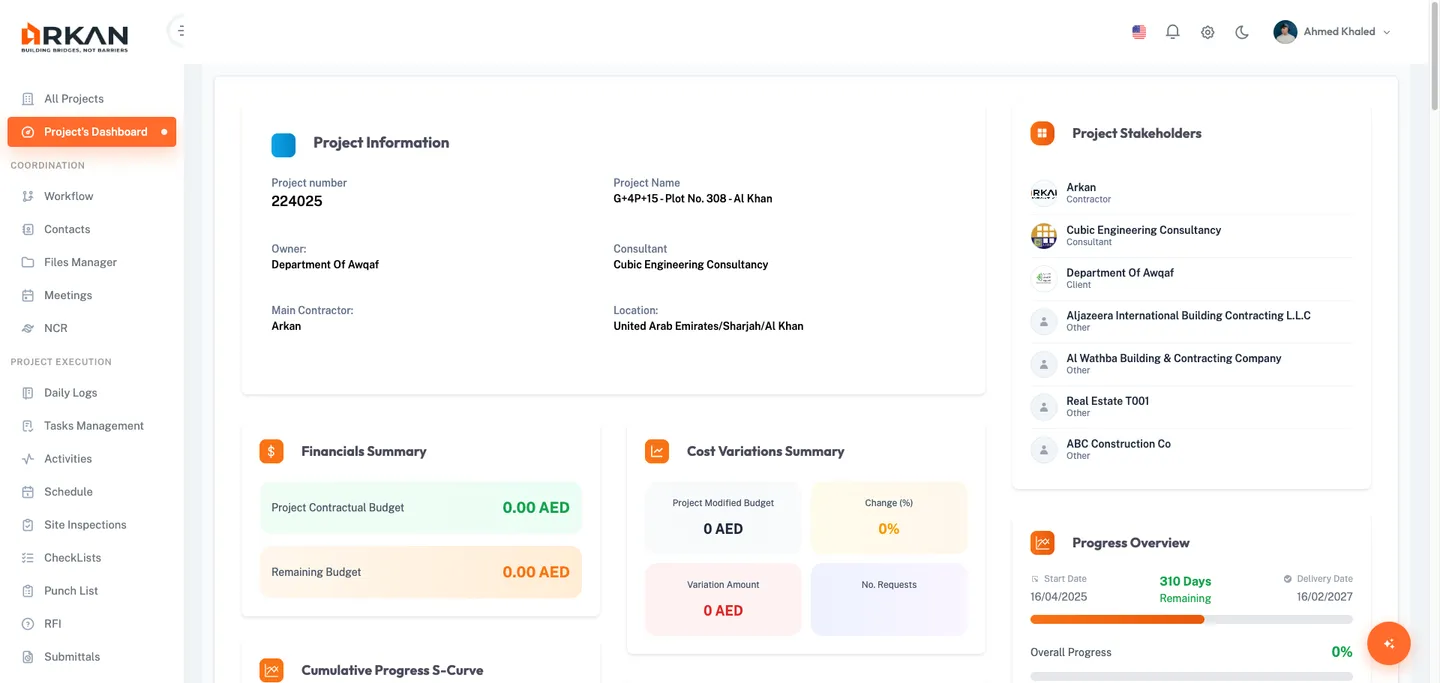
The Arkan interface has three main areas:
Sidebar (Left Menu)
The sidebar provides access to all modules within the selected project:
| Section | Menu Items |
|---|---|
| Main | All Projects, Dashboard, Workflow |
| Project Management | Tasks Management, Activities, Site Inspections, RFI, Schedule, Submittals |
| Design & Site Data | BIM Drawings, Checklists, Punch List |
| Finance | Finance |
| Collaboration | Reporting & Insights, File Manager |
| Contacts | Contacts |
| System | Project Settings |
Click any menu item to navigate to that module.
Top Bar
The top bar contains:
- Breadcrumb navigation -- Shows your current location (e.g., Home > Finance > Payment Requests). Click any segment to navigate back.
- Language switcher -- Click the flag icon to switch between English and Arabic.
- Notification bell -- Shows unread notification count. Click to see recent notifications or click View All Notifications to see the full list.
- Dark/Light mode toggle -- Click the moon/sun icon to switch between dark and light themes.
- Settings button -- Quick access to application settings.
- User profile menu -- Click your name/avatar to access:
- My Account -- View and edit your profile
- Global Settings -- Access system-wide settings (if permitted)
- Lock Screen -- Lock the current session
- Sign Out -- Log out of the application
Main Content Area
The central area displays the content of the currently selected module (dashboard, forms, grids, etc.).
Your Profile
To view or update your profile:
- Click your name or avatar in the top-right corner of the top bar.
- Select My Account from the dropdown menu.
The My Account page opens where you can view your profile details.
Switching Languages
Arkan supports English and Arabic (with full RTL layout).
- In the top bar, click the flag icon (language switcher).
- Select your preferred language from the dropdown.
The interface immediately switches to the selected language. For Arabic, the layout switches to right-to-left (RTL).
Tip: Your language preference is saved and will persist across sessions.
Dark and Light Mode
- In the top bar, click the moon icon (for dark mode) or sun icon (for light mode).
The entire interface switches to the selected theme.
Notifications
The notification bell in the top bar keeps you informed of activity across the project.
- Click the bell icon in the top bar.
- A dropdown shows your most recent notifications (up to 10).
- Click a notification to navigate to the related item and mark it as read.
- Click Mark All As Read to clear all unread notifications.
- Click View All Notifications to open the full notifications page.
Unread notifications are indicated by a blue dot. The badge count on the bell shows the number of unread items.
Tip: Notifications update in real time via SignalR. You do not need to refresh the page to see new notifications.
Lock Screen
To lock your session without logging out:
- Click your name in the top bar.
- Select Lock Screen.
The lock screen appears showing your name and avatar.
- To unlock, enter your Password and click Submit.
Tip: Use Lock Screen when stepping away from a shared workstation. Your session remains active; you do not need to log in again.
If the lock screen shows the wrong user, click the Not you? link to return to the login page.
Logging Out
- Click your name or avatar in the top-right corner.
- Select Sign Out (shown in red at the bottom of the menu).
You will be redirected to the login page.
Warning: Make sure to save any unsaved work before logging out. Any unsaved form data will be lost.
Troubleshooting
What if I cannot log in?
- Verify your email address is correct.
- Check that Caps Lock is not enabled.
- If you recently changed your password, ensure you are using the new password.
- Contact your administrator if your account may be deactivated.
- See Troubleshooting & FAQ for more solutions.
What if my session expires?
If you see a session-expired message, your authentication token has expired. Click the login link to sign in again. Any unsaved work may be lost.
What if I do not see any projects?
You may not have been assigned to any projects yet. Contact your administrator to be added to a project.
Next: Projects -- Learn how to create and manage projects.