Prerequisites
- An active Arkan user account with access to at least one project
- A project selected in the current session (required for project-level data queries)
- A valid Gemini API key configured by your administrator (see AI Settings Configuration)
- PDF or image files to analyze (supported formats: PDF, PNG, JPG, WebP; maximum 30 MB per file)
Overview
The AI Assistant module provides AI-powered document analysis and project data querying within Arkan. It uses Google Gemini to read, interpret, and answer questions about uploaded documents. The module is available in two forms:
- AI Document Assistant -- a dedicated full-page view with a split-panel layout for viewing PDFs alongside an interactive chat.
- Arkan AI Widget -- a floating chat widget available on every page for quick questions about project data or uploaded files.
Both interfaces support multi-turn conversations, file uploads via the Gemini resumable upload protocol, and real-time processing status indicators.
AI Document Assistant (Full Page)
A dedicated page that splits your screen into a PDF viewer (left) and a chat panel (right), allowing you to read the document and ask questions simultaneously.
Accessing the AI Document Assistant
Navigate to Sidebar > AI Document Assistant. The page loads with an empty PDF drop zone on the left and a chat panel on the right.
Uploading a PDF Document
Drag and Drop: Drag a PDF over the drop zone (border turns blue) and release. Click to Browse: Click the drop zone and select a .pdf file.
After selecting a file:
- The PDF renders in the left panel
- The file name appears as a badge in the header
- A Processing... spinner appears during upload and indexing
- Once ready, the chat displays: "PDF ready! Ask me anything about the document."
Tip: Only PDF files are accepted in the full-page Document Assistant. For image file analysis, use the Arkan AI Widget.
Warning: If the upload fails, a red error alert appears. Check your network connection and file size, then retry.
Asking Questions About the Document
- Click the text input at the bottom of the chat panel
- Type your question (e.g., "What are the key deliverables listed in section 3?")
- Press Enter or click Send
Your question appears as a blue bubble. A typing indicator shows while processing. The AI response appears as a white bubble.
| Control | Behavior |
|---|---|
| Enter | Sends the message |
| Shift + Enter | Inserts a new line |
Tip: The AI maintains full conversation context. Follow-up questions reference previous answers without restating content.
Multi-Turn Conversations
Each question is sent with the full conversation history and document reference. Follow-ups benefit from prior context. Messages display timestamps in HH:mm format and auto-scroll to the latest message.
Uploading a New PDF
Click New PDF in the header to clear the current PDF, chat history, and file reference. The drop zone reappears for a new file.
Warning: There is no way to recover a cleared conversation. Copy answers before clicking New PDF if needed.
Arkan AI Widget (Floating Chat)
A floating button available on every page within the main application layout.
Opening the Widget
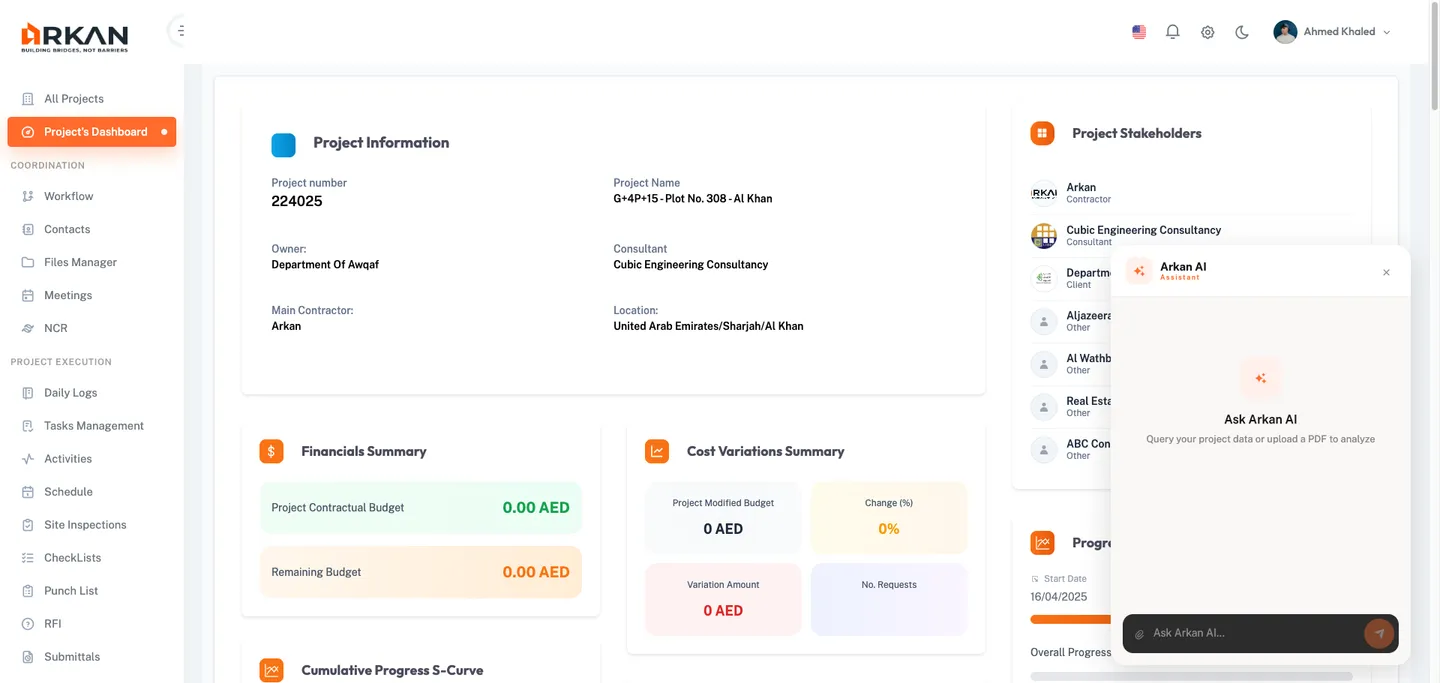
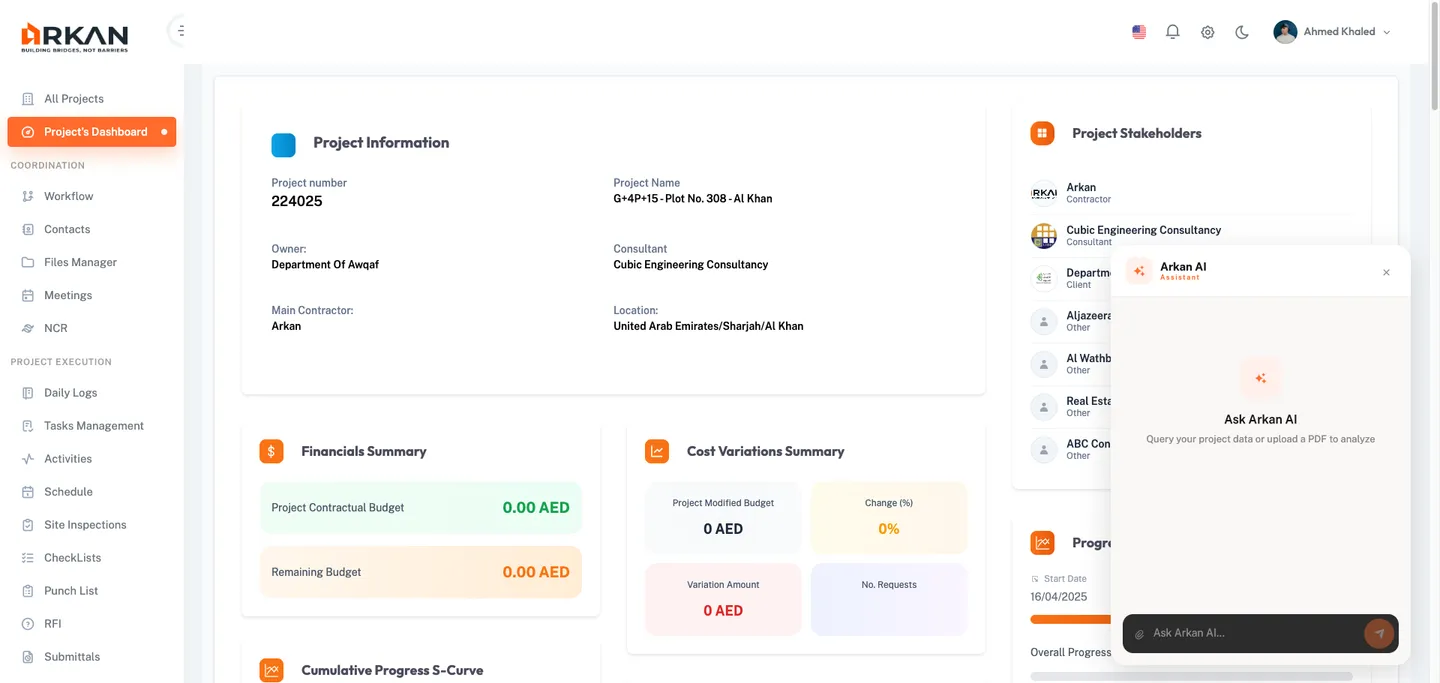
Click the sparkle icon button in the bottom-right corner of any page. A compact chat panel opens with "Ask Arkan AI" prompt.
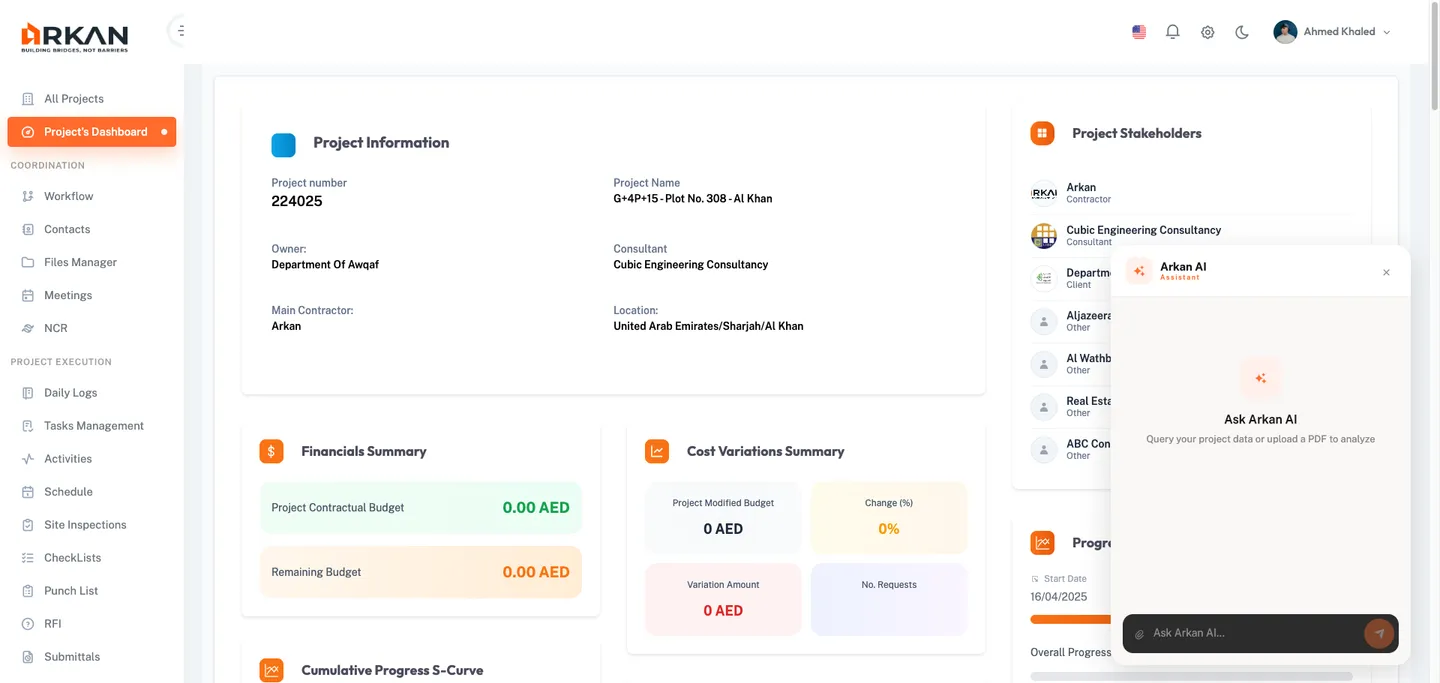
Close by clicking the X button in the widget header.
Querying Project Data (No File Attached)
When no file is attached, questions route to the backend database assistant for project data queries.
- Type a question (e.g., "How many open submittals are there?")
- Press Enter or click Send
Responses show an "ANALYSIS READY" badge.
Tip: Project data queries work without uploading any file. The AI accesses the currently selected project's data through the backend API.
Uploading a File to the Widget
- Click the attachment button (paperclip icon)
- Select a file (PDF, PNG, JPG, or WebP; max 30 MB)
- A PROCESSING indicator appears during upload
- Once ready, a confirmation message and file indicator bar appear
Warning: Remove the current file before uploading another. Only one file at a time is supported.
Widget Chat Behavior
| Scenario | AI Backend |
|---|---|
| No file attached | Backend database assistant (project data queries) |
| File attached | Gemini API (document analysis) |
User messages appear as right-aligned blue bubbles. AI responses appear as left-aligned cards with an "ANALYSIS READY" badge. Bold text (**text**) is rendered in responses.
AI Settings Configuration
Administrators can configure the AI Assistant from Sidebar > AI Settings.
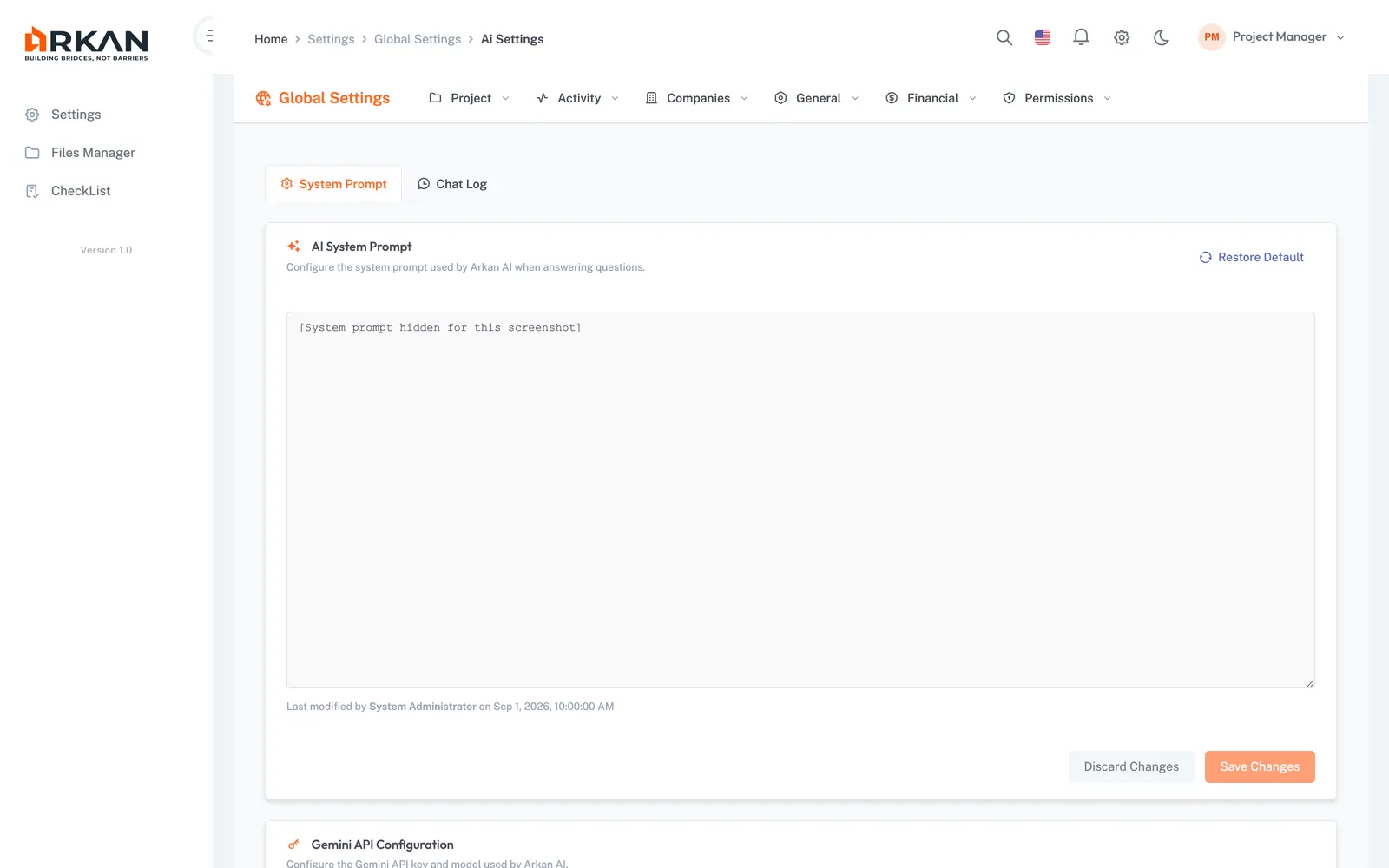
System Prompt Tab
Edit the instructions given to the AI for project data questions. Buttons: Save Changes, Discard Changes, Restore Default. Shows last modified info.
Gemini API Configuration
| Field | Description |
|---|---|
| API Key | Google Gemini API key (password field) |
| Model | Gemini model identifier (e.g., gemma-4-31b-it) |
Warning: Without a valid Gemini API key, all document analysis features will fail.
Chat Log Tab
Read-only audit trail of AI chat interactions that include an attached document, across all users. Useful for auditing usage and verifying response quality.
Troubleshooting
| Problem | Solution |
|---|---|
| "Failed to upload or process PDF" error | Check internet connection, verify file is valid PDF under 30 MB, confirm Gemini API key is valid. |
| Chat input disabled ("Upload a PDF first...") | Upload a PDF document before asking questions in the full-page assistant. |
| Processing spinner runs indefinitely | Gemini API may be slow. Refresh and retry. Check API key and network config with admin. |
| "Sorry, something went wrong" response | Gemini API error. Check browser console for details and report to administrator. |
| Unsupported file type error in widget | Convert to PDF, PNG, JPG, or WebP format. |
| File too large error | Compress or split the file to under 30 MB. |
| "File already attached" message | Remove the current file (click X on indicator bar) before uploading another. |
| Empty or nonsensical responses | Verify the Gemini model setting with your administrator. |
| Floating AI widget not visible | Widget only appears within the authenticated layout with a project selected. |
| AI Settings page not accessible | Requires administrator privileges. |
| API key changes not taking effect | Refresh the page after saving new Gemini settings. |
Back to: Help Center