Overview
The Inspections module lets you create, track, and manage site inspection requests across the project lifecycle. Requests follow a 6-step workflow: main information, prerequisites, BOQ, checklists, Primavera schedule, and a final review before submission. The dashboard provides analytics charts for monitoring inspection activity, projections, and monetary impact.
Prerequisites
- You have an active Arkan account with the Inspection Request permission assigned to your role.
- A project has been selected in the project selector (top navigation bar).
- Activity distributions, phases, and classifications have been configured for the project by an administrator.
- If you plan to link BOQ items or Primavera schedules, those modules should already contain data for the selected project.
Tip: If you see an "Access Denied" message, contact your system administrator to verify that Retrieve permission is enabled for your role on the Inspection Request page.
Navigating to Inspections
Sidebar > Site Inspections
Section 1: Inspection Dashboard
The dashboard is the landing page (route: /inspections). It provides an overview of all inspection requests, filtering tools, and analytics charts.
1.1 Stats Cards
Five summary cards at the top display key metrics:
| Card | Description |
|---|---|
| Total Requests | Total number of inspection requests in the project |
| Pending Review | Count of requests currently in process |
| Approved | Count of approved requests |
| Returned | Count of requests returned for revision |
| Passing Rate | Percentage of inspections that passed (displayed with %) |
These values update automatically when the page loads or when data is refreshed.
1.2 Filter Panel
Click the Filter toggle button (funnel icon) in the section header to reveal the filter panel:
- Search Input -- Searches across request name, reference number, company, activity, phase, classification, and ID.
- Status Dropdown -- Options: All Status, Approved, Pending, In Review, Rejected, Returned.
- Classification Dropdown -- Populated from project classifications.
- Company (Initiator) Dropdown -- Populated from existing inspection data.
- Phase Dropdown -- Populated from project phases.
- Date Range (From / To) -- Calendar pickers to filter by request date.
- Advanced Filters button -- Opens a dialog with additional filter fields.
- Reset button -- Clears all filters and reloads the grid.
All inline filters apply immediately. The grid resets to the first page after any filter change.
Tip: Type a reference number or request name fragment in the Search field and results filter instantly without pressing Enter.
1.3 Advanced Filters Dialog
Click Advanced Filters to open a dialog with: Reference No (text), Inspection ID (numeric), From/To Request Date (calendar, dd/mm/yy), and From/To Inspection Date (calendar, dd/mm/yy). Click Apply Filters to apply or Cancel to close.
1.4 Main Grid
The grid displays the following columns:
| Column | Description |
|---|---|
| Edit button | Pencil icon to open the request for editing |
| ID | Clickable link that opens the inspection request |
| Reference No | System-generated reference number |
| Request Title | Name of the inspection request |
| Initiator Company | Company that initiated the request |
| Activity | Distribution activity associated with the request |
| Phase | Project phase |
| Classification | Activity classification |
Grid features: Pagination (10/20/50/100), Sortable, Filterable, Resizable, Reorderable, Column menu, Export to Excel, Export to PDF.
Toolbar: Add New (requires Insert permission), Export Excel, Export PDF.
Warning: Requests with "New" status (not yet submitted to workflow) are hidden from the grid. Only requests that have entered the workflow are displayed.
1.5 Analytics Charts
Below the grid, the dashboard displays analytics sections:
- Activities Overview (Pie Chart) -- Phase-based distribution of inspection activities. Each segment represents a project phase.
- Inspection Projection (Bar Chart) -- Monthly bar chart forecasting inspection volumes.
- Highest Impact (Bar Chart) -- Inspections with the highest monetary impact, Y-axis in AED.
- Detailed Activities Overview -- Contains Last Inspection Phase badge, Activity Status Pie Chart (Completed/In Process/Not Started), Upcoming Activities to Start grid, and Upcoming Activities to Complete grid.
- Inspections Overview -- Phase-based grid with inspection counts and a status pie chart.
- Monetary Value per Inspection Table -- Sortable table with columns: Inspection No, Phase, Classification, Activity Name, Amount.
Section 2: Creating an Inspection Request
2.1 Starting a New Request
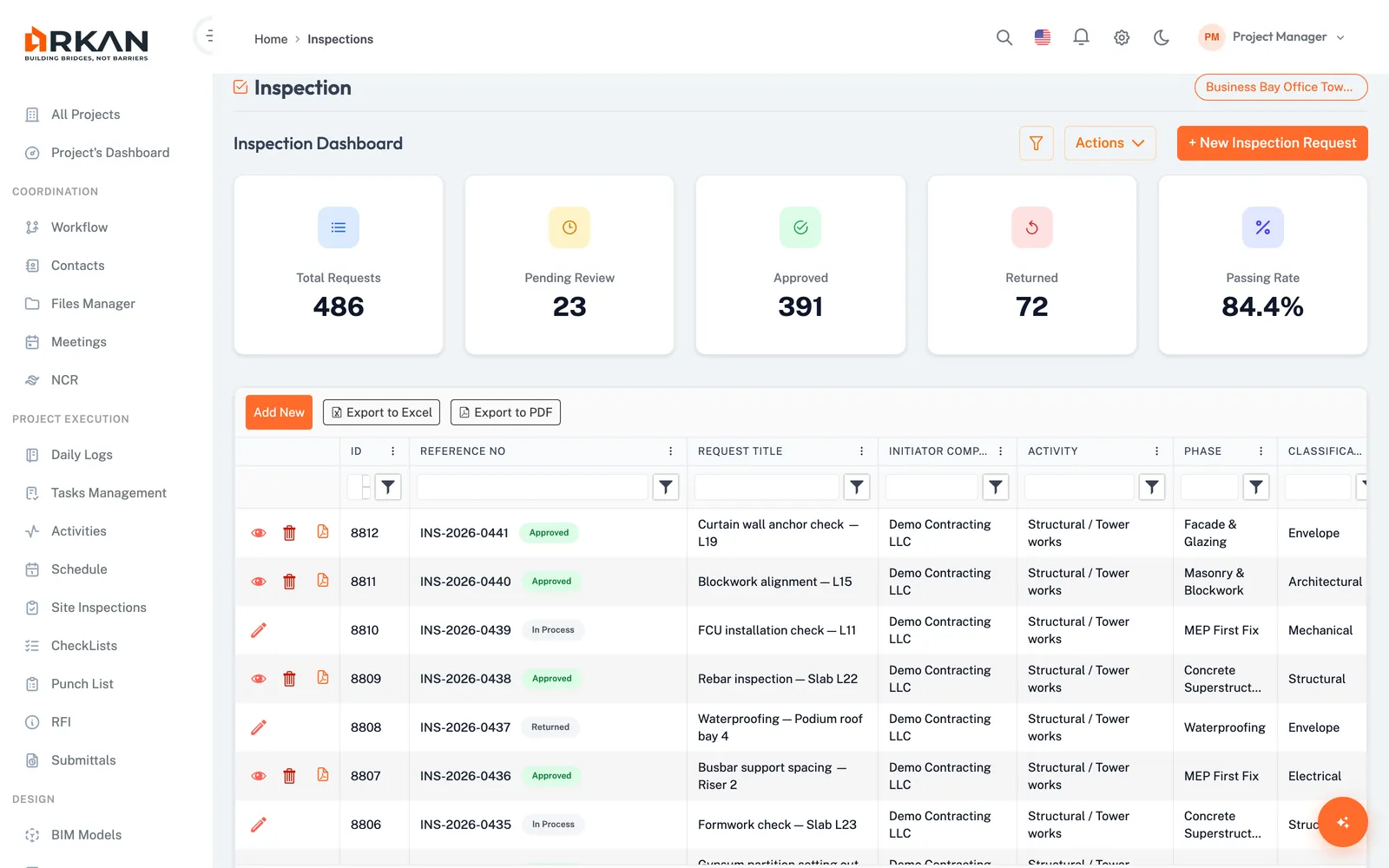
- Navigate to Sidebar > Site Inspections.
- Click the New Inspection Request button in the section header.
- The system navigates to the form (route:
/inspections/new-inspection-request).
The form opens on Step 0 (Main Information) with a "Draft" status badge.
2.2 Multi-Step Form Overview
The form uses a 6-step stepper navigation:
| Step | Label | Description |
|---|---|---|
| 0 | Main Information | Core request details and location data |
| 1 | Prerequisites | Submittal prerequisites and document validation |
| 2 | BOQ | Bill of Quantities items linked to the inspection |
| 3 | Checklist | Inspection checklist forms to complete |
| 4 | Primavera Schedule | P6 schedule items linked to the activity |
| 5 | Preview & Submit | Summary review, signature, and final submission |
Warning: You must save Step 0 before navigating to any other step. The system displays a warning if you attempt to skip ahead.
Click any step indicator to jump to that step (after Step 0 is saved). Connector lines change color to indicate completion.
2.3 Step 0: Main Information
Row 1: Request No & Request Date
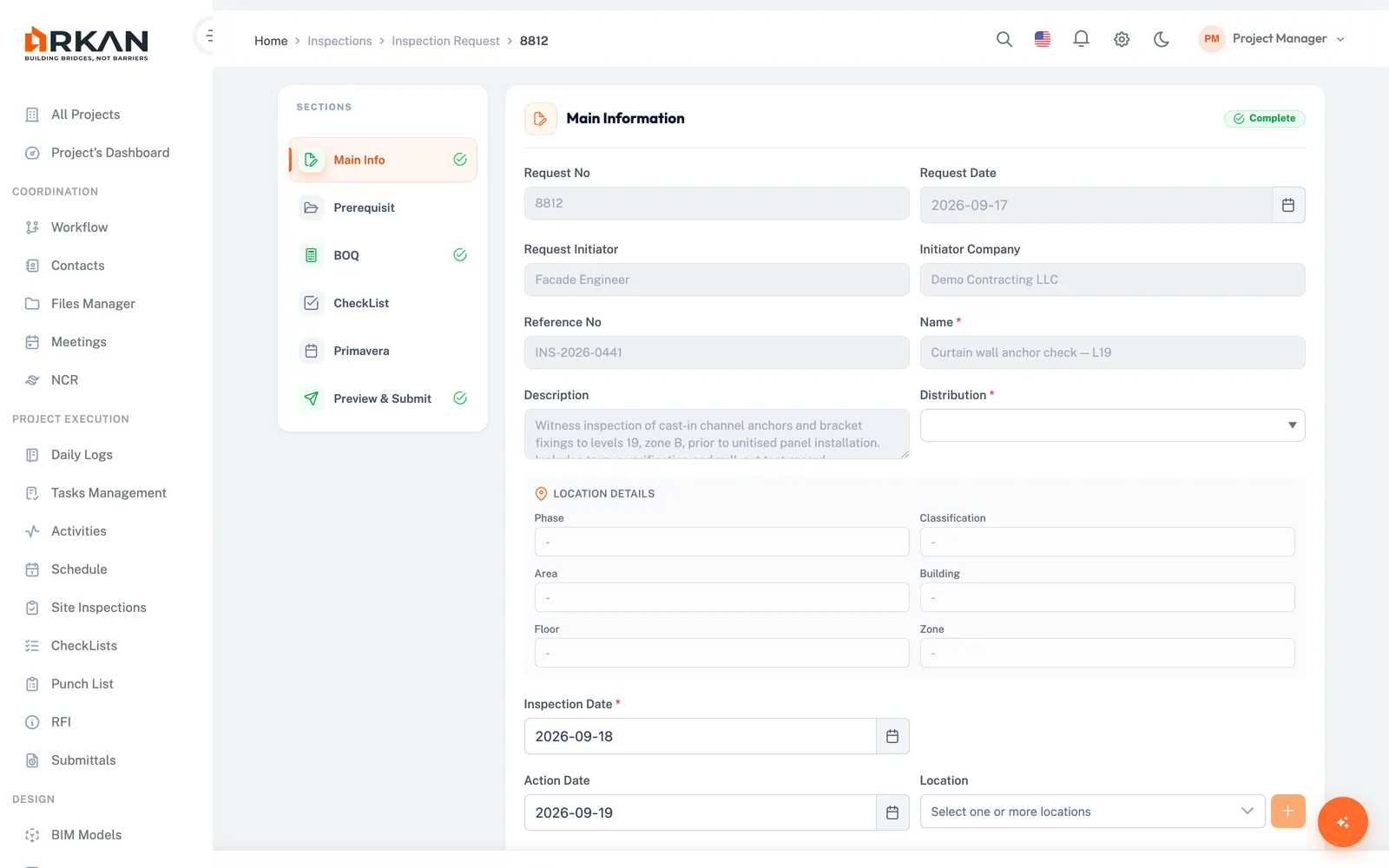
- Request No -- Auto-generated and disabled. Populated after saving.
- Request Date -- Calendar picker (format:
yy-mm-dd). Defaults to today. Read-only.
Row 2: Request Initiator & Initiator Company
- Request Initiator -- Auto-populated with the current user's name. Read-only.
- Initiator Company -- Auto-populated with the current user's company. Read-only.
Row 3: Reference No & Request Name
- Reference No -- Auto-generated after saving. Read-only.
- Request Name -- Free-text field. Required.
Row 4: Description & Distribution Activity
- Description -- Textarea for additional details.
- Distribution Activity -- AutoComplete dropdown. Required. Type to filter by activity name, phase, or classification. Each suggestion shows activity name with phase and classification.
Location Details (auto-filled, read-only): When you select a Distribution Activity, the system populates Phase, Classification, Area, Building, Floor, and Zone automatically.
Dates:
- Inspection Date -- Calendar picker. Required. Defaults to today.
- Follow-up Date -- Conditional; displayed when the workflow requires it.
- Action Date -- Read-only; set by the system.
- Location -- Dropdown with filter search for selecting a specific location.
To save:
- Fill in the Request Name (required).
- Select a Distribution Activity (required).
- Set the Inspection Date (required).
- Click Save & Continue.
Outcome: The system saves the request, assigns an ID and reference number, and advances to Step 1.
Tip: After saving, the header displays the request name, reference number, Active badge, request ID, creation date, and owner name.
2.4 Step 1: Prerequisites
Displays a grid of submittal prerequisites linked to the inspection's activity distribution.
Grid Columns: ID, WBS, Submittal Type, Sub-Category, Submit Date, Approved Date, Note.
Toolbar: Submittal Binding (links submittals to the request), Download All (ZIP download of all documents).
Expand any row to view its associated documents. Additional sections include Additional Documents and Location Documents.
- Review the listed prerequisites.
- Click Save & Continue to advance to Step 2.
Outcome: The prerequisite validation flag is set.
2.5 Step 2: BOQ
- Review the BOQ items displayed in the grid.
- Make any required edits (if your permissions allow).
- Click Save & Continue.
Outcome: The system validates BOQ data. If valid, the form advances to Step 3.
Warning: BOQ validation must pass before the request can be submitted in the final step.
2.6 Step 3: Checklist
- The system displays all checklist templates associated with the inspection.
- Complete each checklist form. Forms save automatically.
- Click Save & Continue to advance.
Outcome: If all checklists are complete, the form advances to Step 4. Otherwise a warning appears: "All checklist templates must be completed before continuing."
2.7 Step 4: Primavera Schedule
- Review the Primavera schedule data.
- Make any required updates (if your permissions allow).
- Click Save & Continue.
Outcome: The Primavera validation flag is set, and the form advances to Step 5.
2.8 Step 5: Preview & Submit
The final step provides a summary of the inspection request.
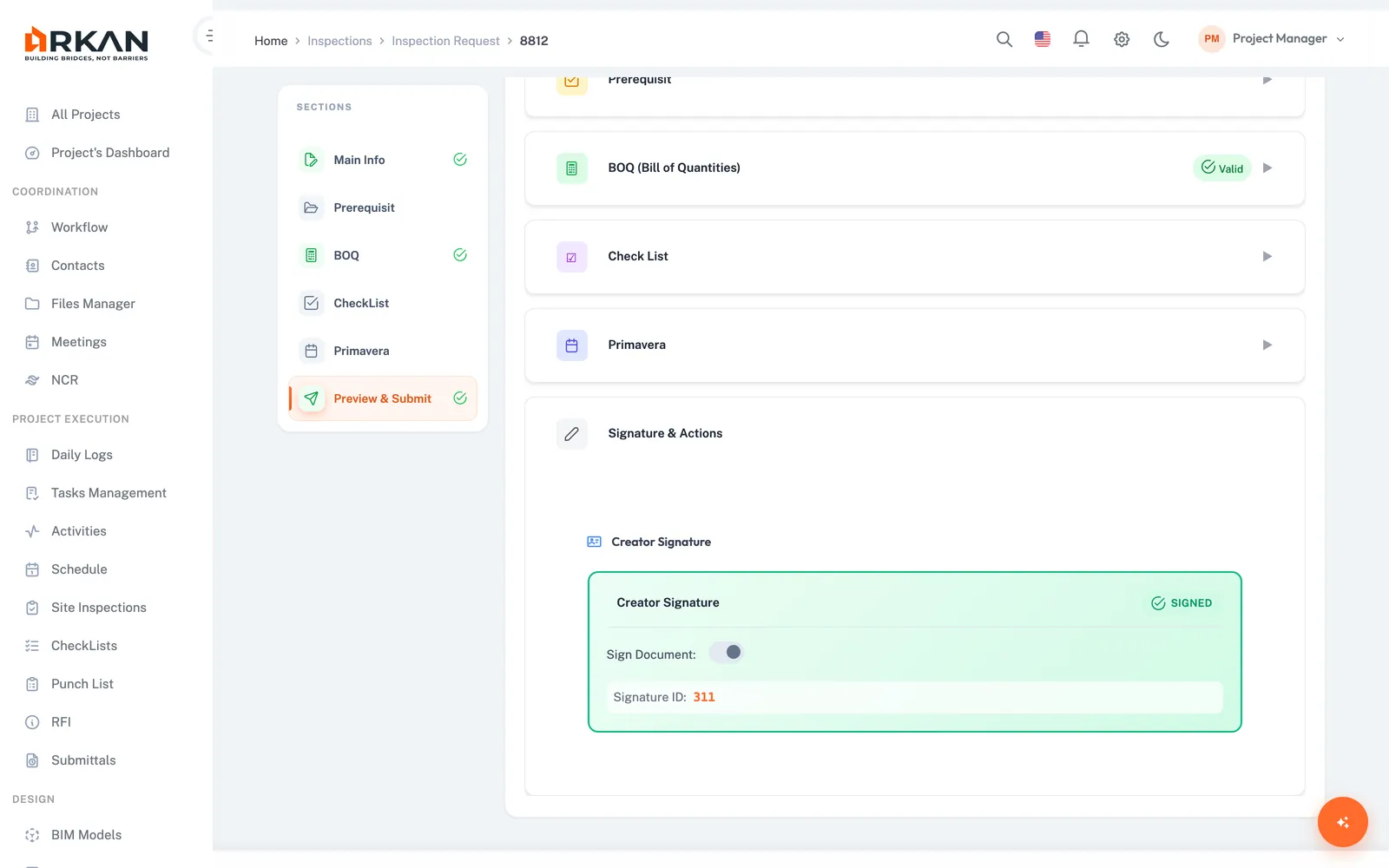
Summary Sections (collapsible): Inspection Summary, Prerequisites Summary, BOQ Summary, Checklist Summary, Primavera Summary.
Workflow Action (when opened from workflow):
- Action Dropdown -- Select workflow action (Approve, Return, Reject, etc.).
- Group Dropdown -- Select the next group in the workflow sequence.
- Notes -- Textarea for workflow comments.
- Workflow Recommendations -- Recommendations from previous workflow steps.
Digital Signature: Owner signature is required before submission.
To submit:
- Verify all validation indicators show as complete.
- Apply your digital signature.
- Click Send.
Outcome: The request is submitted to the workflow. A success message appears and you are redirected to the dashboard.
Warning: The Send button remains disabled until: prerequisites validated, BOQ validated, checklist completed, Primavera validated, and owner signature applied.
2.9 Action Buttons
| Button | When Visible | Action |
|---|---|---|
| Save & Continue | Steps 0-4, editing enabled | Saves step data and advances |
| Send | Step 5, editing enabled | Submits to workflow |
| Unlock | Opened from workflow task | Unlocks request for editing |
Section 3: Editing an Existing Request
- Navigate to Sidebar > Site Inspections.
- Click the pencil icon or the ID link on the row you want to edit.
- The form opens with previously saved data pre-populated.
- Make changes in any step and click Save & Continue on each modified step.
Outcome: Changes are saved and reflected in the dashboard grid.
Tip: When opening from a workflow notification (via encrypted
SQparameter), the form auto-navigates to Step 5 (Preview & Submit).
Section 4: Tracking Inspection Status
| Status | Description |
|---|---|
| Draft | Created but not submitted |
| Pending | Awaiting review in the workflow |
| In Review | Being reviewed by an assigned group |
| Approved | Approved through the workflow |
| Returned | Returned for revision |
| Rejected | Rejected |
Each step includes a Workflow History panel showing the chronological record of all actions: action taken, user, date/time, and notes.
Section 5: Inspection Reports (PDF Export)
- Navigate to the inspection request or access route
/inspections/{id}/generate-pdf. - The system loads report data including company logos, signatures, and all inspection details.
- Click Generate & Upload PDF to create and upload to document management.
- Alternatively, click Download PDF to save locally.
Report contents: Company logos (Client, Consultant, Contractor), request details, prerequisites, BOQ, checklist results, Primavera data, digital signatures, and approval history.
Configuration: A4, Portrait, 10mm margins. File name: Inspection_Approval_${"{RefNo}"}_${"{Timestamp}"}.pdf.
Outcome: The PDF is generated and uploaded. A success notification confirms the upload.
Tip: If logos or signatures fail to load, the PDF still generates. The system logs warnings but does not block export.
Section 6: Exporting Data
- From the dashboard, click the Actions dropdown and select Export to Excel for a full data export.
- Alternatively, use the grid toolbar buttons Export Excel or Export PDF for grid-level exports.
Tip: Apply filters before exporting to limit exported data to only the records you need.
Troubleshooting
What if I cannot see the Inspections page?
Verify that your role has Retrieve permission for Inspection Request. Contact your administrator under Settings > Roles & Permissions.
What if the "New Inspection Request" button is not visible?
Your role needs the Insert permission for Inspection Requests.
What if I receive "No Project Selected"?
Select a project from the top navigation bar before navigating to Inspections.
What if the Distribution Activity dropdown shows no results?
Activity distributions must be configured for the selected project. Check with your project administrator.
What if I cannot proceed past Step 0?
Ensure Request Name, Distribution Activity, and Inspection Date are filled in. Click Save & Continue. The system must assign an ID before other steps become available.
What if the Send button is disabled on the Preview step?
All conditions must be met: prerequisites validated, BOQ validated, checklists completed, Primavera validated, and owner digital signature applied. Navigate to any incomplete step and resolve the issue.
What if the PDF report fails to generate?
- Verify the request has been fully saved and submitted.
- Check that your browser allows file downloads.
- Click Retry to reload report data.
What if filters are not showing expected results?
Click Reset to clear all filters. Note that "New" status requests are hidden from the grid by default.
What if I see "Failed to load workflow data"?
The encrypted workflow link may be invalid or expired. Access the request directly from the Inspection Dashboard grid instead.
Related Sections
- Submittals -- Linked as inspection prerequisites
- BOQ Management -- BOQ items referenced in inspections
- Checklist Forms -- Checklist templates used during inspections
- Primavera Schedule -- Schedule data linked to inspection activities
- Workflows -- Workflow configuration and approval processes
Next: RFI
Back to: Help Center