Overview
The BOQ (Bill of Quantities) module in Arkan provides comprehensive cost management for construction projects. It covers the full lifecycle of quantity-based cost tracking -- from uploading BOQ spreadsheets and mapping columns, through item breakdowns and variation management, to transaction history and phase binding. The module supports hierarchical data views, financial analytics, and integration with project phases for budget control.
Prerequisites
Before working with the BOQ module, ensure the following:
- You have logged in and selected a project (see Getting Started)
- Your user role has the appropriate BOQ permissions with at least Retrieve access
- An Excel file (.xls or .xlsx) is prepared for upload, with headers in the first row and no merged cells
- For phase binding, project phases must already be configured in project settings
BOQ Dashboard
The BOQ Dashboard is the central hub for all Bill of Quantities data within your project.
Navigating to the Dashboard
- Navigate to Sidebar > Finance > BOQ.
- The system loads the BOQ Management page at
/finance/boq.
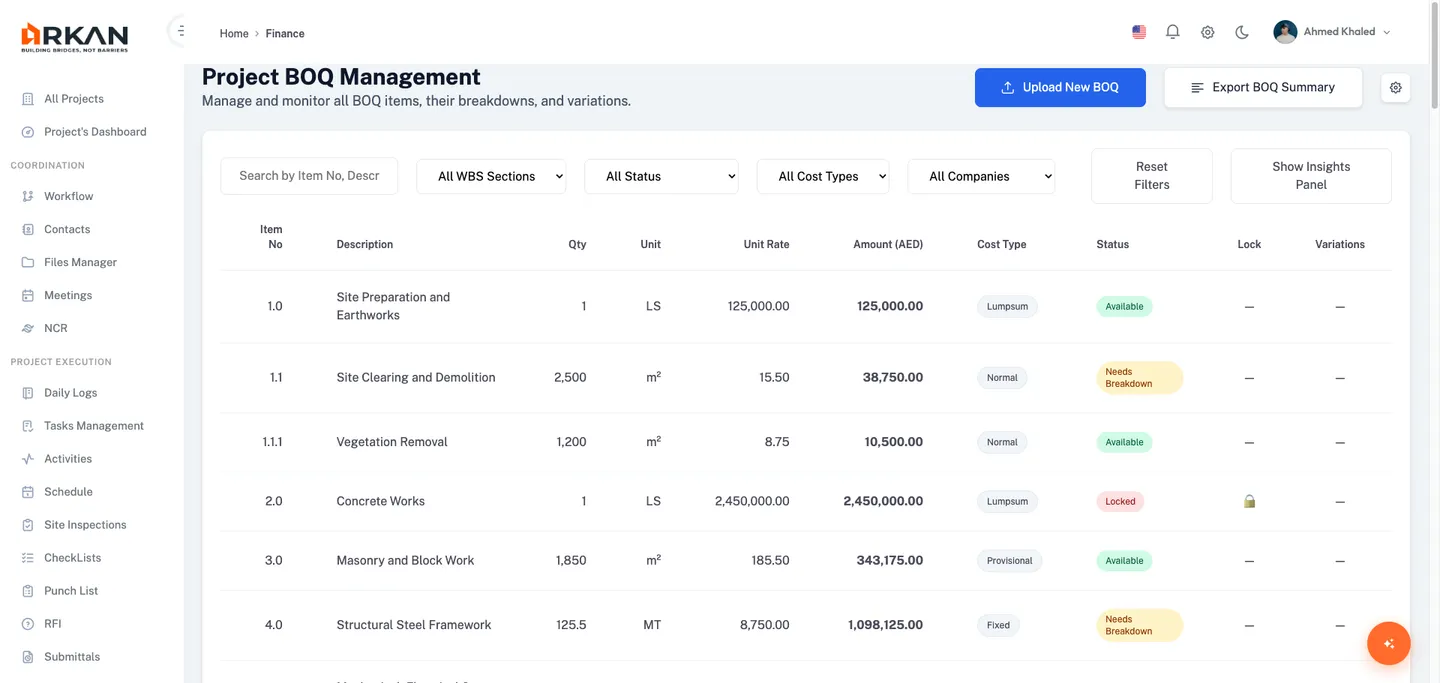
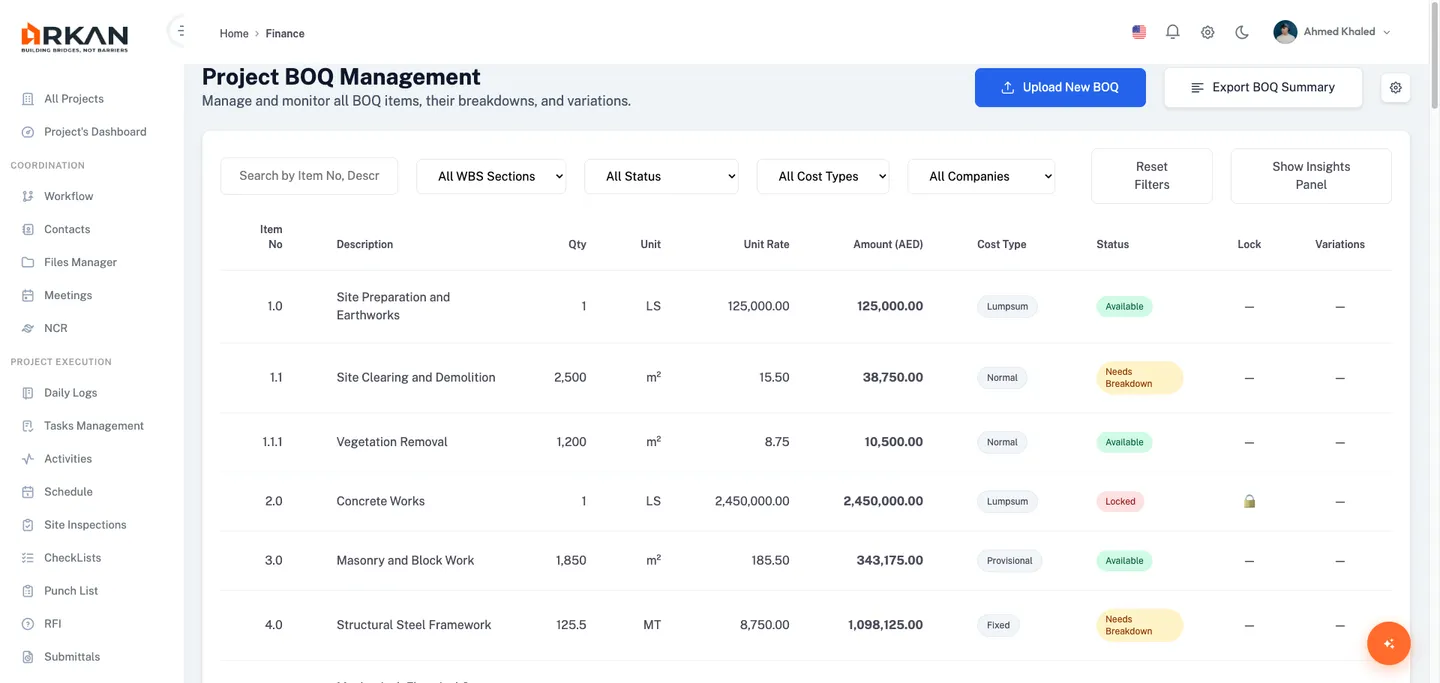
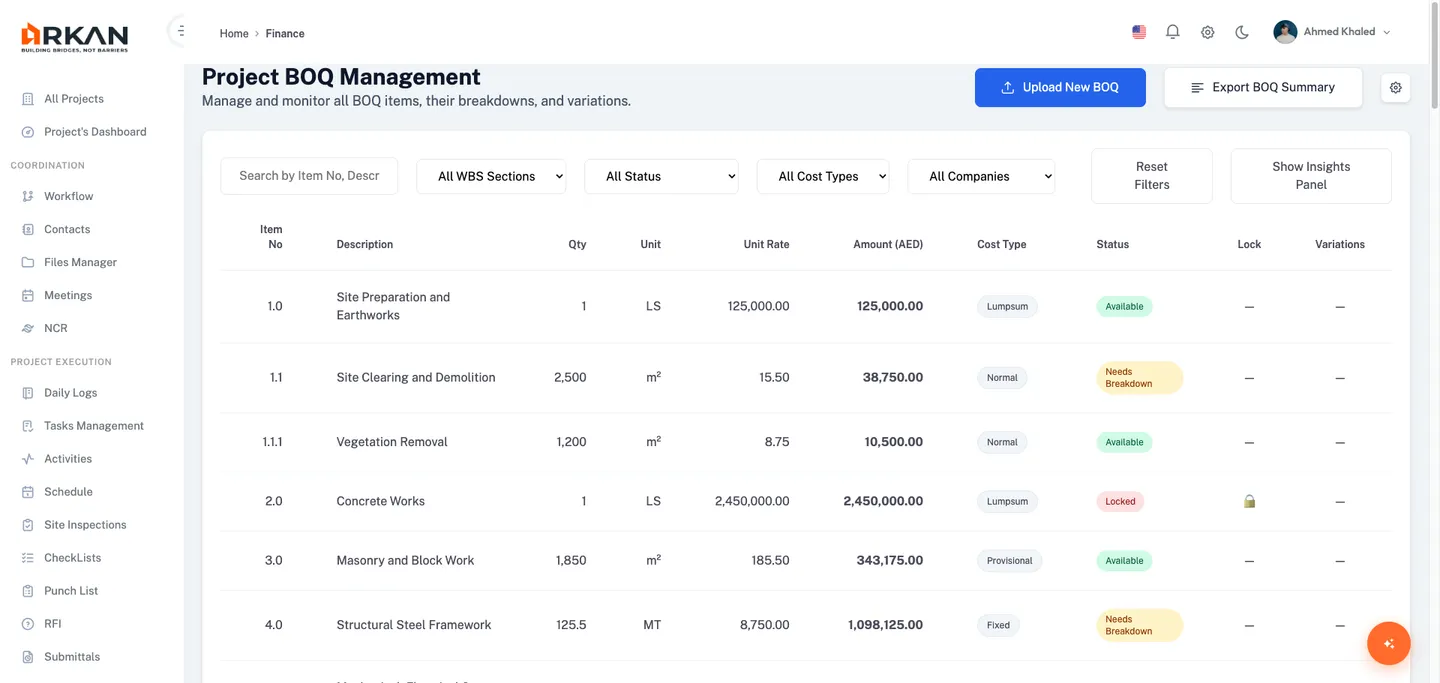
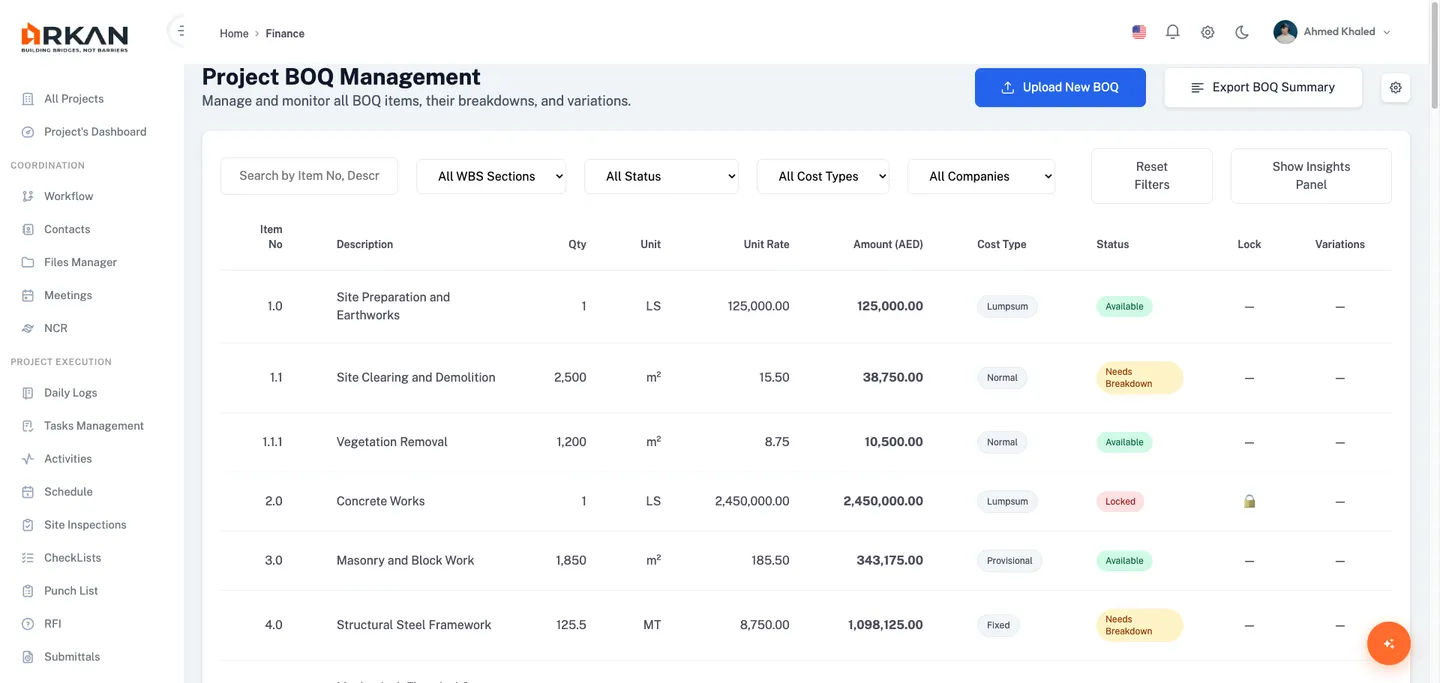
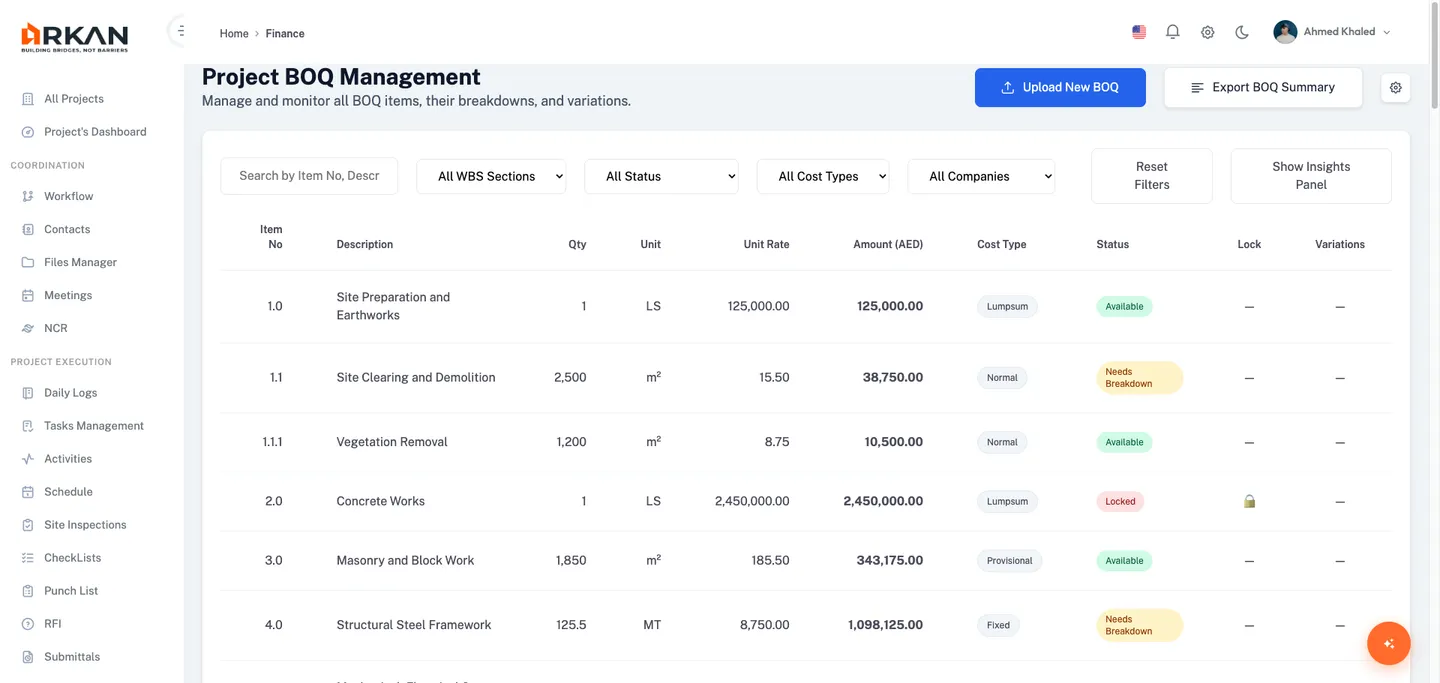
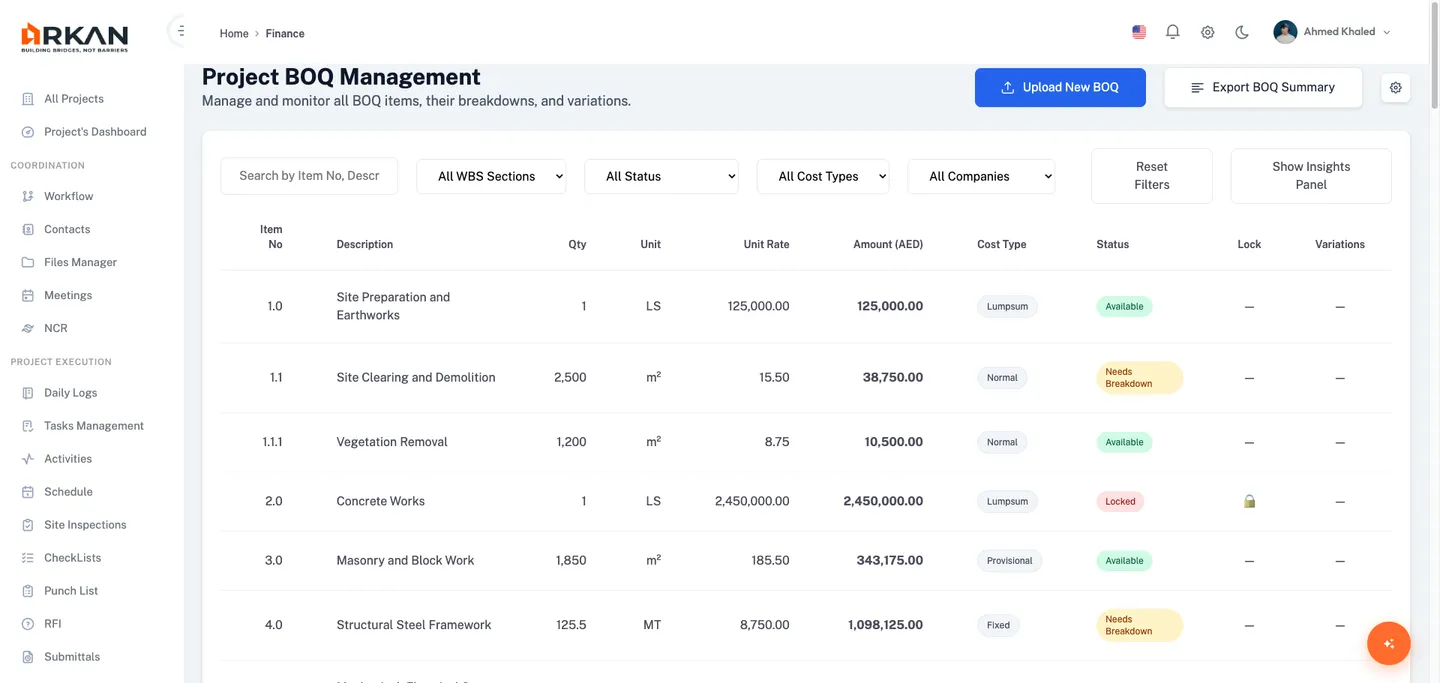
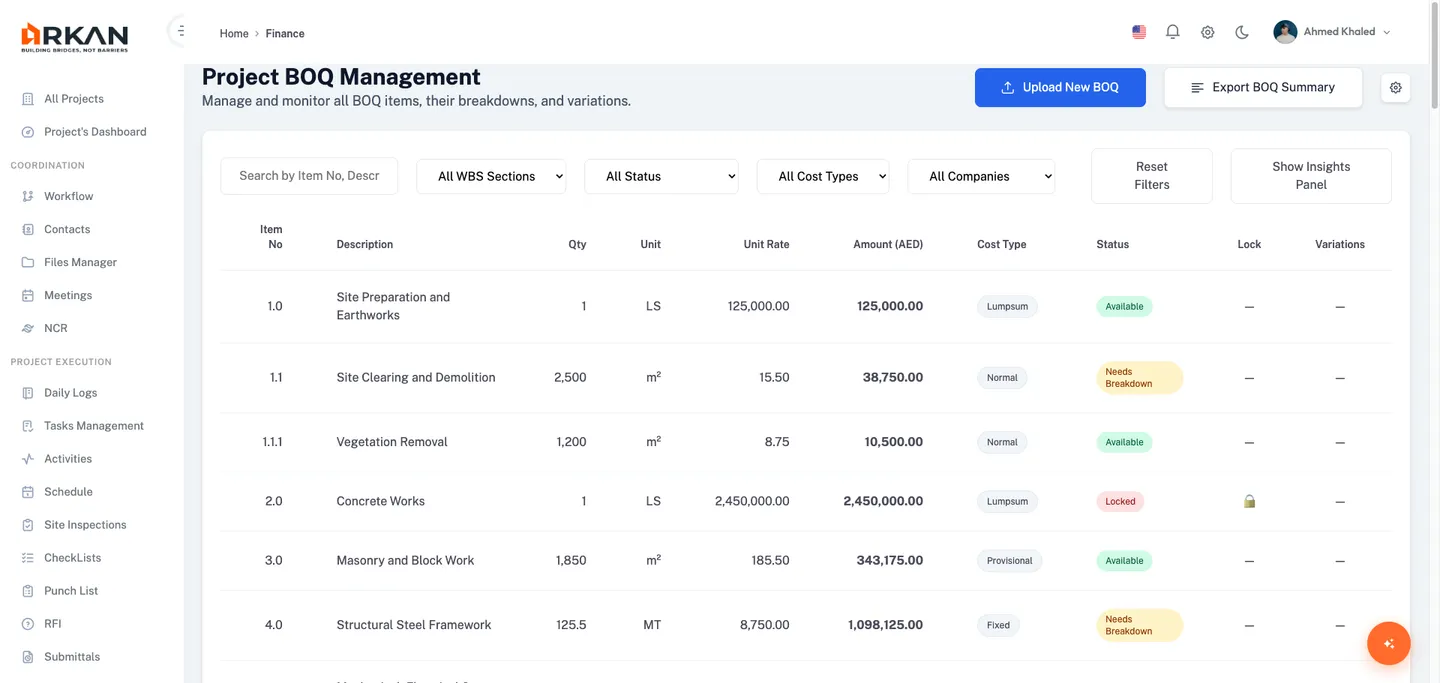
The dashboard displays the BOQ items grid, advanced filters, cost distribution charts, budget health indicators, and recent activity.
Items Grid
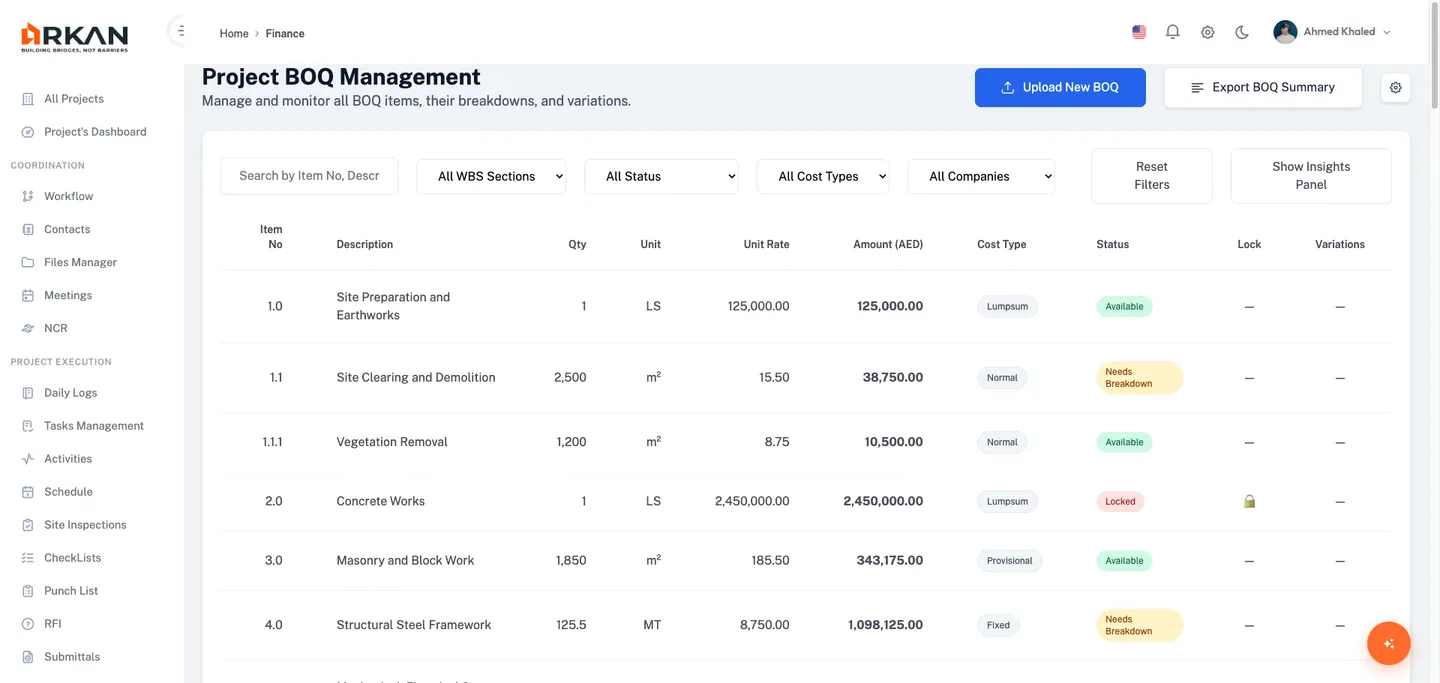
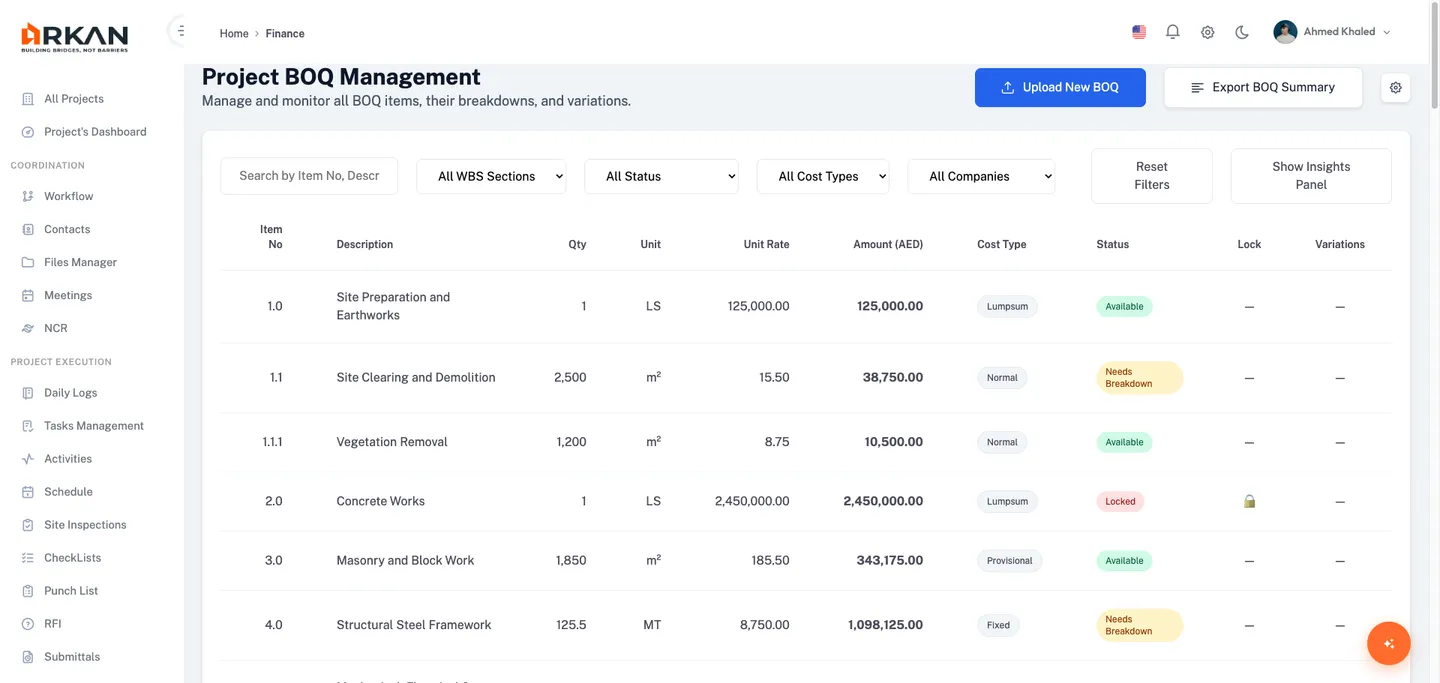
The main grid lists every BOQ line item with the following columns: Item No, Description, Quantity, Unit, Unit Rate (currency), Amount (AED), Cost Type badge (Lumpsum/Normal/Fixed/Provisional), Status badge (Available/Needs Breakdown/Locked), Lock status, and Variations indicator.
Filtering the Grid
- Use the Search field to filter by description text.
- Select a value from the WBS Section dropdown (All, Site Preparation, Concrete Works, Structural Steel, MEP Systems, or Finishes).
- Select a value from the Status dropdown (All, Available, Locked, or Needs Breakdown).
- Select a value from the Cost Type dropdown (All, Lumpsum, Normal, Fixed, or Provisional).
- Select a value from the Company dropdown to filter by assigned company.
- Click Reset Filters to clear all active filters.
The grid updates to display only items matching your selected filter criteria.
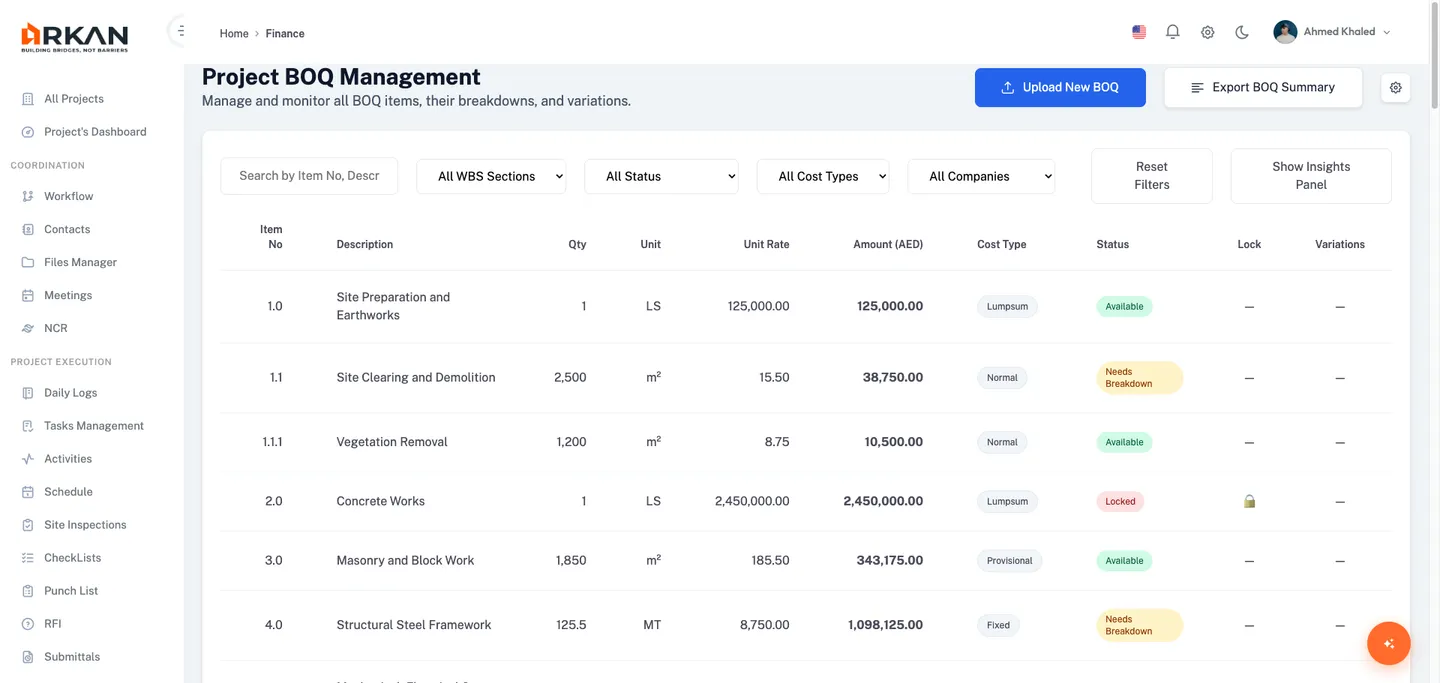
Tip: Click Show Insights Panel to toggle the advanced analytics section below the grid for deeper cost analysis.
Advanced Filters
Below the main grid, four advanced filter cards provide more granular control:
- Amount Range -- Enter Minimum Amount (AED) and Maximum Amount (AED), then click Apply Filters.
- Date Range -- Enter From Date and To Date (mm/dd/yyyy), then click Apply Filters.
- Variation Filters -- Check Items with Variations Only, Pending Variations, or Approved Variations.
- Breakdown Status -- Select Complete Breakdown, Partial Breakdown, or No Breakdown.
Click Reset All to clear all advanced filters.
Warning: Applying multiple advanced filters simultaneously may significantly reduce the result set. If you see no results, try resetting one or more filters.
Cost Distribution by WBS
This section displays horizontal bars showing cost allocation across WBS sections. Each bar shows the section name, a color-coded progress bar representing percentage of total cost, and the absolute amount in project currency.
Budget Health
The Budget Health card summarizes Approved Budget, Current BOQ Total, Remaining Budget, and Budget Utilization percentage.
Tip: If budget utilization exceeds 90%, review pending variations and breakdown items to identify potential cost overruns.
Uploading BOQ Files
Arkan uses a guided 4-step wizard to import BOQ data from Excel files. Click Upload New BOQ on the dashboard or navigate to /finance/boq/upload-project-boq.
Step 1: File Upload
- Drag and drop an Excel file (.xls or .xlsx) onto the drop zone, or click Browse Files to select a file.
- Confirm the selected file name appears below the drop zone.
- Review the File Requirements panel:
- Required columns: Item No/Code, Description of Works, Quantity, Unit, Unit Rate, Item Price
- First row must contain column headers
- Numeric values must be properly formatted
- No merged cells in the data range
- Review the Column Mapping Reference table to understand how Excel columns map to Arkan fields.
- Check Recent Import History to view prior upload outcomes (Success, Warnings, or Failed).
- Click Complete Import to proceed, or Preview Import for a preliminary review.
The file is uploaded and its columns are detected for mapping.
Tip: Maximum file size is 50 MB. If your file exceeds this limit, split it into multiple files by WBS section.
Warning: Files with merged cells will fail validation. Unmerge all cells in Excel before uploading.
Step 2: Column Mapping and Preview
- Review Detected Excel Columns on the left (letter, name, type, sample data).
- Use the dropdown selectors on the right to map each column to the corresponding Arkan field.
- Required fields show a Required indicator; optional fields show Optional.
- Monitor Mapping Status to track completion percentage.
- Preview sample data to verify mappings are correct.
- Click Next to proceed to validation.
All required columns are mapped and sample data is displayed for verification.
Step 3: Validation Summary
- Review Validation Results for any errors and warnings.
- Check the Records Summary (total rows, valid rows, rows with issues).
- Review Column Verification to confirm all mapped fields passed validation.
- If errors exist, correct them in your Excel file and re-upload.
- Click Next to proceed to final confirmation.
The system validates all data rows and presents a summary of issues found.
Step 4: Confirmation and Import
- Review the final confirmation screen showing import statistics.
- Click Import to begin the data import.
- Monitor the progress indicator as records are imported.
- Review the success summary with total items imported.
The BOQ data is imported into the project and available on the dashboard.
Viewing BOQ Data
The BOQ Data view provides a hierarchical TreeList display of all imported items with parent-child relationships.
- Navigate to Sidebar > Finance > BOQ and click a BOQ file, or go to
/finance/boq/projectBOQAllData. - Click the expand arrow next to any parent item to reveal child items.
- Use the search bar to filter by description or item number.
- Click column headers to sort data.
- Use column filter icons for column-specific filtering.
- Click Export Excel or Export PDF to download the view.
The TreeList displays all BOQ items with expandable/collapsible hierarchy.
Item Breakdown
The Breakdown view divides a parent BOQ item into detailed sub-items for granular cost tracking and progress monitoring.
Navigating to Item Breakdown
- From the BOQ Dashboard or Data view, click an item with the Needs Breakdown status.
- The system navigates to
/finance/boq/breakdown.
The breakdown page loads with the parent item summary and an editable sub-items table.
Parent Item Summary
The summary card displays: Item No, Description, Quantity and Unit, Unit Rate, Amount, Cost Type, and a progress bar showing the percentage of amount distributed to sub-items.
Adding a Sub-Item
- Click Add New Sub-Item in the page header.
- Fill in the Description, Quantity, and Unit Rate.
- Select the Unit from the dropdown (m3, m2, pcs, etc.).
- Verify the Amount is calculated automatically.
- Set the Progress % if work has started.
- Click the confirm button (checkmark) in the Actions column to save.
The sub-item appears in the breakdown table and the parent progress bar updates.
Handling Variance Alerts
When breakdown sub-items do not sum to the parent amount, a warning alert appears.
- Review the variance alert showing the difference amount.
- Click Auto Adjust to redistribute amounts automatically.
- Alternatively, manually adjust individual sub-item values.
The variance is resolved and the breakdown total matches the parent BOQ amount.
Warning: Review auto-adjusted values before locking. The system distributes variance proportionally, which may not match your intended allocation.
Breakdown Totals
The totals section displays Total Breakdown Amount, Original Amount, and Remaining Difference. Use View History to see the change audit trail, Lock Breakdown to prevent further edits, or Export All Items to download the data.
Variations
Variations track changes to original BOQ quantities, rates, or scope. Each variation is categorized as an Addition, Adjustment, or Omission and follows an approval workflow.
Navigating to Variations
- From the BOQ Dashboard, click the variations indicator on any item row.
- The system navigates to
/finance/boq/variations.
The variations page loads with the parent item summary, filters, and variations table.
Parent Item Summary
Displays Item No, Original Quantity, Original Unit Rate, Original Value, Total Variations count, Net Revised Value, and a color-coded Variations Progress Bar (green = Approved, yellow = Pending, red = Rejected).
Filtering Variations
- Use the Status dropdown (All Statuses, Approved, Pending, Rejected).
- Use the Type dropdown (All Types, Addition, Adjustment, Omission).
- Enter a Date Range using From and To fields.
- Click Advanced Filters for additional options, or Reset to clear.
The variations table updates to show only matching records.
Variations Table
Columns: Checkbox (selection), Variation No, Description (editable), Type badge, Quantity (editable), Unit, Unit Rate (AED) (editable), Variation Value (AED) (color-coded: green for additions, red for omissions), Status badge, and Approved By.
Adding a Variation
- Click Add Variation in the page header.
- Fill in the description, type, quantity, and unit rate.
- The variation value is calculated automatically.
- Click save to create with a Pending status.
The new variation appears with a Pending status badge.
Bulk Actions
Select variations using checkboxes, then use: Approve Selected, Reject Selected, Export Selected, Duplicate Selected, or Delete Selected.
Tip: Use Compare with Original in the table actions bar for a side-by-side comparison of original versus revised values.
Value Impact and Approval Status
Below the table, summary cards show Value Impact (additions, omissions, adjustments, net impact), Approval Status (progress bars by status), and a Timeline of variation milestones.
Approval Workflow and Comments
The Approval Workflow section shows the configured approval chain. Click Configure Workflow to modify steps, or Send Reminder to notify pending approvers. Use the Comments & Notes section to post and review team discussion.
Transaction History
The Transaction History provides a detailed audit trail of all financial operations on BOQ items.
Navigating to Transactions
- From the BOQ Data view, click the actions menu on a BOQ file.
- Select View Transactions, or navigate to
/finance/boq/file/{id}/trans.
The transaction TreeList loads with all records for the selected BOQ file.
TreeList Columns
The TreeList displays: Actions, Item Number, ID, Description of Works, Qty, Unit Rate, Unit, Item Price, Status, Change Amount, Hold Amount, and Spent Amount.
Transaction Actions
- Post (checkmark) -- Finalize the transaction. Available when the item allows posting.
- Lock/Unlock (lock icon) -- Toggle lock status on unbranched items.
- Change Amount (sliders) -- Add or discount amounts via the changes dialog.
- Actions Menu (gear icon):
- Add Child -- Create a child item under the selected parent
- Edit -- Modify description, quantity, or unit rate
- Transfer Amount -- Move budget between sibling items
- Edit Amount -- Directly update the item amount
- View Changes -- See change history
- Delete -- Remove the transaction record
Warning: Amount transfers are irreversible once posted. Double-check the destination and amount before confirming.
Exporting
- Click Export Excel to download as BoqTransData.xlsx.
- Click Export PDF to download as BoqTransData.pdf.
The export includes all visible columns and the full transaction hierarchy.
Phase Binding
Phase Binding links BOQ items to specific project phases for budget tracking and cost allocation.
- Navigate to Sidebar > Finance > BOQ and select Binding, or go to
/finance/boq/binding. - Enter the Project ID and Phase ID, then click Load.
- The left panel (Bindable BOQ) shows available items; the right panel (Bound to Phase) shows linked items.
- Click Bind next to any item in the left panel to link it to the phase.
- To remove a binding, click Remove next to the item in the right panel.
Items move between the Bindable and Bound panels as bindings are added or removed.
Export and Reports
The BOQ module offers multiple export options from the dashboard's Export & Reports section:
| Report | Description |
|---|---|
| Excel Export | Complete BOQ data in spreadsheet format |
| PDF Report | Formatted PDF summary of the BOQ |
| Cost Analysis | Detailed cost breakdown and distribution analysis |
| Variations Report | Summary of all variations with approval status |
- Scroll to Export & Reports on the dashboard.
- Click the desired report card to generate and download.
Arkan also supports Scheduled Reports with automated weekly delivery. Verify the status shows Active and click Configure to adjust settings.
Team Collaboration
The Team Collaboration section on the dashboard shows team members working on BOQ items with online status indicators (green = online, amber = away, grey = offline). Click Invite Members to add collaborators. The Recent Activity feed below displays the latest actions including edits, uploads, approvals, and variation submissions.
Troubleshooting
| Issue | Possible Cause | Resolution |
|---|---|---|
| Excel upload fails at Step 1 | File exceeds 50 MB or wrong format | Reduce file size or convert to .xls/.xlsx |
| Column mapping shows "0% complete" | Headers missing from first row | Ensure headers are in row 1 with no blank rows above |
| Validation errors for numeric fields | Values contain text or special characters | Format numeric columns as Number in Excel |
| Merged cells error | File contains merged cells | Select all, click Unmerge Cells, re-upload |
| Breakdown total does not match parent | Sub-items do not sum to parent value | Use Auto Adjust or manually correct values |
| "Needs Breakdown" status persists | No child sub-items defined | Add sub-items on the breakdown page |
| Variation cannot be approved | User lacks approval permission | Contact administrator to assign approval rights |
| Lock/Unlock button not visible | Item is branched (has children) | Lock/unlock only available on unbranched items |
| Transaction export is empty | No data loaded or filters too restrictive | Reset filters and verify the correct BOQ file |
| Phase binding returns empty | Invalid Project ID or Phase ID | Verify IDs match existing project and phase records |
Next: Checklists
Back to: Help Center