Prerequisites
- You must be logged in with valid credentials and have an active session
- A project must be selected before accessing the Daily Logs module
- Your user role must include the DailyLogs page permission (Retrieve, Insert, Update, or Delete as appropriate)
- Project location coordinates (latitude/longitude) should be configured for live weather data
Overview
The Daily Logs module provides a centralized digital record of everything that happens on a construction site each day. It replaces paper-based daily reports with a structured system that tracks manpower deployment, equipment usage, material deliveries and consumption, visitor access, and safety incidents or observations.
Each daily log follows a Draft > Submitted > Approved / Rejected workflow, ensuring site data is reviewed and verified before it becomes part of the permanent project record. Logs are created automatically when you add the first entry for a given date.
Navigation: Sidebar > Daily Logs
Daily Logs Overview
The overview page is the landing screen displaying project-level statistics, KPI summary cards, live weather conditions, and a filterable table of all daily logs.
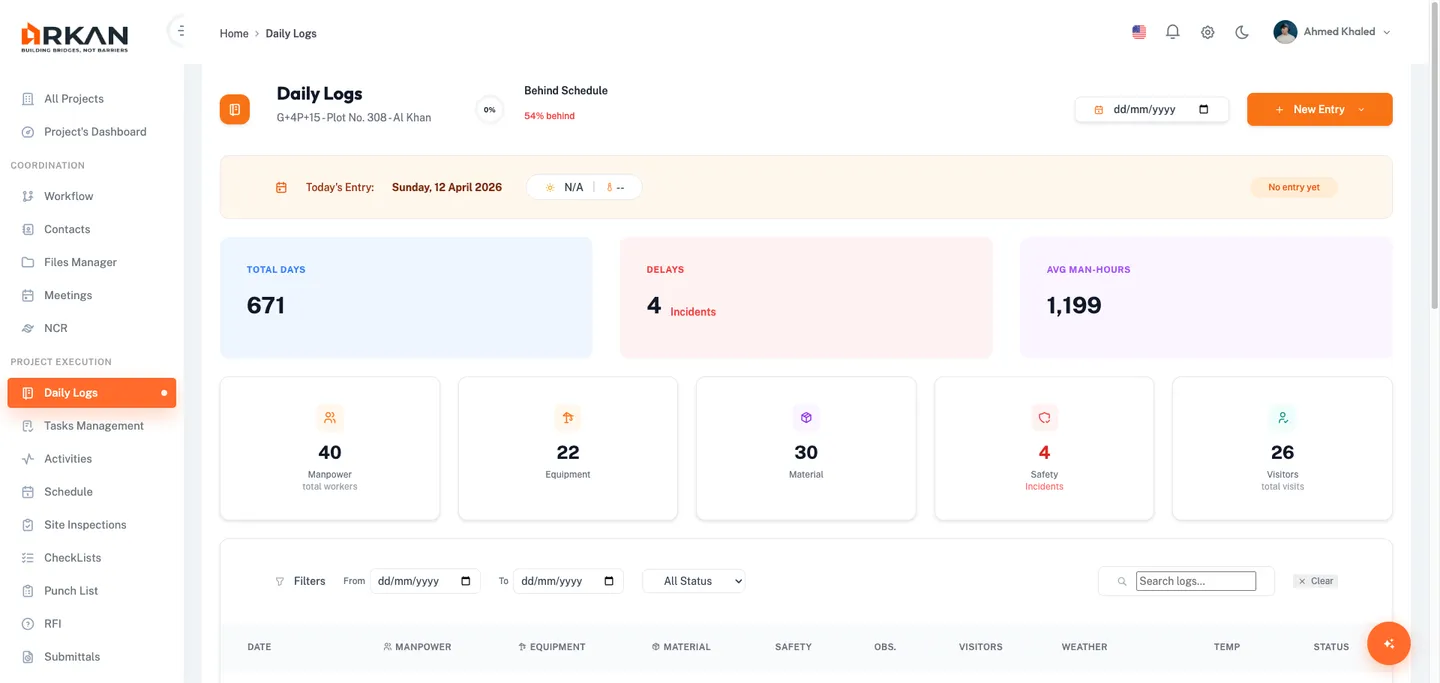
Page Header
- Module title with the selected project name
- Project completion ring showing overall completion percentage from Primavera schedule data
- Entry date picker for choosing which date a new entry will be recorded against (defaults to today)
- New Entry button (requires Insert permission)
Today's Date Banner
Displays the current date, live weather conditions (fetched from Open-Meteo API using project coordinates), and a status badge for today's log entry.
Tip: If weather shows "N/A", check that your project has latitude and longitude configured in project settings.
Summary Statistics and KPI Cards
Three stat cards (Total Days, Delays, Avg Man-Hours) plus five KPI cards (Manpower, Equipment, Material, Safety, Visitors) showing running totals across all logs.
Log Table
Filter by date range, status, and search text. Columns: Date, Manpower, Equipment, Material, Safety, Obs, Visitors, Weather, Temp, Status. Click a date to open the detail page.
Adding Entries from the Overview
- Optionally select a date using the Entry date picker
- Click New Entry and select the entry type: Manpower, Material, Equipment, Visitor, or Safety
- Fill in the required fields and click Save Entry or Save & Add Another
Warning: If the "New Entry" button is not visible, your account lacks Insert permission.
Daily Log Detail
Click a date link in the overview table to open the detail page.
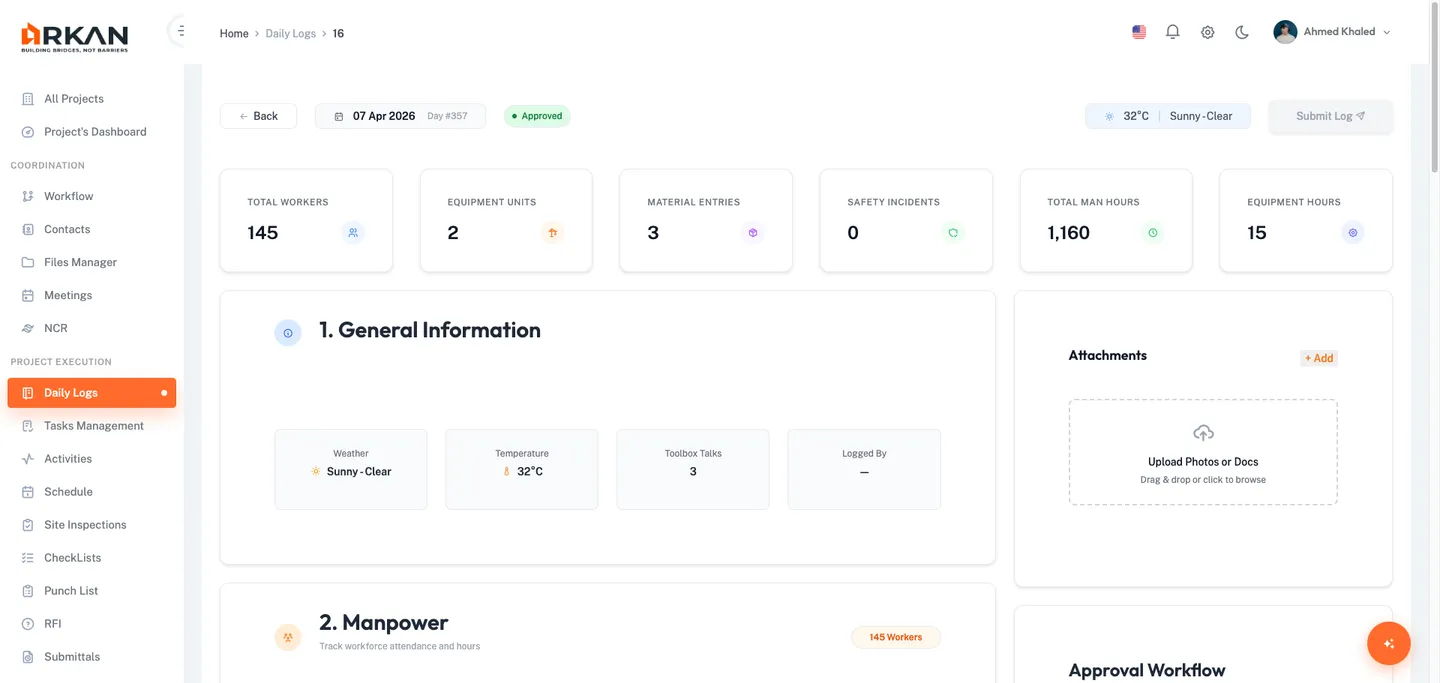
Sub-Header Bar
Back button, date badge with project day number, status badge, weather display, and Submit Log button (enabled for Draft status only).
Summary Stat Cards
Total Workers, Equipment Units, Material Entries, Safety Incidents, Total Man-Hours, Equipment Hours.
Layout
Left column (2/3): Numbered entry sections. Right column (1/3): Attachments, Approval Workflow, Create RFI link, Quick Actions.
Section 1: General Information
Read-only tiles for Weather, Temperature, Toolbox Talks count, and Logged By user.
Section 2: Manpower Entries
Records workforce deployment. Table columns: Company, Trade, Count, Hours, Location, Delete.

Adding a Manpower Entry
| Field | Required | Description |
|---|---|---|
| Trade | Yes | Worker trade from lookup |
| Company | Yes | Contractor/company |
| Shift | Yes | Shift type ("Custom" reveals time pickers) |
| Headcount | Yes | Number of workers (min: 1) |
| Working Hours | Yes | Hours per person (default: 8) |
| Overtime Hours | No | Optional overtime |
Optional work context: Task, Activity, and cascading Area > Building > Floor > Zone location fields.
Section 3: Equipment Entries
Tracks equipment type, quantity, operating hours, and condition (Operational, Idle, Down).
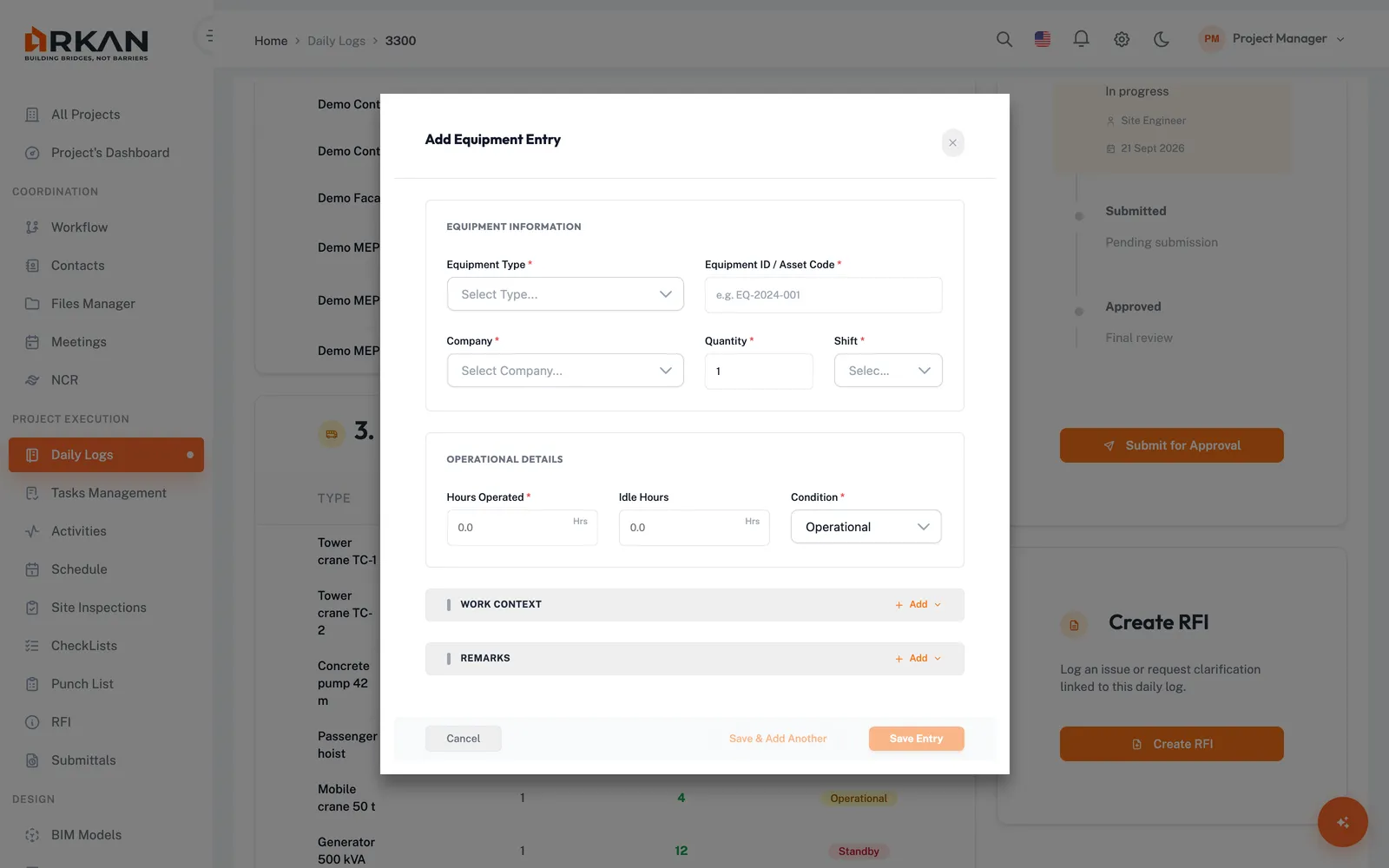
| Field | Required | Description |
|---|---|---|
| Equipment Type | Yes | From equipment type lookup |
| Quantity | Yes | Number of units |
| Hours Operated | Yes | Total operating hours |
| Condition | Yes | Operational, Idle, or Down |
Section 4: Material Entries
Records materials received or consumed. The form adapts based on entry type (Received vs Used).
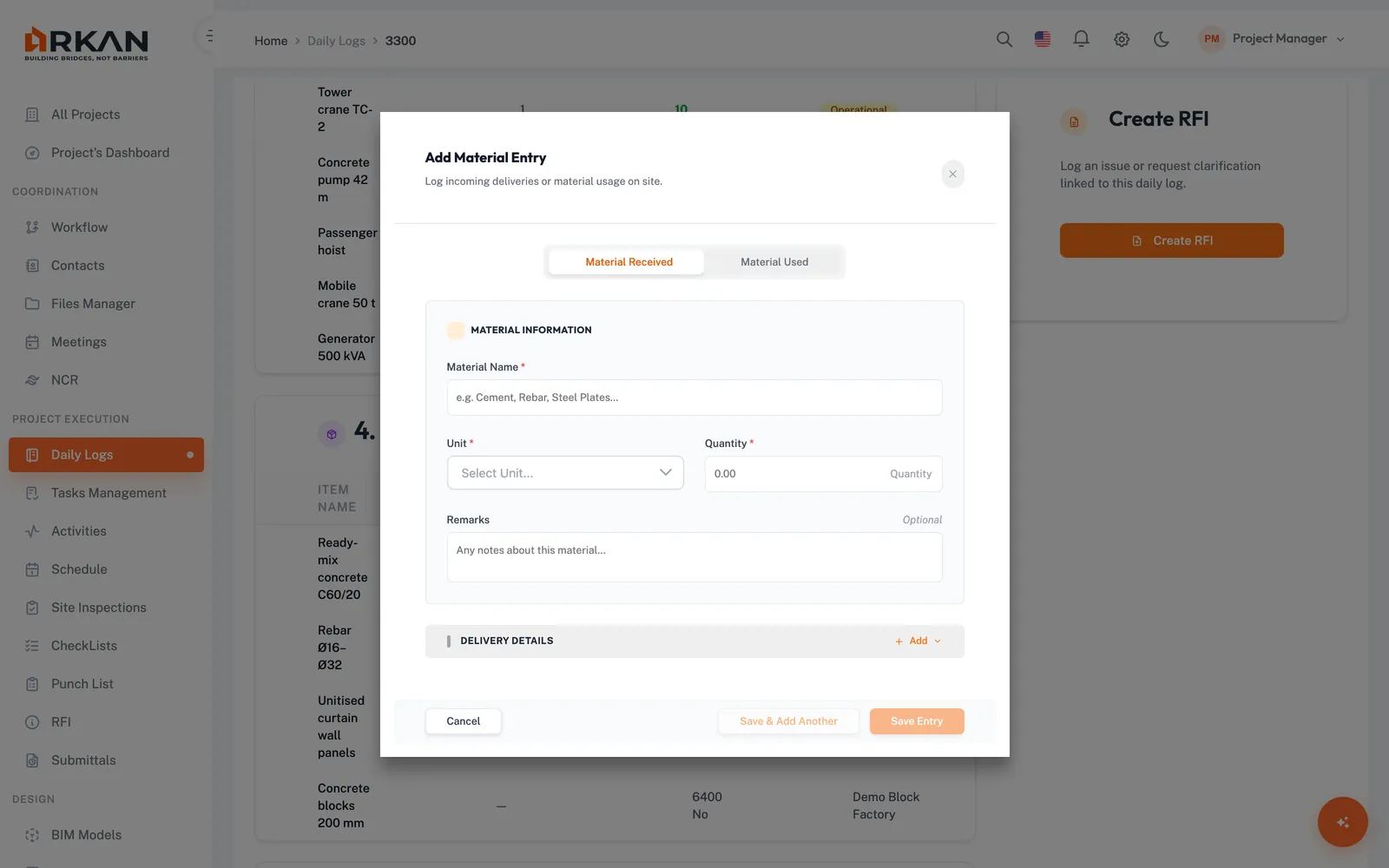
| Field | Required | Description |
|---|---|---|
| Entry Type | Yes | Received or Used |
| Material Name | Yes | Name or description |
| Unit | Yes | Unit of measurement |
| Quantity | Yes | Amount (min: 0.01) |
Received-specific fields: Supplier, Delivery Note Number, Delivery Date, Storage Location. Used-specific fields: Task, Activity, Area, Zone, Specific Location.
Section 5: Safety Entries
Split into Incidents & Near Misses (left panel) and Observations (right panel).
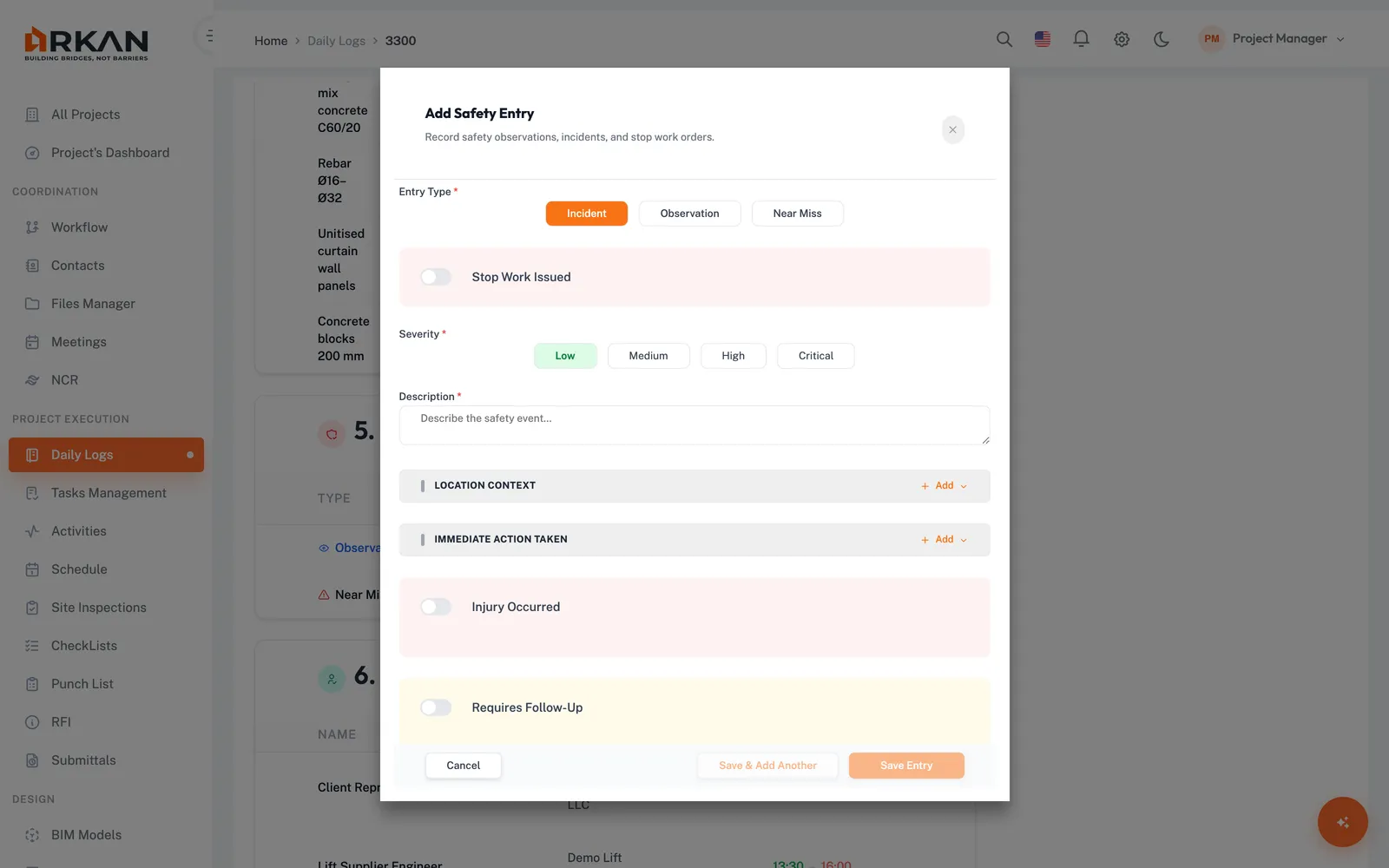
| Field | Required | Description |
|---|---|---|
| Entry Type | Yes | Incident, Observation, or Near Miss |
| Severity | Yes | Low, Medium, High, or Critical |
| Description | Yes | Detailed description |
Additional fields: Location details, Stop Work toggle (with start/end times), Injury toggle (with persons affected), Immediate Action Taken, and Follow-Up toggle (with recommended action and responsible person).
Warning: High or Critical severity entries should be reported immediately to the HSE department.
Section 6: Visitor Entries
Records site visitors with columns: Name, Company, In/Out times, Purpose.
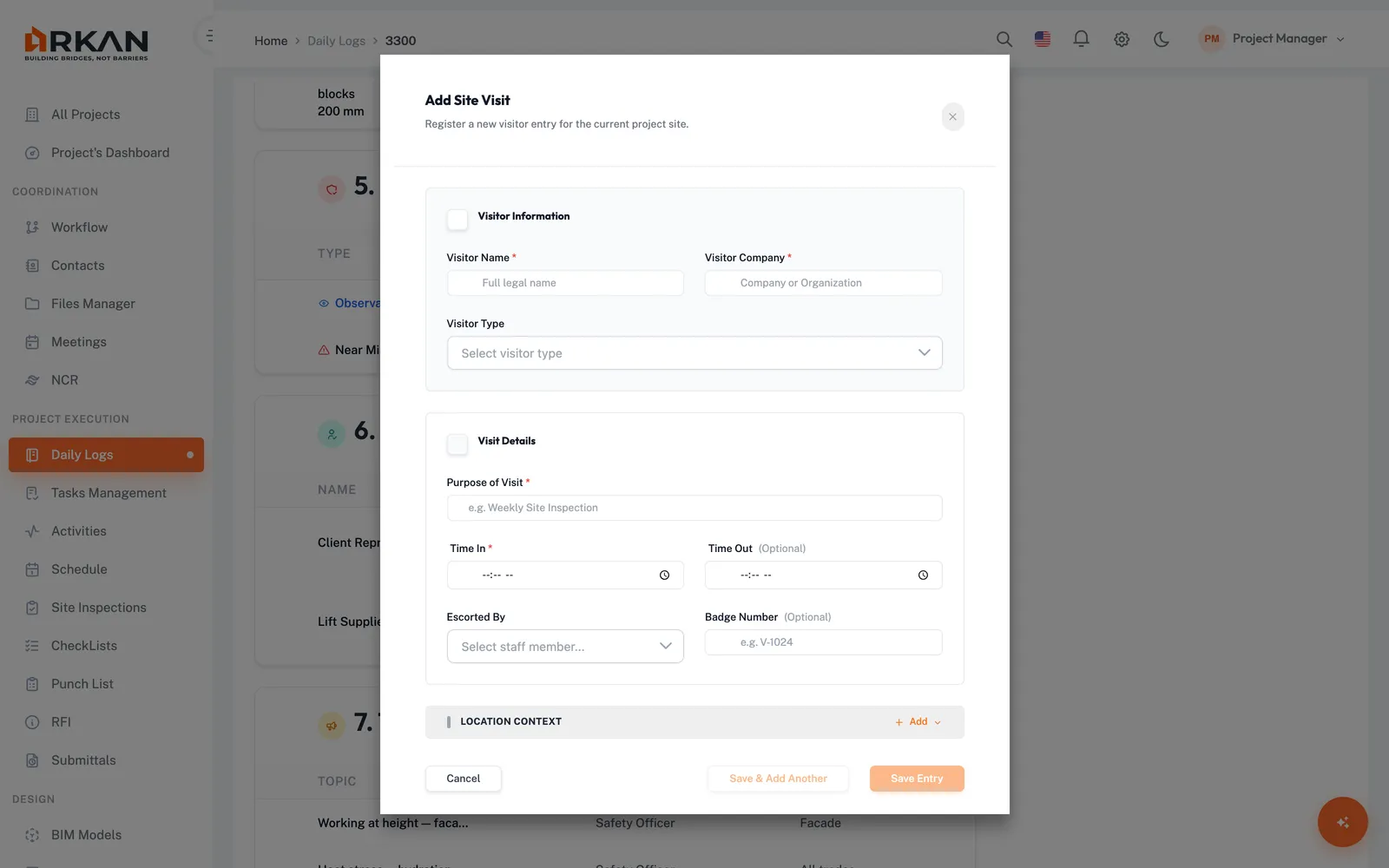
| Field | Required | Description |
|---|---|---|
| Visitor Name | Yes | Full name |
| Visitor Company | Yes | Company name |
| Purpose | Yes | Reason for the visit |
| Time In | Yes | Check-in time |
Optional: Visitor Type, Time Out, Escorted By, Badge Number, Location, Visit Category, Visit Result, Observations.
Attachments
Upload supporting documents and photos via the right sidebar panel. Max 10 MB per file. Duplicates are skipped. Uploaded files display with type icon, name, size, date, download/view, and delete buttons.
Approval Workflow
Each daily log follows a three-step workflow:
| Step | Description |
|---|---|
| Draft | Entries can be added, modified, or deleted |
| Submitted | Under review, no new entries from overview |
| Approved | Reviewed and accepted |
| Rejected | Returned for corrections |
Click Submit Log to submit for approval. Visual indicators: green checkmark (completed), orange dot (current), gray dot (pending), red X (rejected).
Warning: Once submitted, you cannot add new entries for that date from the overview page.
Quick Actions (Detail Page)
The Quick Actions panel in the right sidebar provides shortcuts:
| Action | Description |
|---|---|
| New Entry dropdown | Same dropdown as the overview page, allowing you to add any entry type directly |
| Back to Overview | Navigates back to the Daily Logs overview page |
Create RFI
A dedicated panel links to the RFI creation page. Use it when a daily log entry raises a question that needs formal clarification from the design team or client.
- Click Create RFI in the right sidebar.
- You are navigated to the RFI creation page at
/rfi/create.
Weather Tracking
- Live weather on overview: Auto-fetched from Open-Meteo API using project coordinates
- Stored weather on detail: Recorded when the log was created
Icons: Sun (Clear), Cloud (Cloudy), Cloud with rain (Rain), Wind (Wind).
Permissions
| Permission | Grants Access To |
|---|---|
| Retrieve | View overview, details, and entry tables |
| Insert | New Entry button and creation modals, adding attachments |
| Update | Submitting logs for approval |
| Delete | Deleting entries and attachments |
Troubleshooting
| Problem | Solution |
|---|---|
| New Entry button not visible | Your account lacks Insert permission. Contact your administrator. |
| Weather shows "N/A" | Project needs latitude/longitude configured in Project Settings. |
| Overview table is empty | Check that a project is selected and clear any active filters. |
| Submit Log button grayed out | Log is no longer in Draft status. |
| Dropdowns are empty | Ensure trades, companies, shifts, equipment types, areas, and units are set up in project/system lookups. |
| File upload fails | Check file is under 10 MB. Duplicate filenames are skipped. |
| Cascading dropdowns don't load | Select a value in the parent dropdown first (Area > Building > Floor > Zone). |
| Project completion shows 0% | Upload at least one Primavera schedule file for the project. |
Back to: Help Center