Prerequisites
- You must be logged in to Arkan with a valid user account (see Getting Started)
- A project must be selected before accessing the NCR module
- Your user role must have NCR permissions assigned by the system administrator
- To create NCRs linked to inspections or specifications, the corresponding modules must have data populated
Overview
The NCR (Non-Conformance Report) module provides a structured process for documenting work or materials that do not conform to project specifications, quality standards, or contractual requirements. The module supports the full NCR lifecycle -- from initial creation and issuance, through acknowledgment and corrective action, to final verification and closure.
Key capabilities include:
- NCR List -- Paginated, filterable grid of all NCRs
- NCR Dashboard -- KPI cards, charts, trend analysis, and critical alerts
- NCR Form -- Multi-section form with references, attachments, BOQ linking, and Smart Pin spatial linking
- NCR Detail View -- Tabbed view with overview, corrective actions, attachments, workflow steps, and activity timeline
- Workflow Integration -- Lifecycle actions with configurable approval workflows
- Smart Pin Viewer -- Full-screen drawing viewer to place and link spatial pins to NCRs
- Export -- Print/export individual NCR reports and export the list to Excel
NCR List
Navigate to Sidebar > Project Management > NCR. The list view shows all NCRs for the selected project.
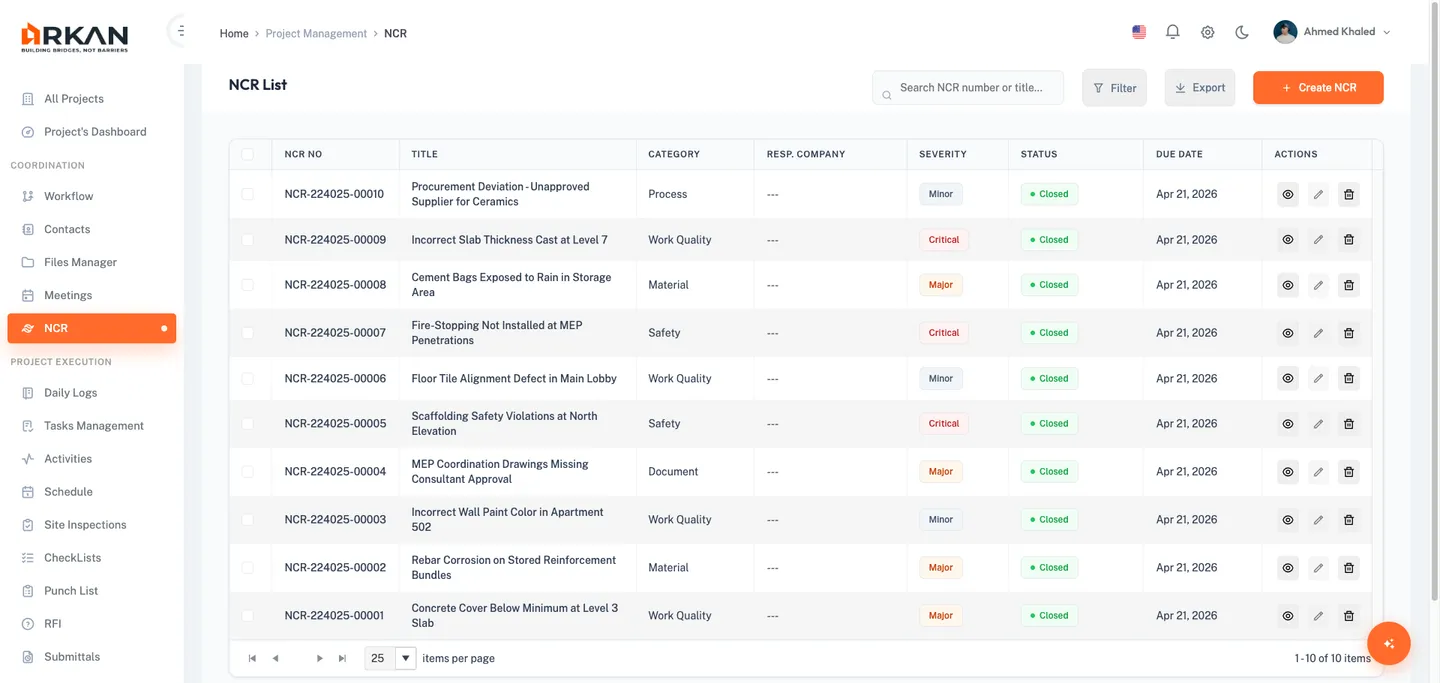
Grid Columns
| Column | Description |
|---|---|
| NCR No | Unique reference number |
| Title | Brief description of the non-conformance |
| Category | Work Quality, Material, Document, Process, Safety, or Other |
| Resp. Company | Company responsible for resolving the NCR |
| Severity | Minor (grey), Major (orange), or Critical (red) |
| Status | Draft, Open, Under Review, Action Required, CA In Progress, Ready for Verification, Closed, Voided |
| Due Date | Corrective action due date (red if overdue) |
| Actions | View, Edit (disabled for Closed/Voided), Delete/Void |
Advanced Filters
Filter by Status, Severity, Category, and Overdue status. Click Apply Filters to update, Reset to clear.
Tip: Use the Overdue Only filter to quickly identify NCRs past their corrective action due date.
NCR Dashboard
Navigate to Sidebar > Project Management > NCR > Dashboard.
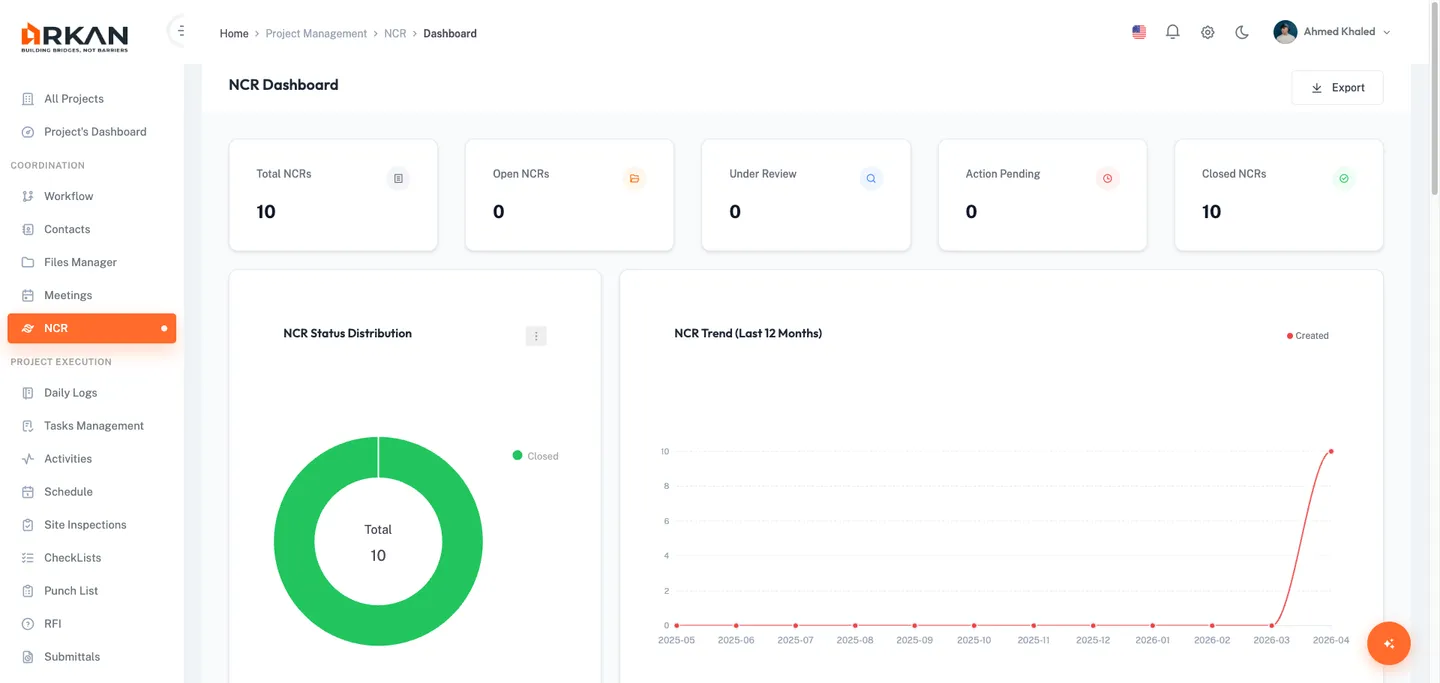
KPI Cards
Total NCRs, Open NCRs, Under Review, Action Pending, and Closed NCRs -- each with trend indicators.
Charts
- NCR Status Distribution -- Donut chart color-coded by status
- NCR Trend -- Monthly creation trend over 12 months
- NCR by Trade/Discipline -- Grouped bar chart (Open vs Overdue per company)
Critical Alerts Panel
Lists overdue and critical-severity NCRs with badges. Click an alert to navigate to its detail view.
Creating an NCR
Click Create NCR from the NCR list or navigate to Sidebar > Project Management > NCR > New.
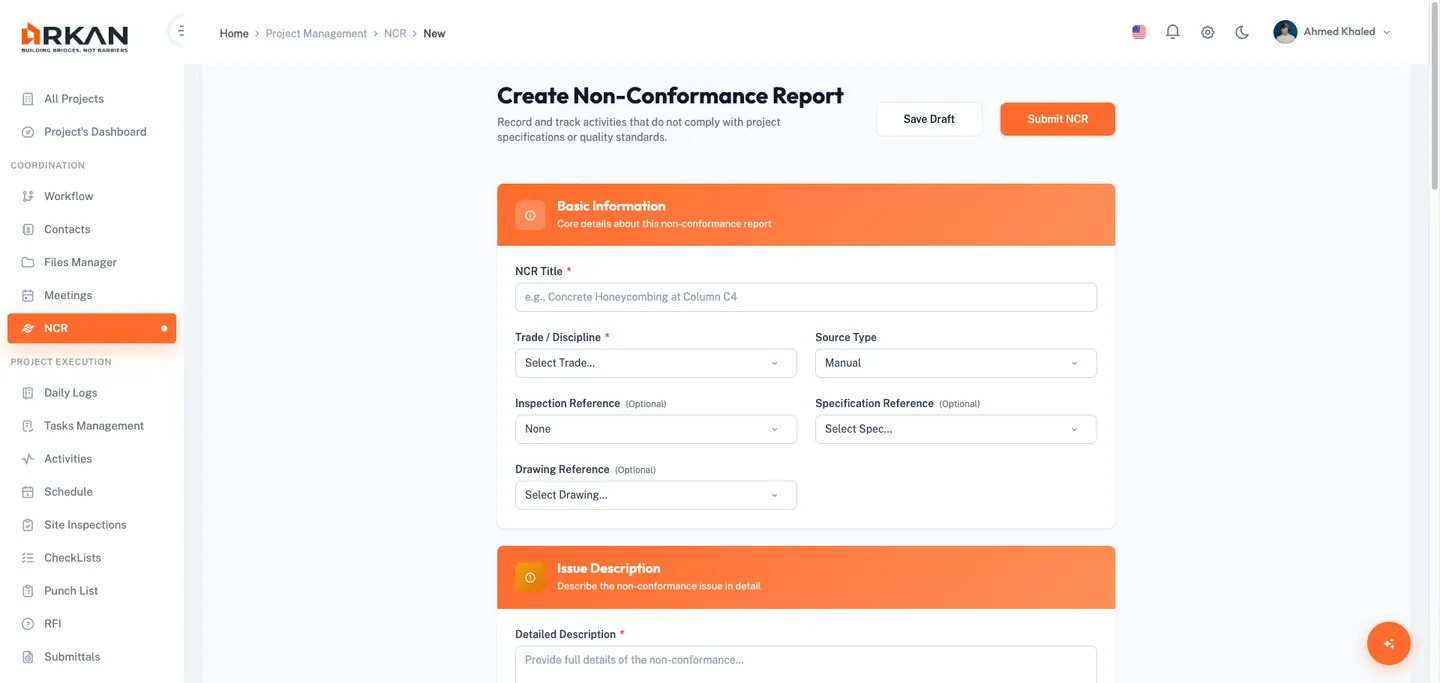
Section 1: Basic Information
| Field | Required | Description |
|---|---|---|
| NCR Title | Yes | Concise title (max 300 characters) |
| Trade / Discipline | Yes | Work Quality, Material, Document, Process, Safety, Other |
| Source Type | No | Manual, Failed Inspection, Drawing Review, Site Observation, Consultant Directive, Quality Audit, Material Rejection |
| Inspection Reference | No | Link to an existing inspection |
| Specification Reference | No | Link to a specification book |
| Drawing Reference | No | Link to a project drawing |
Section 2: Issue Description
| Field | Required | Description |
|---|---|---|
| Detailed Description | Yes | Full narrative of the non-conformance |
| Observation Details | No | Additional observations or root cause analysis |
| Severity | Yes | Minor, Major, or Critical |
| Severity Level | No | Low, Medium, or High |
Section 3: Responsible Party
| Field | Required | Description |
|---|---|---|
| Responsible Company | Yes | Company responsible for the NCR |
| Responsible Engineer | No | Assigned engineer |
| Subcontractor | No | Optional subcontractor reference |
Section 4: Attachments
Upload photos, PDFs, and documents (max 50 MB per file) via drag-and-drop or file browser.
Section 5: BOQ Linking
Link to a BOQ item. Linking locks the BOQ item when the NCR is issued, preventing cost modifications until resolved.
Section 6: Smart Pin
Link the NCR to a physical location on a project drawing. Select a drawing, choose or create a Smart Pin, and link it. Pin colors indicate type: Issue (Red), Question (Blue), Note (Amber), Action Item (Green), RFI (Violet).
Section 7: Corrective Action Request
| Field | Required | Description |
|---|---|---|
| Requested Corrective Action | No | Actions required to rectify the non-conformance |
| Due Date | No | Target completion date |
| Response Deadline | No | Deadline for the responsible party to respond |
Saving
- Cancel -- Discard and return to list
- Save Draft -- Save without issuing (skips validation)
- Submit NCR -- Validate, create, upload attachments, and issue the NCR
NCR Detail View
Click any NCR number or the View icon to open the detail page.
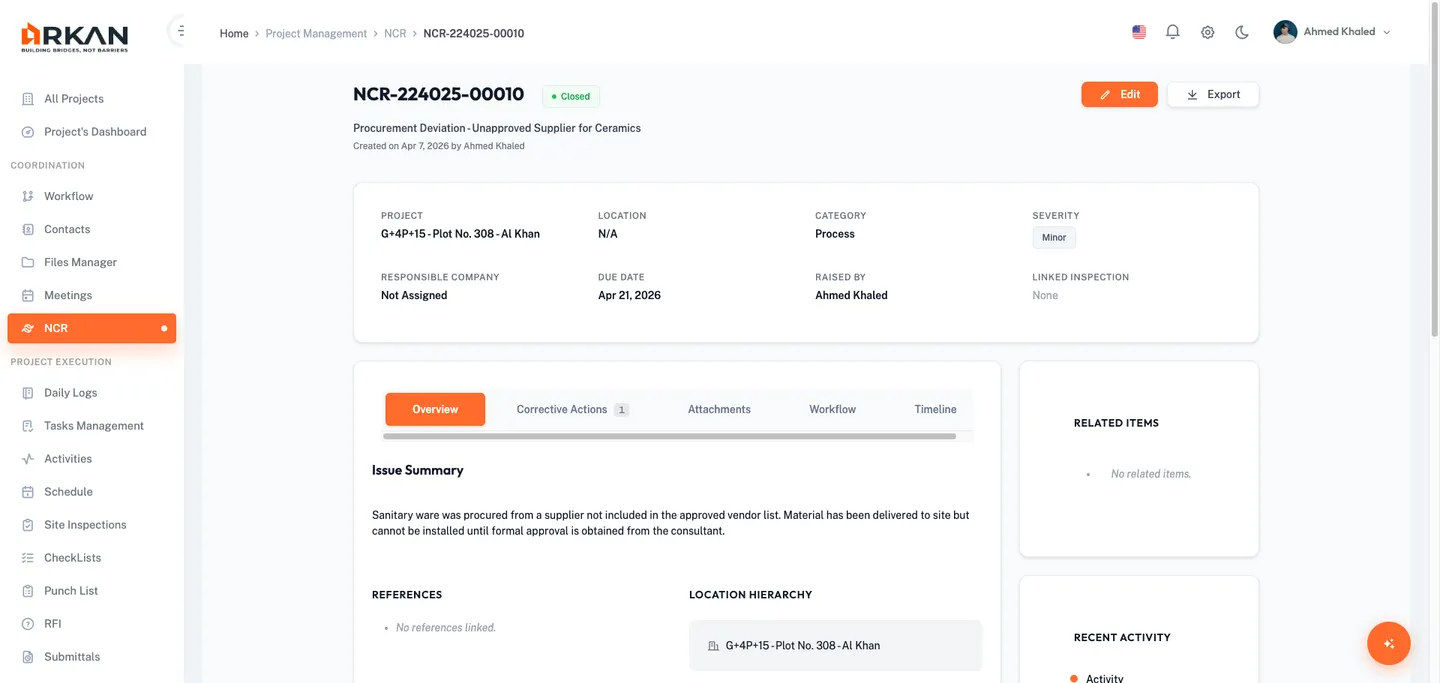
The header shows NCR Number, Status, Title, Created Date, Raised By, Edit and Export buttons. A yellow banner appears when a workflow approval is pending.
Tabs
- Overview -- Issue summary, references, root cause, proposed corrective action, closure details, and corrective actions preview
- Corrective Actions -- Table with description, responsible person, due date, and status. Add new actions here.
- Attachments -- Evidence files with upload capability
- Workflow -- Visual step indicator (Draft > Issued > Acknowledged > Closed)
- Timeline -- Chronological activity log with all status changes and actions
Right Sidebar
- Related Items -- Linked inspection, Smart Pin, BOQ item, specification, and drawing
- Recent Activity -- Three most recent activity log entries
Lifecycle Actions
| Action | Available When | Description |
|---|---|---|
| Issue NCR | Draft | Changes status to Issued |
| Acknowledge | Issued | Dialog for Root Cause and Proposed Corrective Action (both required) |
| Start Corrective Action | Acknowledged | Changes status to CA In Progress |
| Submit for Verification | CA In Progress | Changes status to Ready for Verification |
| Verify & Close | Ready for Verification | Dialog for Resolution Type and Closure Notes |
| Return for Rework | Ready for Verification | Dialog for Verifier Notes (required) |
| Void | Any (except Closed/Voided) | Permanent. Dialog for Reason for Voiding (required). |
Warning: Voiding an NCR is permanent and cannot be undone.
NCR Workflow Request
The Workflow Request page opens when you receive a workflow action notification for an NCR. It is typically reached via an encrypted link (the SQ query parameter) from a workflow email or notification, or via Sidebar > Project Management > NCR > Request.
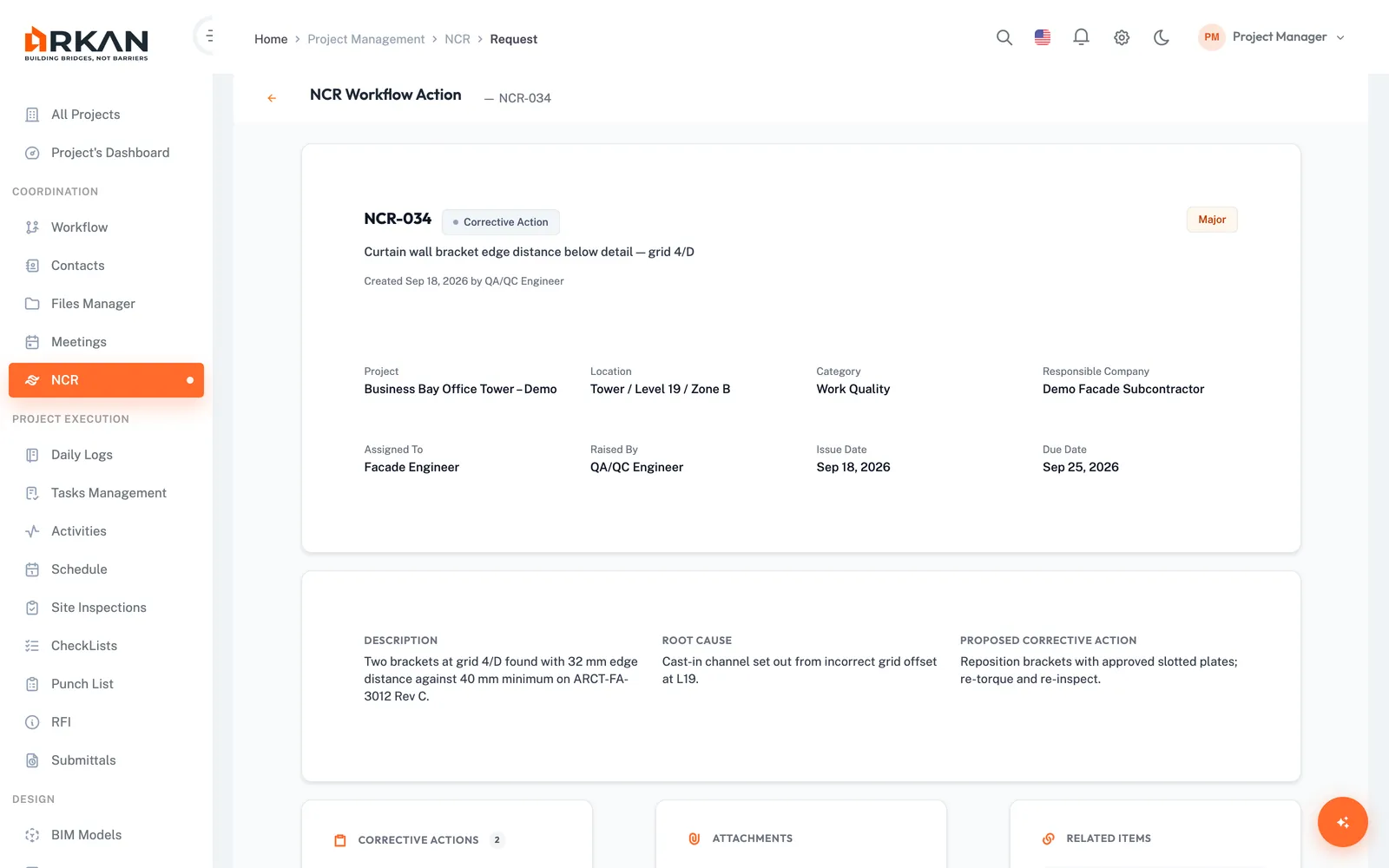
Page Layout
- NCR Header Card -- NCR number, status badge, severity badge, title, creation date, and raised-by user
- Info Grid -- Project, Location, Category, Responsible Company, Assigned To, Raised By, Issue Date, and Due Date
- Description & Root Cause -- If available, the description, root cause, and proposed corrective action in a three-column layout
- Corrective Actions -- A compact list of corrective actions with completion status
- Attachments -- A compact list of attached evidence files
- Related Items -- Links, Smart Pins, and BOQ items
- Workflow Action Component -- The standard Arkan workflow action form to approve, reject, or take other configured workflow actions
Submitting a Workflow Action
- Review the NCR details and supporting information.
- Complete the workflow action form (select action, add comments as required).
- Click Send to submit the workflow action.
A success notification confirms the action and you are redirected to the workflow process page. Click Cancel to return to the workflow process page without taking action.
Smart Pin Viewer
The Smart Pin Viewer is a full-screen modal for viewing project drawings at high resolution, seeing existing Smart Pins overlaid on the drawing, creating new pins, and linking pins to the current NCR.
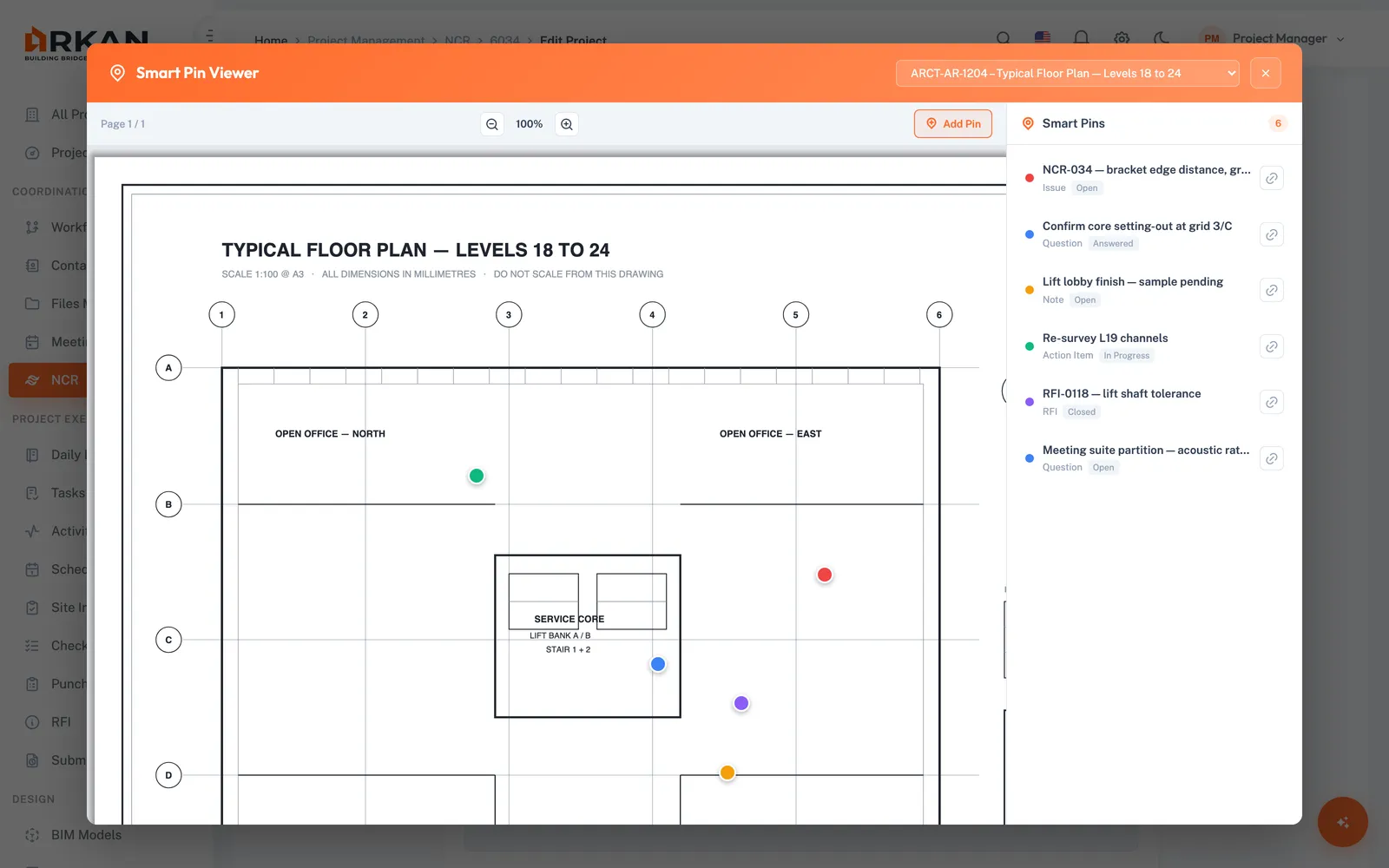
Opening the Viewer
From the NCR form (create or edit), in the Smart Pin section:
- Select a drawing from the dropdown (or leave it unselected).
- Click Full View or Open Pin Viewer.
Viewer Layout
- Left Panel: PDF Viewer -- The selected drawing PDF with zoom controls and a pin overlay
- Right Panel: Pins List -- Smart Pins on the current drawing, a detail panel for the selected pin, or the add-pin form
Use the dropdown at the top-right of the modal header to switch between project drawings; changing the drawing reloads the PDF and pins.
PDF Toolbar
| Control | Description |
|---|---|
| Page Info | Current page and total pages (e.g., "Page 1 / 3") |
| Zoom Out | Decreases zoom by 25%. Minimum: 50% |
| Zoom Level | Current zoom percentage. Click to reset to 100% |
| Zoom In | Increases zoom by 25%. Maximum: 300% |
| Add Pin | Starts pin placement mode. The label changes to "Click on drawing..." while active |
Viewing Existing Pins
Existing pins appear as colored dot markers (color = pin type). Hover over a marker to see the pin title; click a marker, or a pin card in the right panel, to open its detail panel. The detail panel shows the Pin Title with type/status badges, Description, Created By, Date, Discipline, and a Link to NCR button that links the pin to the current NCR and closes the viewer.
Creating a New Smart Pin
- Click Add Pin in the PDF toolbar.
- Click anywhere on the drawing to place the pin. A pulsing pin marker appears at the clicked location.
- Complete the New Smart Pin form in the right panel:
| Field | Required | Description |
|---|---|---|
| Title | Yes | A descriptive title for the pin |
| Description | No | Additional details |
| Pin Type | Yes | Pin types configured for the project, or the defaults: Issue, Question, Note, Action Item, RFI |
| Discipline | Yes | From the project's discipline list |
| Status | Yes | From the configured status options |
| Priority | No | Low, Medium, High, or Critical |
| Choose Existing Document | No | Multi-select list of project documents (hold Ctrl/Cmd to select multiple) |
| Attachments | No | Upload images, PDFs, or Office documents |
- Click Create Pin to save, or Cancel to discard the placement.
The pin list refreshes, the new pin appears on the drawing, and the NCR form refreshes its pin list.
Tip: If no drawing session exists for the selected drawing, the system automatically creates one before saving the pin.
Close the viewer with the X button or by clicking outside the modal. Any drawing change made in the viewer is synced back to the NCR form's drawing dropdown.
Exporting an NCR
Export to Print (Individual NCR)
- Open an NCR detail page and click Export in the header.
- A new browser window opens with a formatted report: NCR number, status, creation date, raised-by user; details grid (Project, Category, Severity, Location, Responsible Company, Assigned To, Due Date, Issue Date); description; root cause and proposed corrective action (if available); corrective actions table; closure details (if closed); and a generated-on timestamp.
- The browser print dialog opens automatically. Print to paper or save as PDF.
Export List to Excel
From the NCR list page, click Export in the header. An Excel file (NCR-List.xlsx) downloads with the columns: NCR No, Title, Category, Responsible Company, Severity, Status, Due Date.
NCR Status Lifecycle
Draft --> Issued --> Acknowledged --> CA In Progress --> Ready for Verification --> Closed
                                                              |
                                                              +--> Return for Rework --> CA In Progress

Any status (except Closed/Voided) --> Voided
| Status | Color | Description |
|---|---|---|
| Draft | Grey | Created but not yet issued |
| Open / Issued | Orange | Formally issued to the responsible party |
| Under Review | Blue | Being reviewed or investigated |
| CA In Progress | Red | Corrective action underway |
| Ready for Verification | Purple | Awaiting verification |
| Closed | Green | Verified and closed |
| Voided | Grey | Voided/cancelled |
Severity and Category Reference
Severity Levels
| Severity | Color | Description |
|---|---|---|
| Minor | Grey | Low-impact, corrected with minimal effort |
| Major | Orange | Significant, requires formal corrective action |
| Critical | Red | Severe, with potential safety, structural, or major quality implications |
Categories
Work Quality, Material, Document, Process, Safety, Other.
Source Types
Manual, Failed Inspection, Drawing Review, Site Observation, Consultant Directive, Quality Audit, Material Rejection.
Resolution Types
Rectify, Remove & Replace, Accept with Concession, No Action Required.
BOQ Integration
When an NCR is linked to a BOQ item:
- The BOQ item becomes locked when the NCR is issued
- Cost modifications to the BOQ item are restricted while locked
- The lock is released when the NCR is closed or voided
- The lock status is visible in the NCR list and detail view
Troubleshooting
| Problem | Solution |
|---|---|
| NCR list shows "No NCRs found" | Verify a project is selected and your role has NCR read permissions. Clear active filters. |
| Cannot create a new NCR | Ensure a project is selected and your role has NCR create permissions. |
| Lifecycle action buttons not visible | Check for the yellow "Pending Workflow Approval" banner. Actions appear after the workflow completes. |
| File upload fails | Check file size (max 50 MB) and network connection. |
| Smart Pins not loading | Ensure the drawing has a valid PDF file and drawing sessions exist. |
| Cannot link a BOQ item | Ensure the project has BOQ data uploaded. |
| Export button does not open print dialog | Check that your browser allows pop-up windows for Arkan. |
| NCR cannot be edited | NCRs in Closed or Voided status cannot be edited. |
| Dashboard charts show "No data available" | Create and issue NCRs to populate the dashboard. |
Back to: Help Center